

On-Demand Instances
Launch, manage, and understand the lifecycle of on-demand GPU and CPU instances on qBraid Lab.
On-demand instances provide GPUs and CPU configurations billed in credits. Choose an available profile and review its price before launching.
Launching an instance
From your dashboard, switch to the On-Demand tab to see available GPU and CPU profiles. Each profile shows its pricing in credits per minute and a capacity tag indicating current availability: High, Medium, or Low. Profiles tagged No Capacity cannot be launched until resources free up. A profile without a tag has no current capacity data.
Click Launch next to any available profile to start an instance.
The On-Demand tab shows each profile’s rate and whether the current balance permits launch.
The default balance tiers allow up to 5 concurrent on-demand instances. Your account configuration can impose different limits. See pricing for how to check current rates.
Accessing your instance
Once an instance is running, it appears under your My Instances tab.
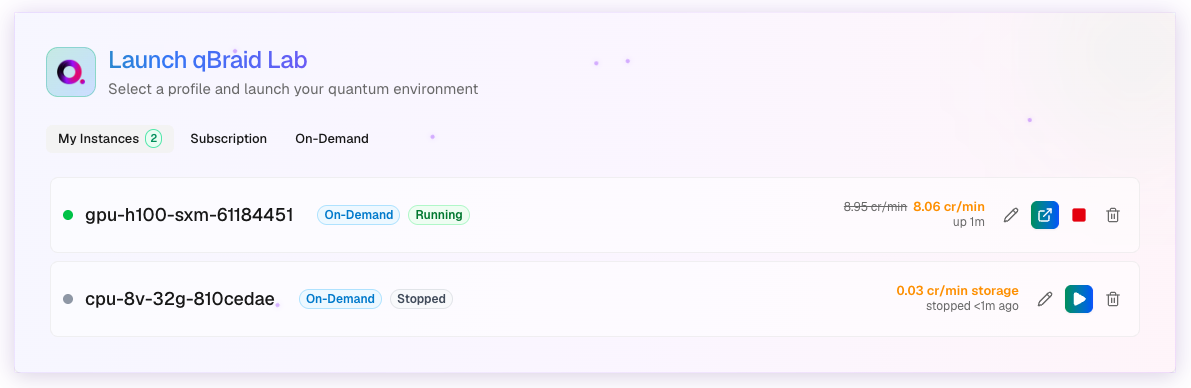
The instance row has two actions:
-
Select the Arrow icon to open the instance in JupyterLab.
-
Select the Pencil (Edit) icon to open the instance details and choose a browser connection:
- JupyterLab opens notebooks for interactive computing.
- VS Code provides an IDE with extensions and debugging.
- Terminal provides shell access to the instance.
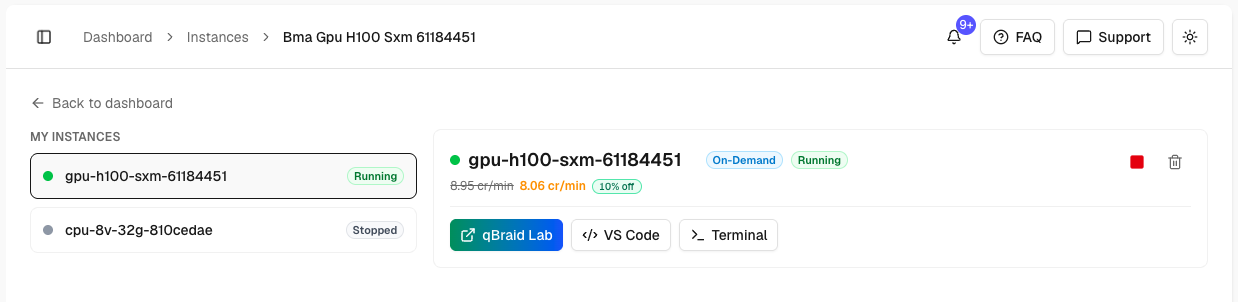
You can also connect to running instances remotely via SSH using the qBraid CLI.
Instance lifecycle
On-demand instances have three states you control: Running, Stopped, and Terminated.
Launch → Running → Stop → Stopped → Resume → Running
                      │                  │
                      └── Terminate ◄────┘
Running
Your instance is active and accessible. Compute is billed at the credits-per-minute rate shown on the instance tile. Storage is billed separately based on retained disk capacity and the applicable per-GB-hour rate.
Stopped
Stopping releases compute and preserves your instance’s disk, including files and installed packages. Storage charges continue while the instance is stopped. The rate is per GB-hour and depends on the retained disk capacity.
You can resume a stopped instance at any time. When you do, your files will be exactly as you left them.
Terminated
The instance and its disk are permanently deleted. All files on the instance are lost and cannot be recovered. Billing stops completely.
Stop vs terminate
| Stop | Terminate | |
|---|---|---|
| Compute | Released (no compute charges) | Deleted |
| Disk / Files | Preserved | Permanently deleted |
| Billing | Storage billed per GB-hour of retained disk | No further charges |
| Resumable | Yes; resume anytime | No; launch a new instance |
Stop the instance when you want to return to the same environment later. Your files, packages, and configuration stay intact.
Terminate the instance when you are done and do not need its data. Terminating frees the storage slot and stops all billing.
Some instance types only support termination. Stop and resume are unavailable. For these instances, the Stop button will not appear; only Terminate is shown.
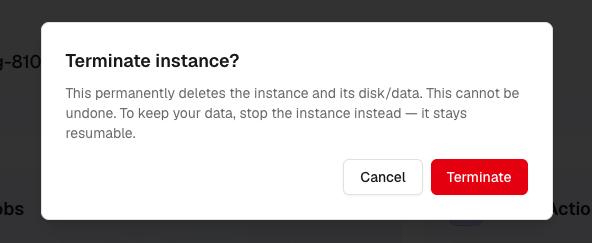
Terminating an instance permanently deletes all files on it. Download or export any important work before terminating. When the provider supports it, stop the instance to keep its disk for resumption.
File persistence
On-demand instances handle files differently from subscription instances:
- On-demand instances do not sync files from cloud storage at launch. Each instance has its own disk.
- Use the Files tab to download files from cloud storage into an instance. Changes do not sync back to cloud storage.
- Stopping preserves the disk. Your files remain available when you resume.
- Terminating permanently deletes the disk and all its files.
If you’re working on important files in an on-demand instance, download them to your local machine or push them to a Git repository before terminating.
Billing
On-demand instances are billed per minute in qBraid credits (100 credits = $1 USD).
| State | What you are charged |
|---|---|
| Running | The displayed compute and storage rate |
| Stopped | Storage for the retained disk |
| Terminated | No further instance charges |
Compute rates vary by instance type. See pricing for how to check current rates. Storage charges depend on retained disk capacity and the applicable rate. Check the instance details instead of assuming a fixed storage price.
The default credit-balance tiers determine how many instances you can provision or resume:
| Credit Balance | Concurrent Instances |
|---|---|
| 100+ credits ($1+) | 1 |
| 1,000+ credits ($10+) | 2 |
| 2,500+ credits ($25+) | 5 |
An administrator can configure different thresholds or a lower cap. Stopped instances do not use running slots, but still count toward the total instance limit. A balance drop does not immediately remove an already-running instance; continued operation depends on payment renewal.
Manage instances from the CLI
The current CLI provides the same lifecycle through qbraid compute instances:
qbraid compute instances list
qbraid compute instances availability
qbraid compute instances show INSTANCE_ID
Run qbraid compute instances --help to find launch, resume, stop, terminate, and SSH commands for your installed version.
Thanks for your feedback.