

Environment Manager
Install, create, share, and manage Python virtual environments for quantum computing.
The Environment Manager is a streamlined quantum software package and virtual environment management system provided to qBraid end-users through a simple, intuitive graphical user interface. It offers curated development environments over a range of quantum applications.
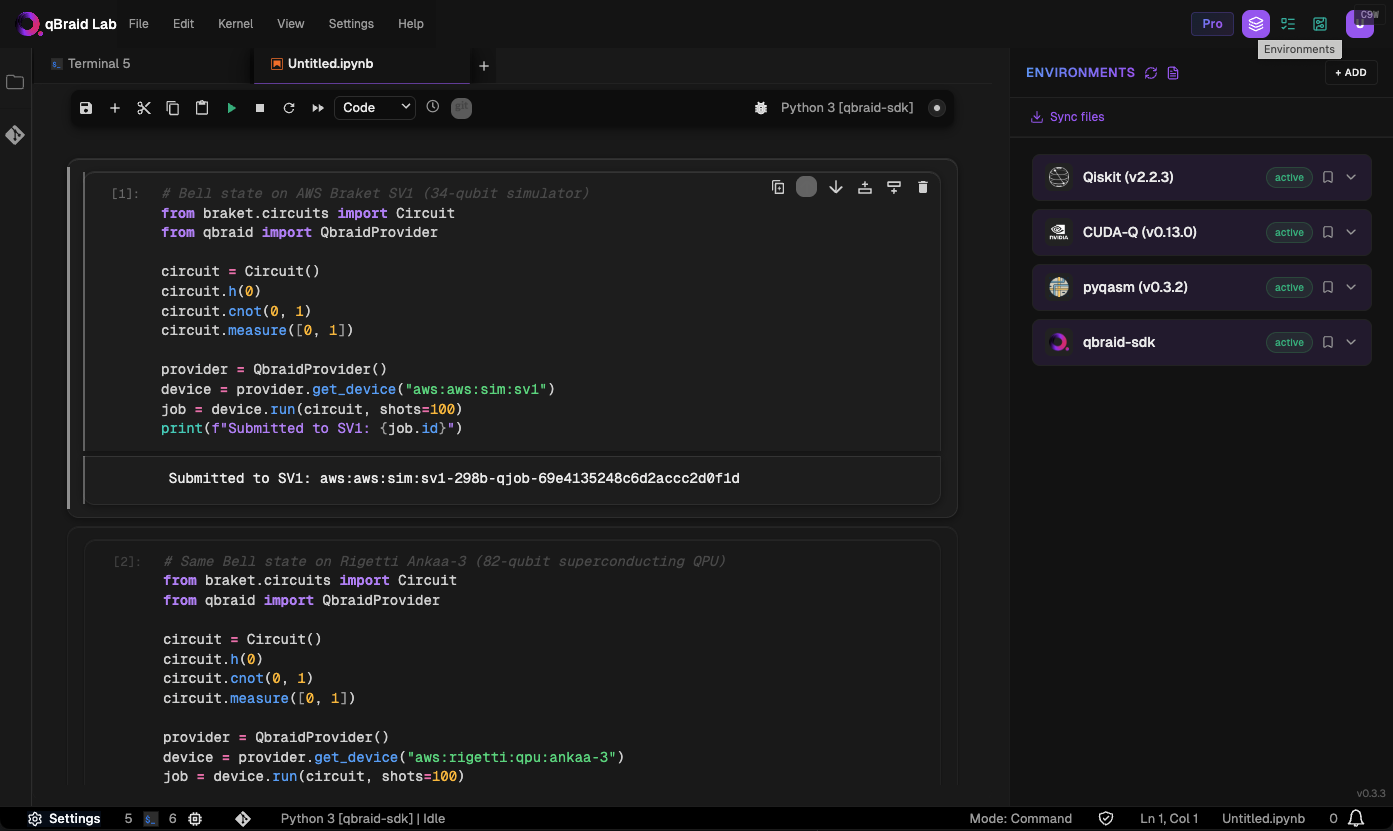
Click the Environments icon in the top-right of the Lab console to open the Environment Manager sidebar and view your currently installed environments.
Install environment
-
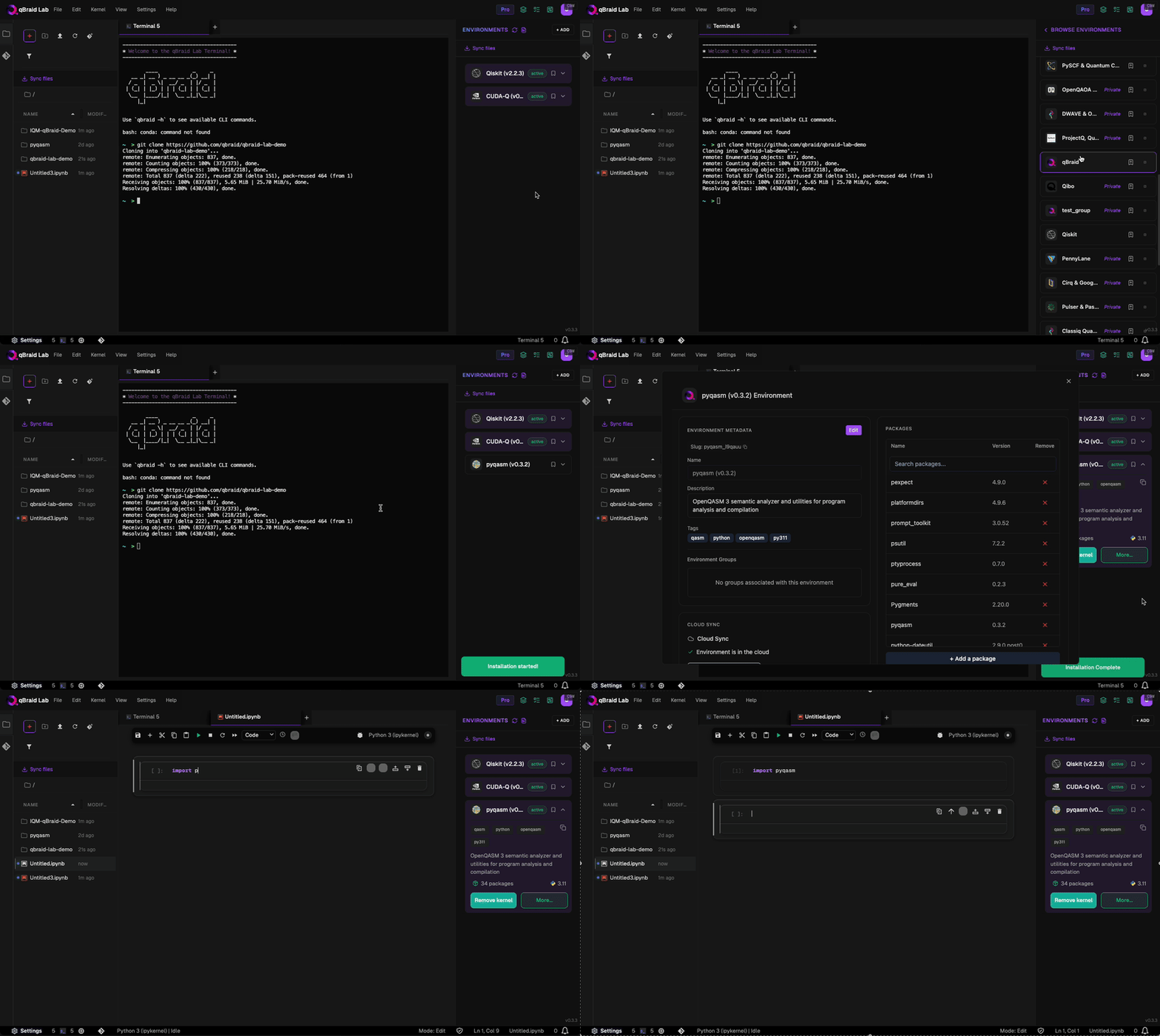
In the Environment Manager sidebar, click Add to view the environments available to install.
-
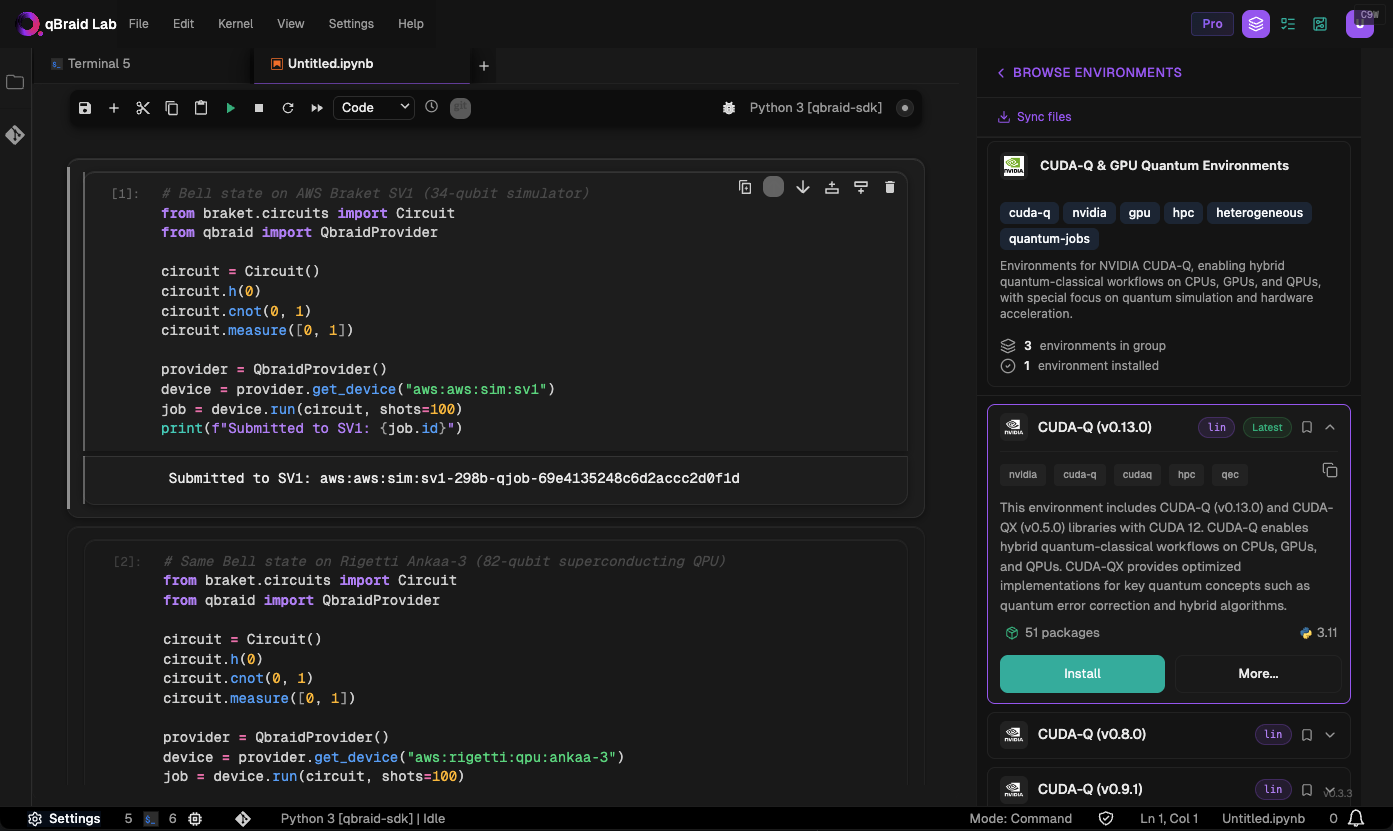
Environments are organized into groups (e.g. Qiskit, CUDA-Q, Pennylane). Click a group to view the environments it contains.
-
Choose an environment, expand its panel, and click Install. Once the installation has started, the panel is moved to the Environments tab. Click Browse Environments to return to the Environments tab and view its progress.
-
When the installation is complete, the environment panel’s action button will switch from Installing… to Add kernel.
-
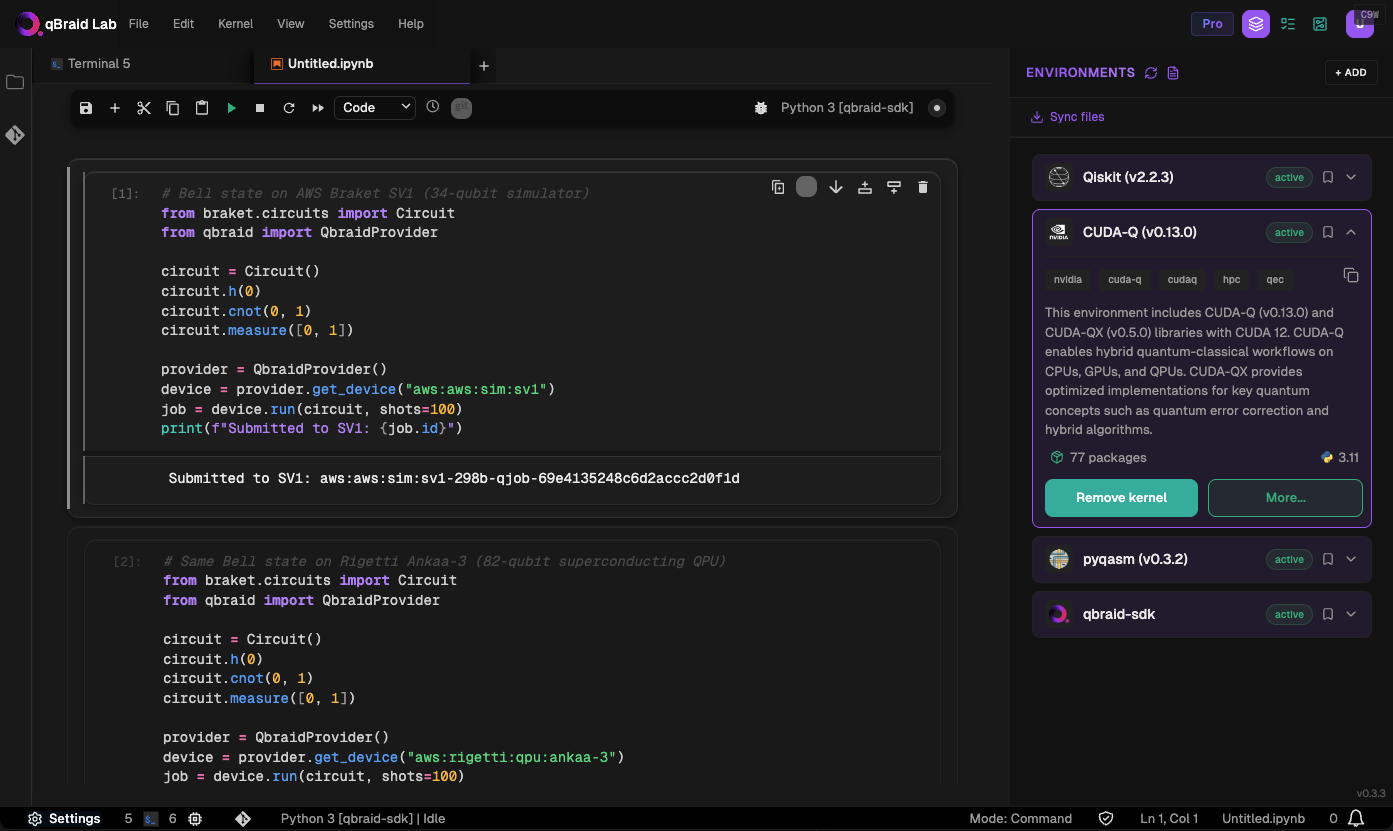
Click on the expanded environment tile to view its description, tags, package count, and Python version. From here you can Add kernel or Remove kernel, and click More… to open the full environment editor.
Filter environments
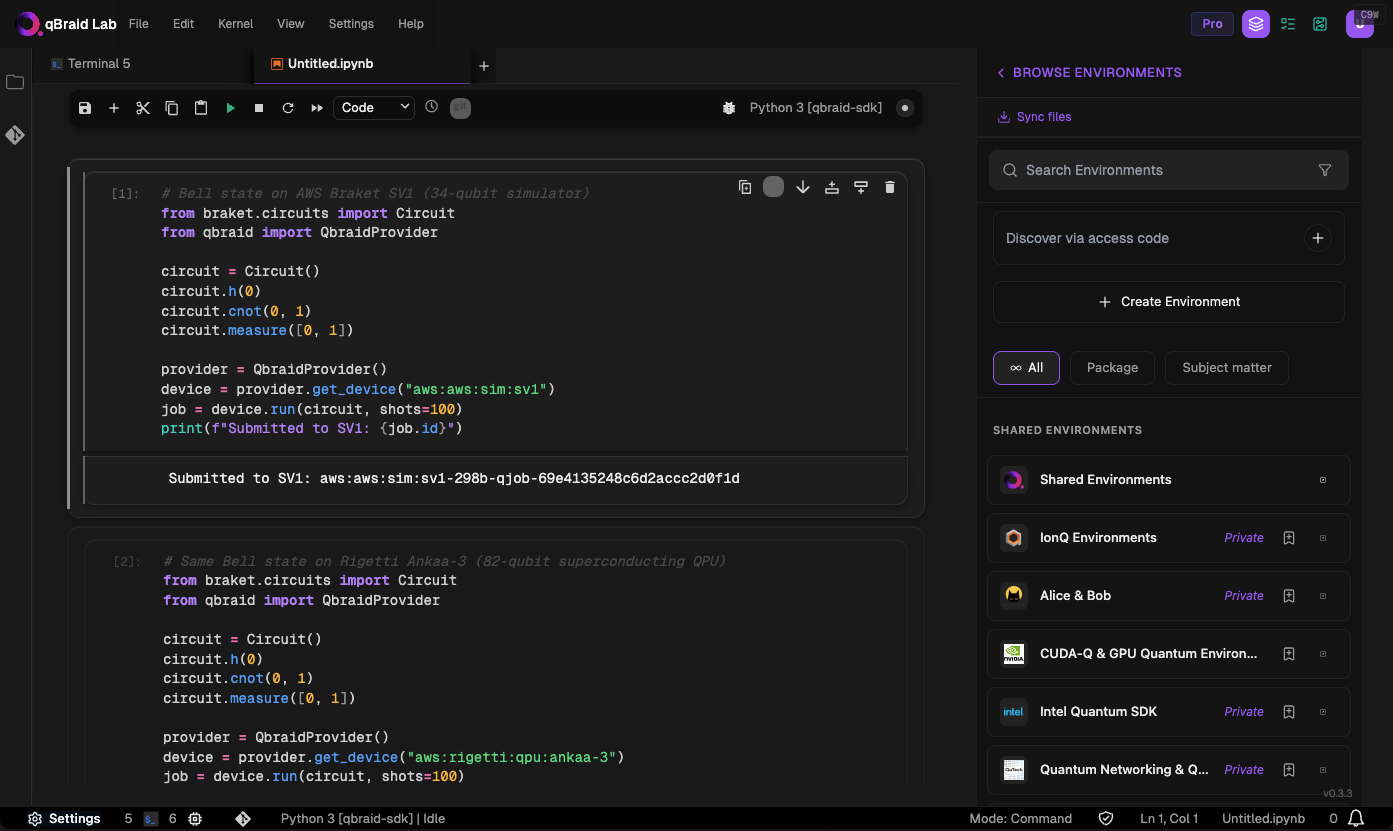
Use the toggle buttons at the top of the environment browser to switch between filter modes:
- All — show all available environment groups
- Package — filter by the primary quantum software package (Qiskit, Pennylane, Cirq, etc.)
- Subject Matter — filter by quantum computing domain (Chemistry, Machine Learning, Error Correction, etc.)
You can also type in the search bar to find environments by name or keyword. Use the Discover via access code field to add privately shared environments.
Browse an environment group
Click on any environment group to view the environments inside it. Each environment tile shows its name, description, tags, package count, and an Install button.
Discover via access code
Environments shared via access code are not publicly listed. To install one of these private environments, first enter the access code in the “Discover via access code” field and click the ”+” button. This will add the environment to your sidebar. You can then enter the environment name in the search bar or scroll to find it, and proceed with step 2 above to install it as usual.
If the environment doesn’t appear in search results after entering the access code, click Browse Environments to go back to the main sidebar, click the Refresh icon, and then click Add to return to the search page and browse for the environment again. If the issue persists, ensure that you’ve entered the correct access code and are searching for the correct environment name. If you continue to experience problems, please contact our support team.
Create environment
-
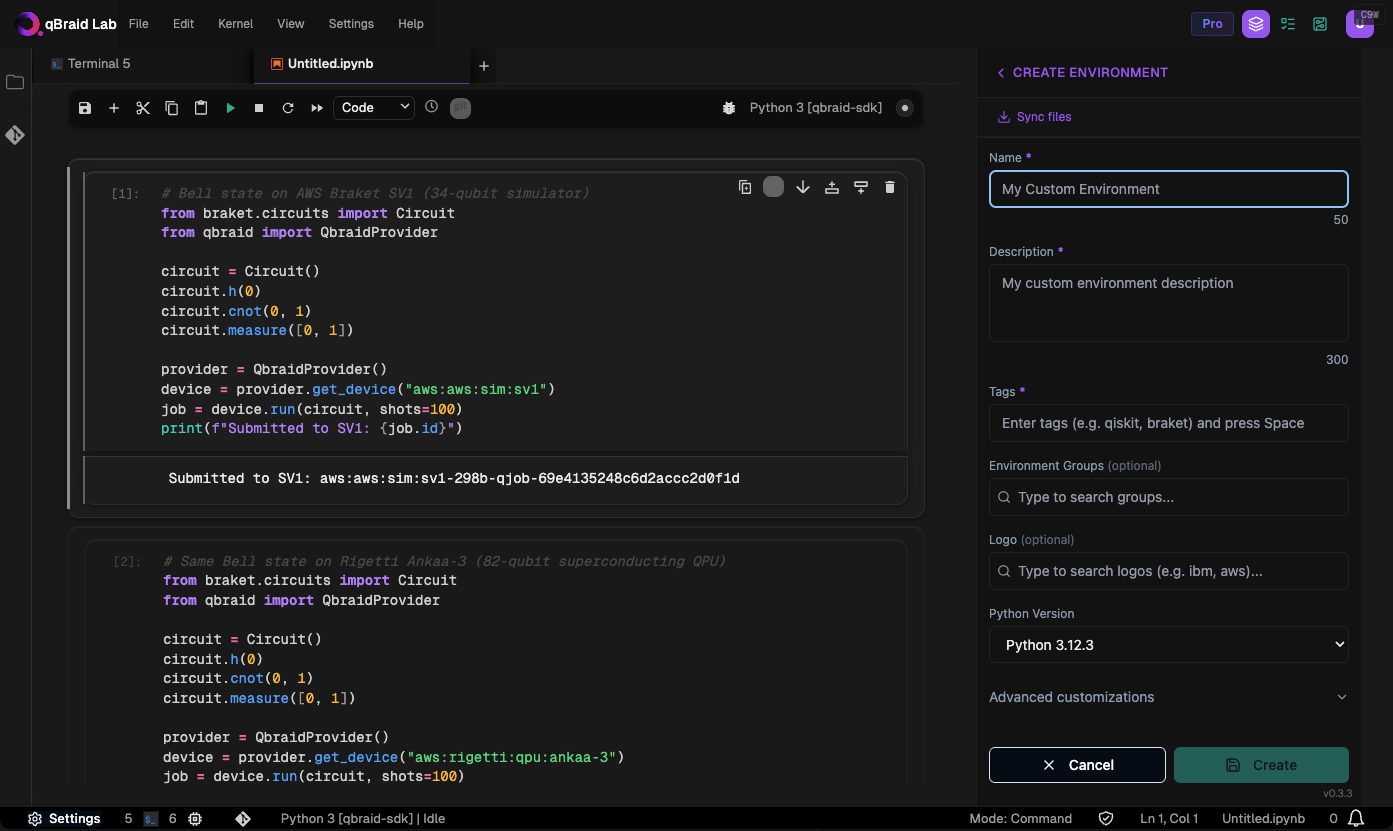
In the Environment Manager sidebar, click Add, then click Create Environment.
-
Give your custom environment a name, description, add tags, upload a logo, and specify any packages to install using a
requirements.txtformat.
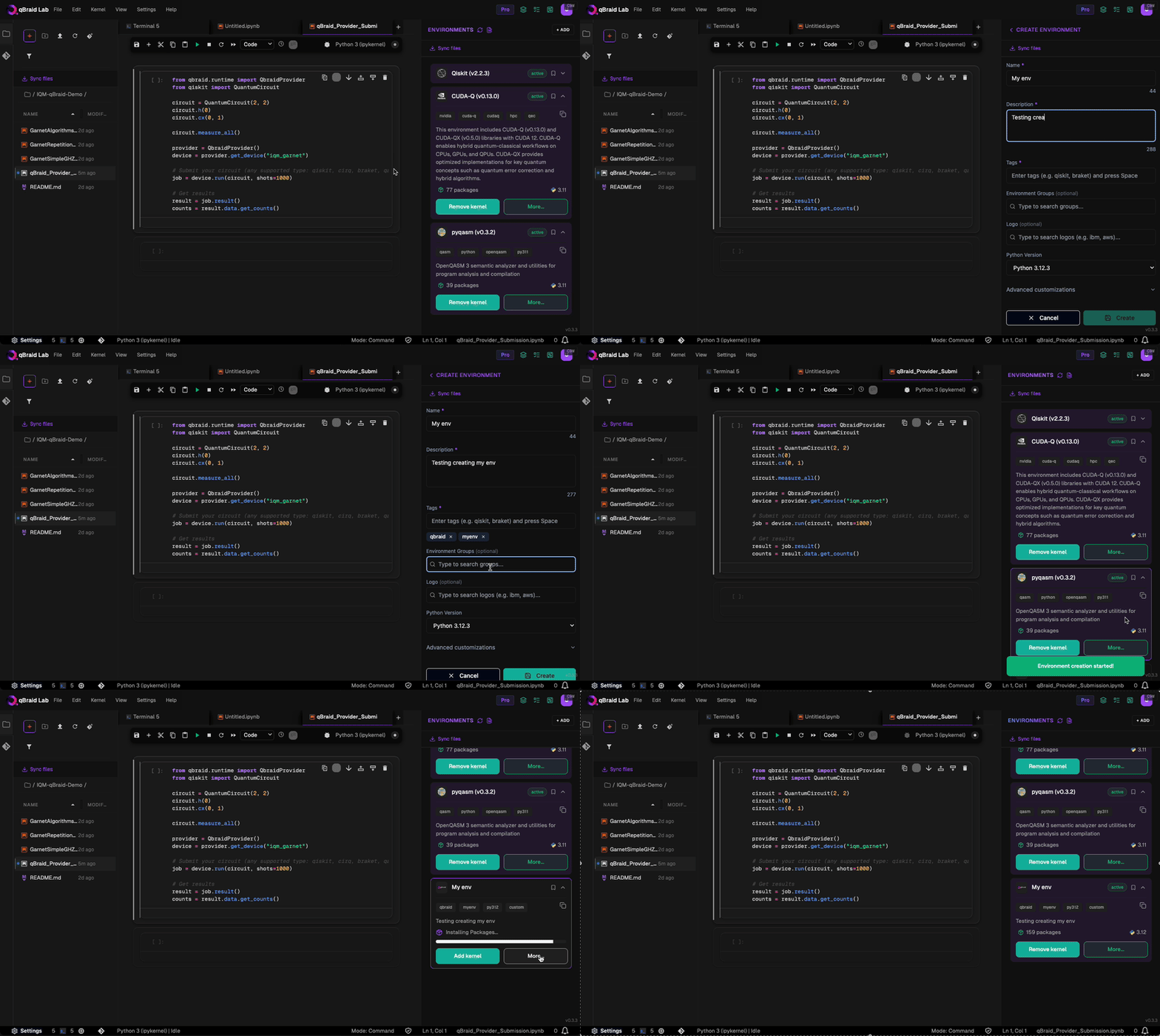
After clicking Create, a new environment panel is created for your custom environment. You can view the environment’s install progress by returning to My Environments.
-
Once the environment has been created and any package installations have finished, the environment panel’s action button will switch from Installing… to Add kernel, and the installed packages number will be updated.
-
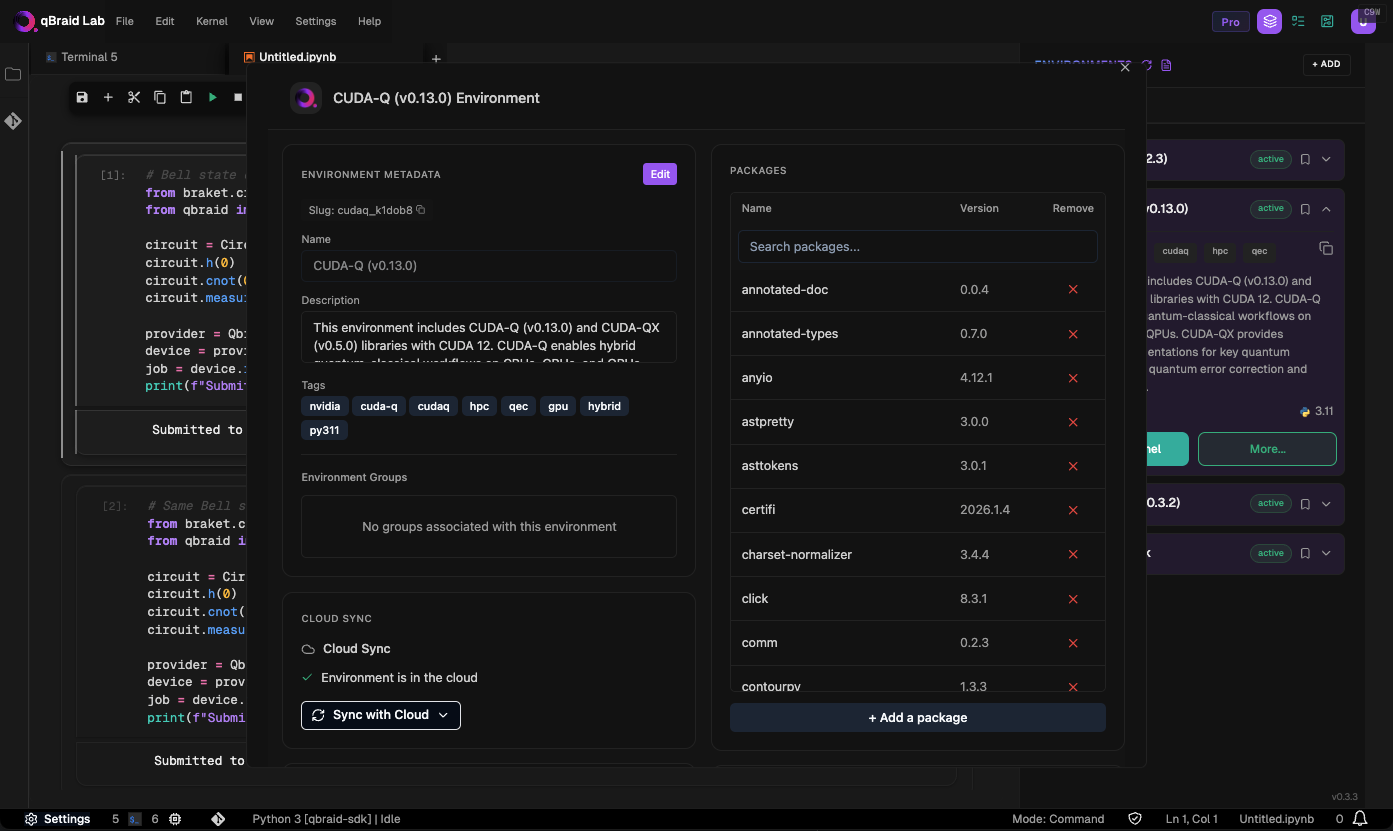
Click on More to verify/view the environment’s list of installed packages. You can use the search bar or scroll through the Python package (pip) list to find the exact versions of all packages and package dependencies that were installed. From the More pop-out, you can also install additional packages, remove packages, add/delete tags, and edit the environment’s description.
Clone environment
You can create a custom environment based on an existing one by cloning it. Clicking the Clone button will automatically populate the
requirements.txt file and other environment metadata in the “Custom Environment” form. This is useful, for example, if you want to make
and share changes to an environment you don’t own.
Environment editor
Click More… on any environment tile to open the full environment editor. From here you can:
- View and edit environment metadata (name, description, tags)
- Browse the full packages list with search, version info, and remove buttons
- Add a package — search PyPI and install the latest version
- Cloud Sync — sync the environment to the qBraid cloud for sharing
- Share the environment with other users via access code
Upload to cloud
Before you can share or publish an environment, you must first upload it to the qBraid cloud. In the environment editor, scroll to the Cloud Sync section and click Upload to Cloud.
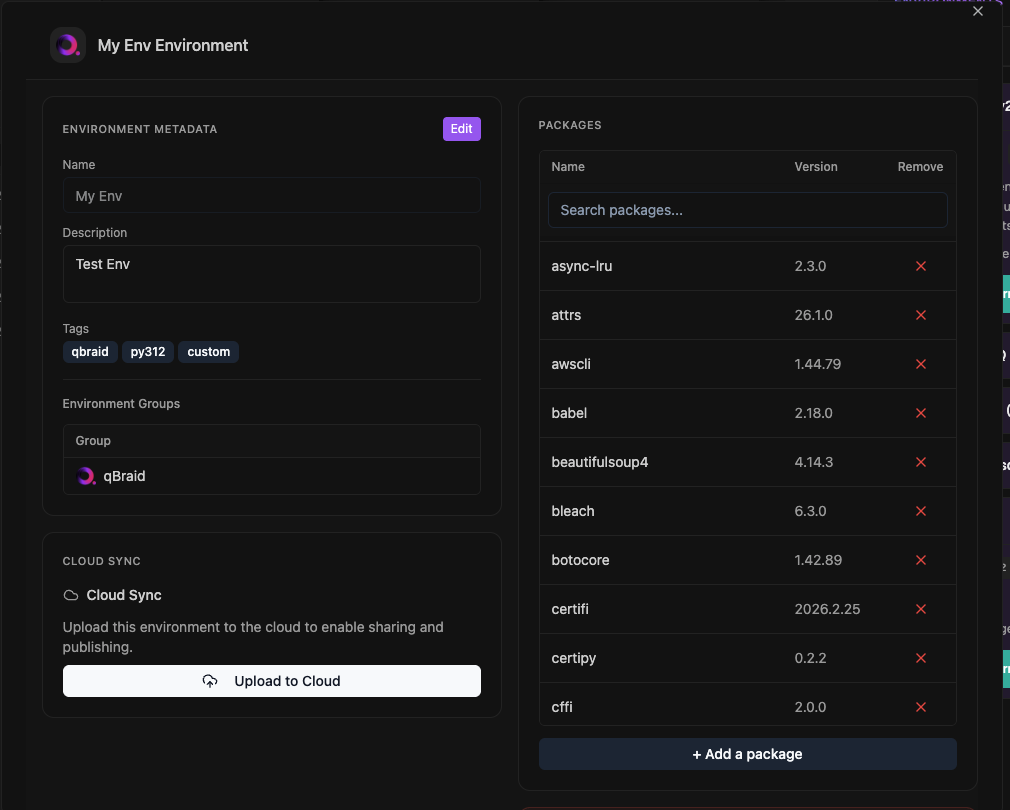
Once uploaded, the status changes to “Environment is in the cloud” and the button becomes Sync with Cloud for pushing future updates.
Share environment
In qBraid Lab, you can share your custom environments with other users. This will make your environment visible under their Add environment list. They can then install it, and run code using an exact copy of your environment. This includes support for quantum jobs and any additional configurations.
To share a custom environment, first click the More button in the drop-down to open the environment editor. Then, under ‘Share Environment’, select Generate Access Code to create a unique access code. Anyone with this code will be able to discover and install the environment with read-only access.
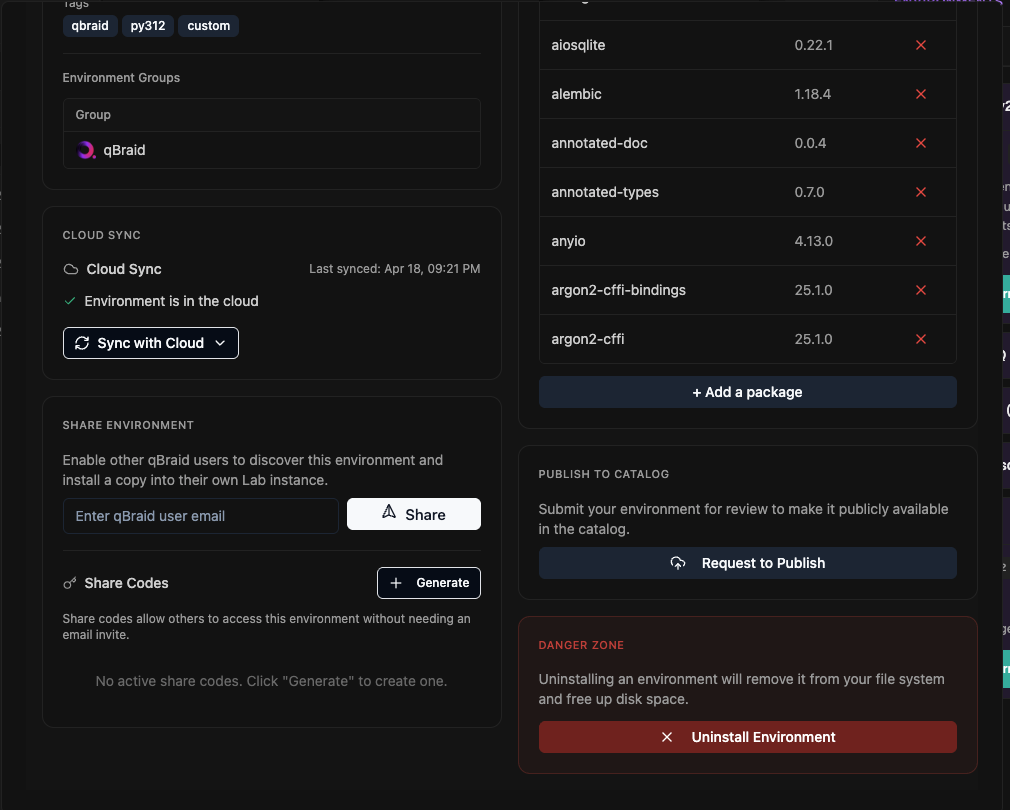
When you share an environment via access code, you’re creating a snapshot of your Python virtual environment with its specific configurations and installed packages. This snapshot is uploaded to the qBraid cloud, creating a static version accessible to other users. This shared version remains unchanged, even if you make updates to your local environment. To reflect any changes, you’d need to generate a new access code and overwrite the existing version in the cloud.
Overwriting a shared environment doesn’t affect versions that other users have already downloaded. Instead, an indicator notifies them of the availability of an updated version. Currently, users must manually check for this indicator. Also, before installing an updated version, users must uninstall their current one as maintaining multiple versions of a shared environment isn’t supported.
Publish environment
Make your custom environment accessible to the entire qBraid ecosystem by submitting a publish request. Once you’ve configured your environment to meet your specifications, open the environment editor using the More button and select Request to publish. A qBraid admin will review and test your environment as needed, providing feedback if adjustments are required. Once approved, the environment will be made public, and ownership will be transferred to qBraid.
Install new package
Find the environment into which you want to install the package, expand the environment panel using the carrot drop-down, and then click More.
At the bottom of the Python packages list, click Add a package. Type in the exact name of the package you wish to install into the “Add package…”
search bar, and then hit Enter (or click the search icon on the right). This will do a direct search through PyPI, and return the
latest version available to install. To accept, click on the package, and then click Add.
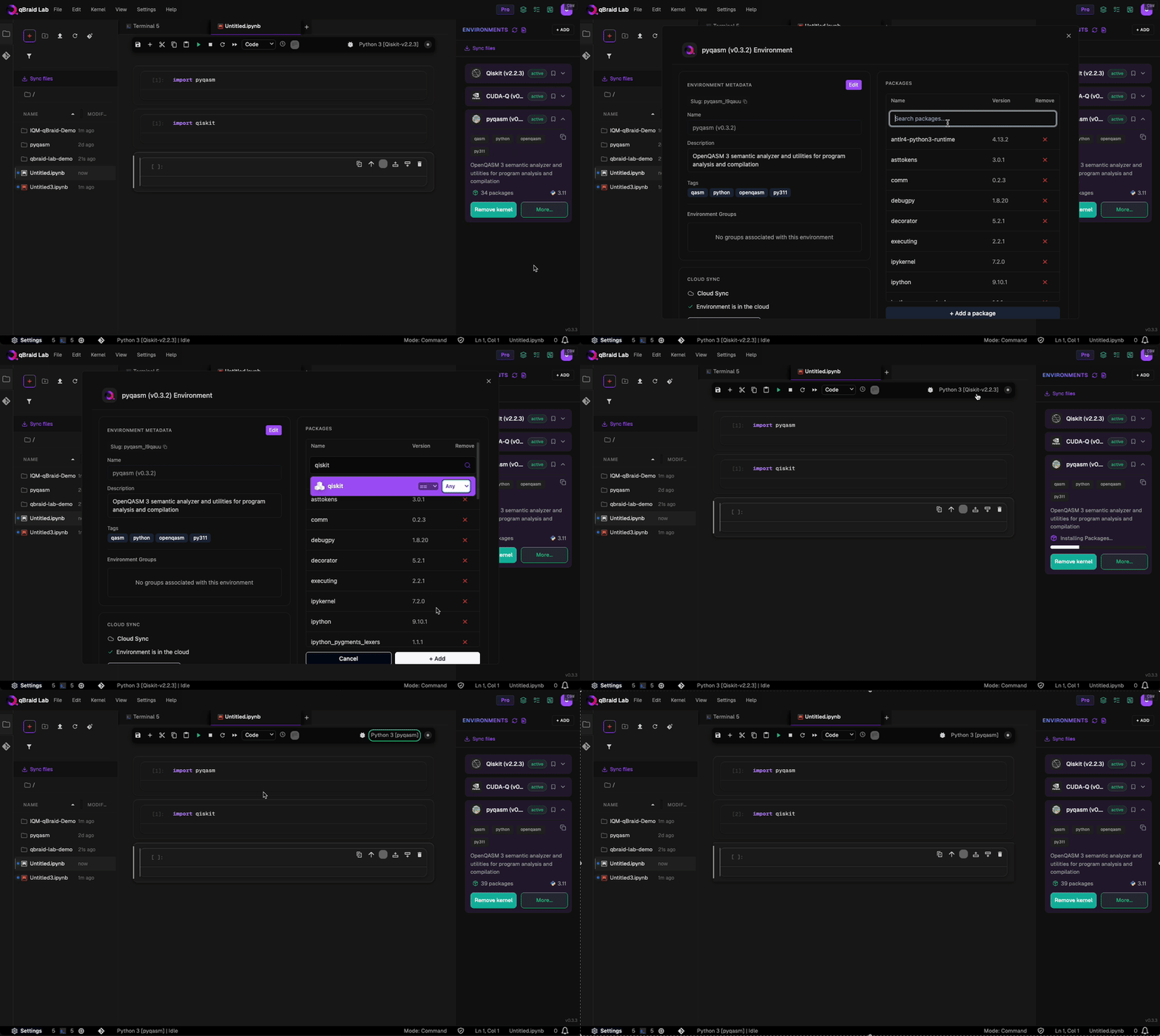
While installing, the environment action button will indicate Installing…. Once complete, Lab will notify with a pop-up.
Package installation is blocked while file sync is in progress. Wait for sync to complete before installing or removing packages.
Uninstall / cancel install environment
To uninstall an environment or cancel the installation of an environment, click on More, and then Uninstall or Cancel Installation.
Uninstalling an environment also removes its kernel from the launcher. Any notebooks using that kernel will need to be switched to a different kernel.
Activate environment (kernel)
Clicking Add kernel creates a new ipykernel, see Add/remove kernels for more.
Permissions
Some features, such as publishing environments, require an Enterprise-level subscription or partnership. For more information, visit our subscriptions page or contact us at contact@qbraid.com.
Thanks for your feedback.