

Files
Open, create, rename, delete, and download files in the qBraid Lab file browser, and see how file sync differs on subscription and on-demand instances.
File browser
The file browser and Files menu enable you to work with files and directories on your system. This includes opening, creating,
deleting, renaming, downloading, and copying files and directories. To open the file browser, click on the “Folder”
icon in the left sidebar (or use shortcut Cmd+Shift+F).
Navigate by double-clicking folders in the listing or clicking folders at the top of the directory listing. To open any file, double-click on its name, or drag the file into the main work area to create a new tab.
Show hidden files
Hidden files are those whose names start with a “.” (e.g., .bashrc, .gitignore). These are hidden by default in the file browser to reduce clutter.
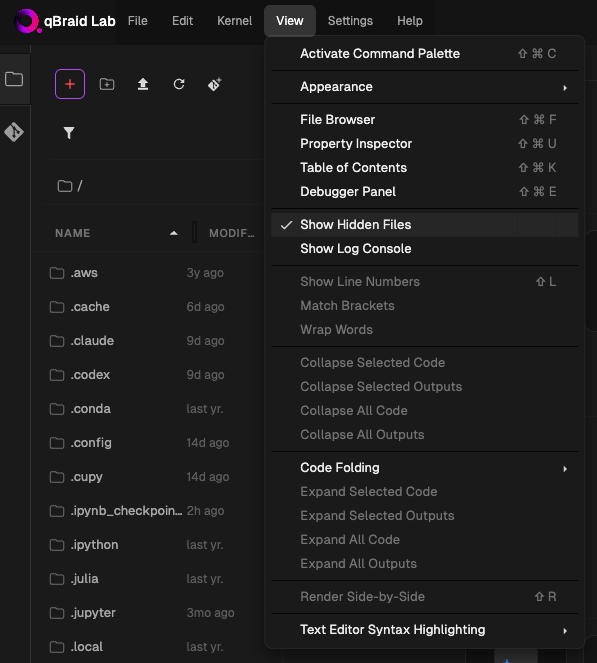
From the top-bar menu, click on View, and then select Show Hidden Files to toggle the visibility of hidden files in the file browser.
Download files
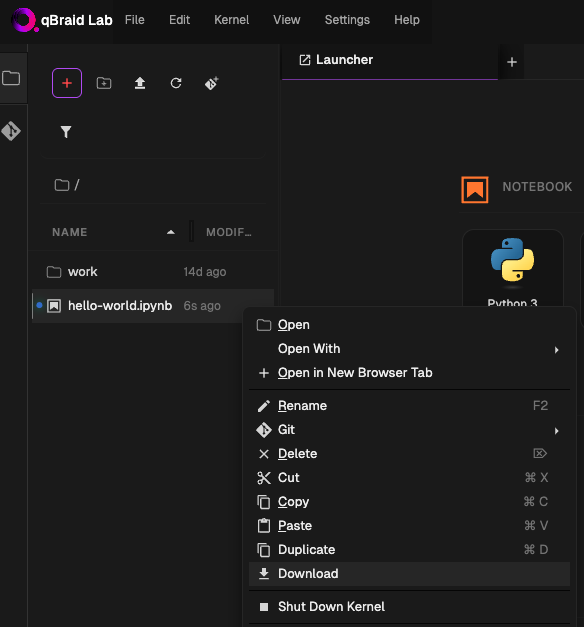
To download a file, open the file browser, right click on the file, and select Download from the context menu.
If you can’t launch Lab, you can still download your files from the account dashboard without starting a session.
Delete files and directories
To delete a file or directory, open the file browser, right-click on the item, and select Delete from the context menu.
You can also delete files and directories from the terminal using the rm command:
rm -rf [file_or_directory]qBraid Lab has no trash or recovery folder. Files deleted from the file browser or with rm -rf are removed immediately and cannot be restored. Double-check the item before confirming a deletion or running the command.
If you need to keep a recoverable copy, download the file first (see Download files) or push it to a remote Git repository before deleting.
If you are deleting files to free up disk space, see Disk Usage Management for how to find large files and directories with gdu and how uninstalling unused environments can reclaim the most space.
Download directories
The JupyterLab file browser does not support directory downloads. Use the terminal to zip a directory, then download the zip file.
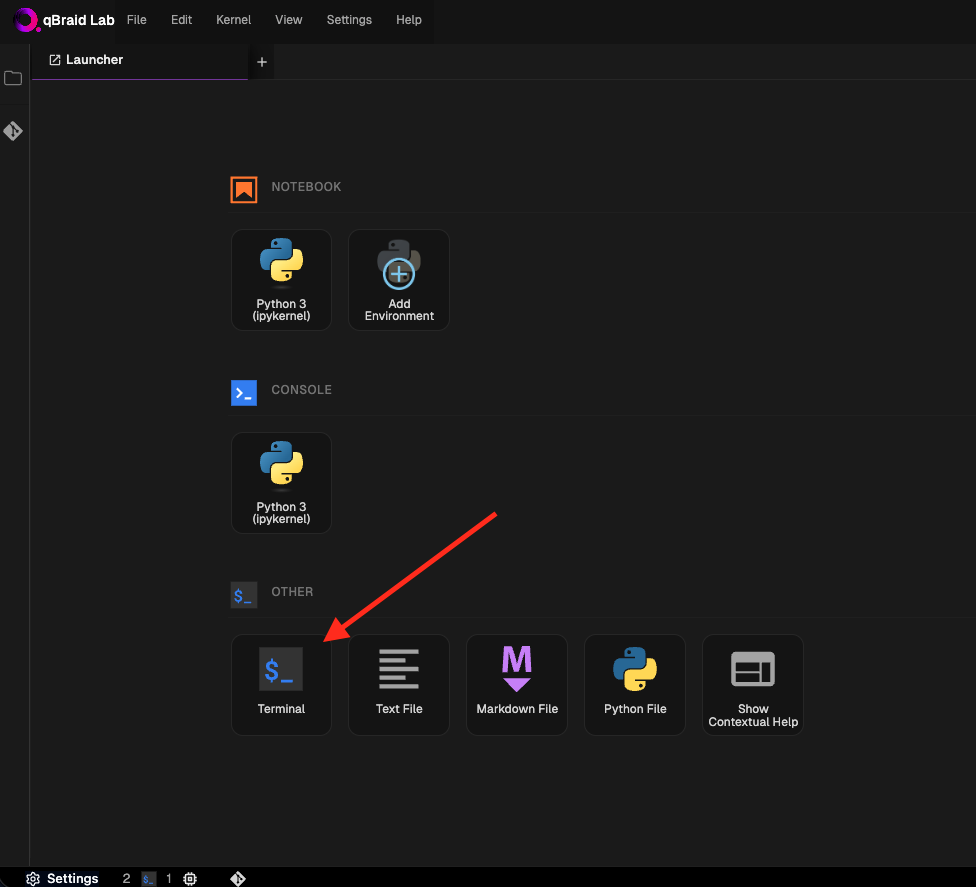
First, open terminal in JupyterLab by opening a Launcher tab and selecting Terminal under the Other section.
Compress the directory with zip. Specify the output file name and directory path. The -r option includes subdirectories and their contents:
$ zip -r output_filename.zip /path/to/directoryFinally, download the zip file using the file browser. See Download files.
File sync (subscription instances)
If your subscription Lab instance has been inactive for a few days, your files will be restored from cloud storage when you start a new session. A progress indicator appears above the file browser in the left sidebar while the sync is in progress.
Sync time depends on the size of your directory. Once the sync is complete, refresh the Environments sidebar to see all of your environments again.
Files on on-demand instances
On-demand instances (GPUs and high-spec CPUs) handle file persistence differently from subscription instances:
- On-demand instances do not sync files from cloud storage at launch. Each instance has its own disk.
- Use the Files tab to download files from cloud storage into an instance. Changes do not sync back to cloud storage.
- If the provider supports stopping, your disk and files remain available when you resume. Some instance types only support termination.
- Terminating permanently deletes the disk and all its files.
Before terminating an on-demand instance, download any important files to your local machine or push them to a remote repository. See On-Demand Instances for more details.
Thanks for your feedback.