

Settings
Monitor usage, configure session behavior, and manage notifications from the qBraid Lab Settings extension.
The Settings extension provides an overview of your usage and preferences directly within qBraid Lab. To open it, click the Settings icon in the bottom-left sidebar.
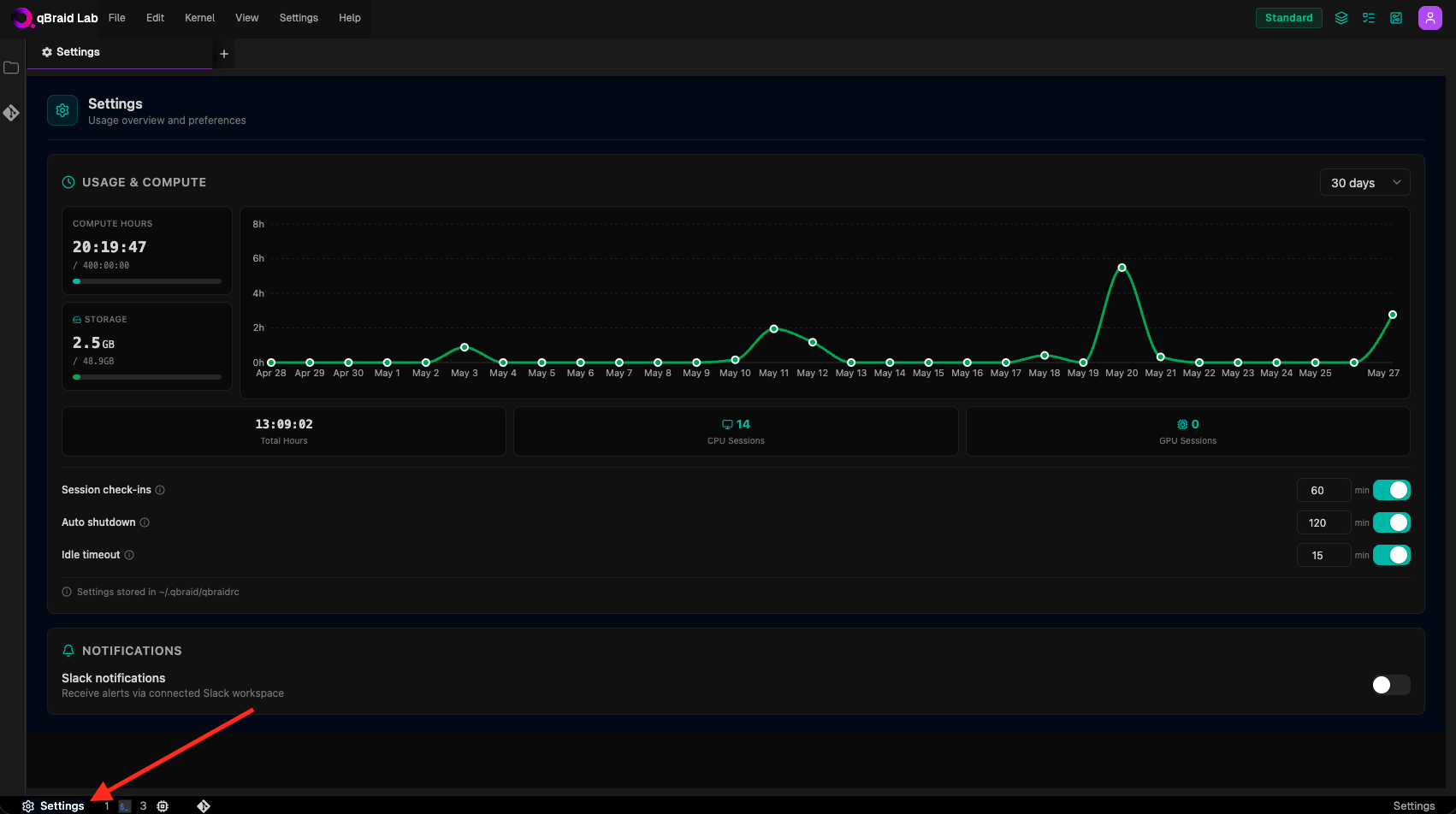
The preferences on this page are stored in the [lab-settings] section of ~/.qbraid/qbraidrc.
Usage & Compute
The top section displays your current resource consumption:
- Compute Hours: Shows your cumulative compute hours used against your monthly quota, with a progress bar.
- Storage: Displays your current disk usage in GB against your plan’s storage quota. See Disk Usage for quota details by plan.
A daily usage chart shows your compute activity over a selectable time window (7, 14, 30, 90, or 365 days). Below the chart, summary stats show Total Hours, CPU Sessions, and GPU Sessions for the selected period.
Session management
Three settings control how your Lab session is managed. Each has a minute input and a toggle to enable or disable it.
Session check-ins
Prompts you at a recurring interval (e.g. every 60 minutes) to confirm you want to keep the session running. If you don’t respond, the session will shut down. This prevents idle sessions from consuming compute hours unnecessarily.
- Default: 60 minutes, enabled
- Range: 10–480 minutes
Auto shutdown
Automatically shuts down your session after the specified total runtime, regardless of activity. Turn off to disable this cutoff. If you set a limit below the current session runtime, Lab asks you to confirm because the change can stop the session immediately.
- Default: 120 minutes, enabled
- Range: 30–1440 minutes
Idle timeout
After user and compute inactivity reaches the timeout, Lab shows an Are you still there? prompt with a five-minute countdown. Respond to continue the session. Turn off to disable this idle timeout.
- Default: 15 minutes, enabled
- Range: 10–120 minutes
Notifications
Slack notifications
Enable this to receive session alerts via a connected Slack workspace. This is disabled by default.
Thanks for your feedback.