

Getting Started
This section will walk you through the basics of using the Lab interface and managing your server instance.
Launch Lab
Starting an Instance
From your account page, select a compute profile and click Launch to start your quantum environment.
qBraid Lab offers two types of instances:
- Subscription instances (CPU): Included with your plan, billed against your monthly compute hours. Available in Small (2 vCPU), Medium (4 vCPU), and Large (8 vCPU) configurations. Your files are automatically synced from cloud storage on each launch.
- On-demand instances (GPU + high-spec CPU): Pay-as-you-go with qBraid credits, billed per minute. Includes 20+ GPU configurations and high-spec CPU instances. See On-Demand Instances for the full lifecycle guide.
Paid subscription tiers provide additional benefits including higher disk storage limits and compute hours.
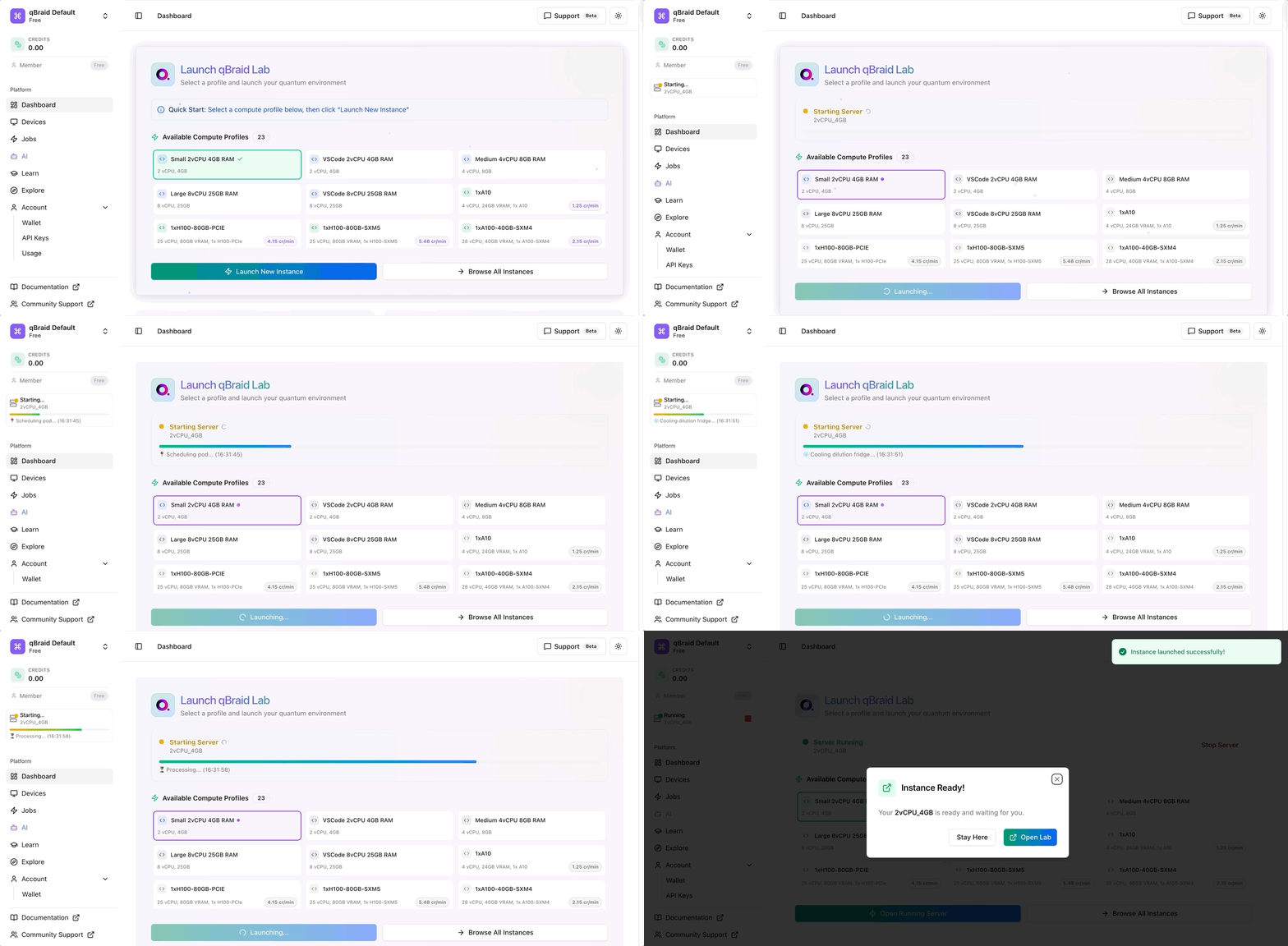
Depending on its size, pulling an image may take up to 2 minutes for the first time. The next time you launch Lab, it will load much more quickly.
If launching fails with Compute hours exhausted and insufficient credits,
you’ve used your monthly compute hour allocation. See
Troubleshooting
for how to upgrade your plan or switch the session over to credits.
Stopping Lab
To stop your running Lab instance:
- Navigate to your account dashboard
- Click Stop Running Server to stop the running instance
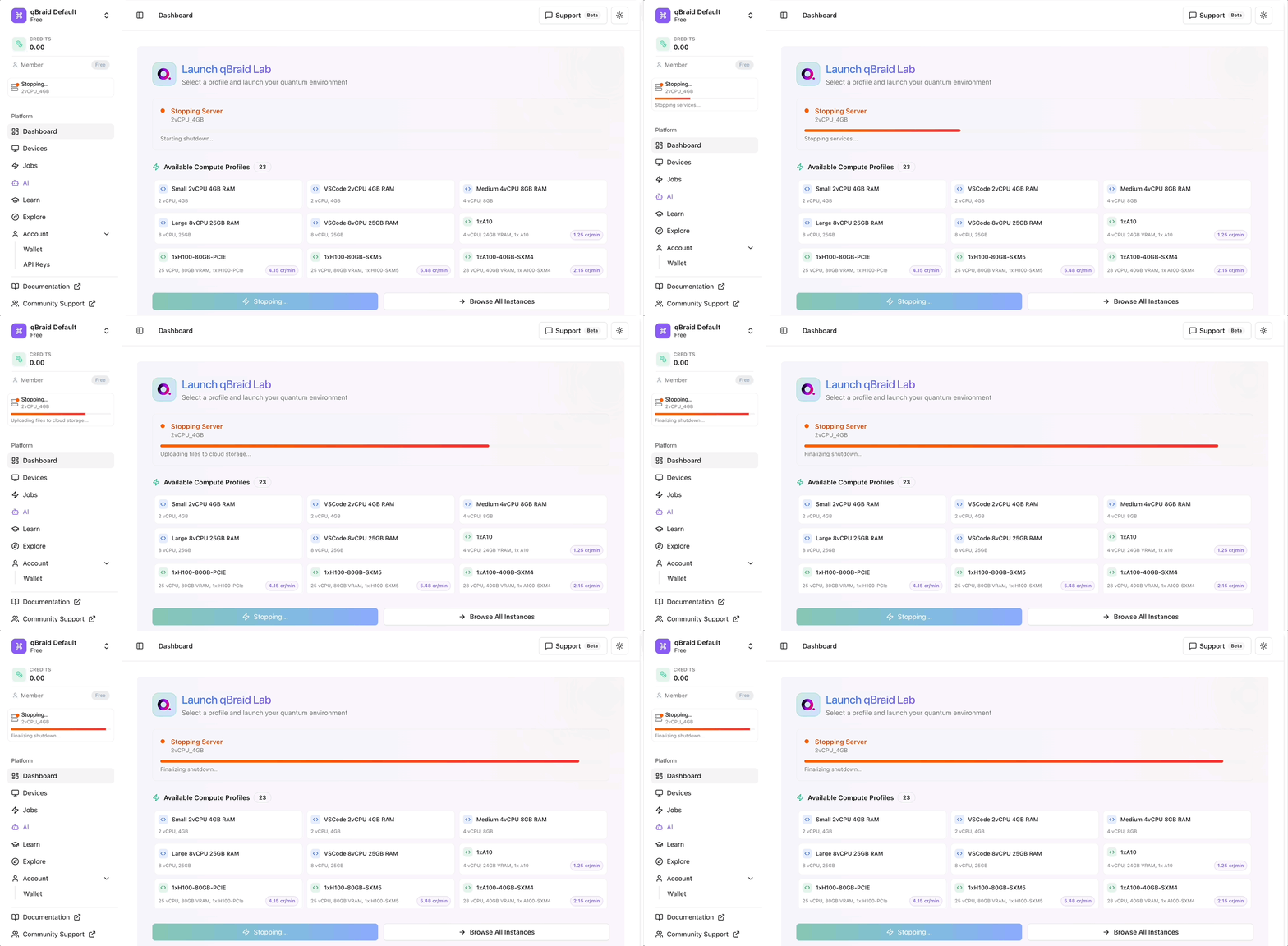
Stopping your server will not delete your data, but will stop it from running and consuming compute hours.
On-demand instances (GPUs, high-spec CPUs) have an additional Terminate action that permanently deletes the instance and its disk. See On-Demand Instances for details on the stop vs terminate distinction.
Lab interface
Once your image is pulled, you will be taken to the qBraid Lab interface. Here are a few helpful resources to get started:
- Interactive tour: Click Start Tour (pop-up at first launch, or Help drop-down) to begin a guided tour of all of the Lab extensions and their key features.
- Help drop-down: The top-bar menu Help drop-down contains links to qBraid user guides, demos, and other reference materials.
Thanks for your feedback.