

Overview
What you see when you open your wallet: subscription, prepaid credits, transactions, and invoices.
Use your wallet to manage credits, your subscription, and payment history.
Open it from the sidebar under Account > Wallet, or visit account.qbraid.com/account/wallet.
The wallet changes with the selected workspace. In qBraid Default you see your personal subscription, Buy credits, and an Invoices & receipts tab. In an organization workspace you see a Your seat card, a Request credits button, and transactions only. See workspace selection for details.
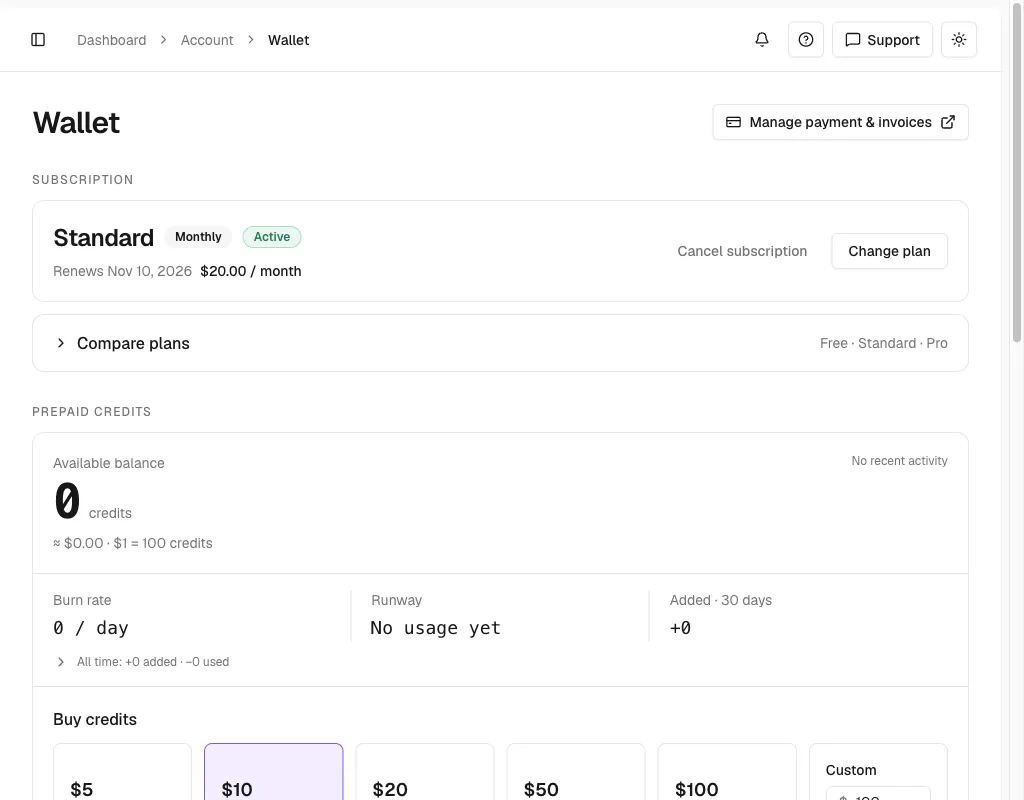
What each part does
- Payment link. The Manage payment & invoices button. Opens the Stripe customer portal for payment methods and invoices. Personal workspace only.
- Subscription. Shows your personal plan. In an organization this section becomes Your seat.
- Prepaid credits. Shows the balance, recent use, and the Buy credits controls. Called Your credits in an organization.
- Transactions. Lists credit activity for the selected workspace. Adds the Invoices & receipts tab in qBraid Default.
Subscription
In qBraid Default, the subscription card shows your tier, billing interval, and status. A paid plan shows the renewal date and charge. If a discount applies, the card strikes through the list price and shows the percent off next to the next charge. Change plan and Cancel subscription open in-app dialogs. A scheduled change or pending cancellation appears as a row inside the card.
On the Free plan, Upgrade your plan follows the card with the Standard and Pro cards. Standard has a Most popular badge. Use the Monthly and Annual toggle to switch prices. On a paid plan the cards collapse into a Compare plans row. Links to /account/wallet#available-plans open it automatically.
See Personal subscriptions for buy, change, and cancel steps.
Team member view
In an organization workspace, the wallet shows your seat instead of a personal subscription. Owners and admins assign seats in Organizations > Billing.
With a seat
A member with a seat sees the seat tier, an Active badge, and the seat text. The Your credits card sits below it.
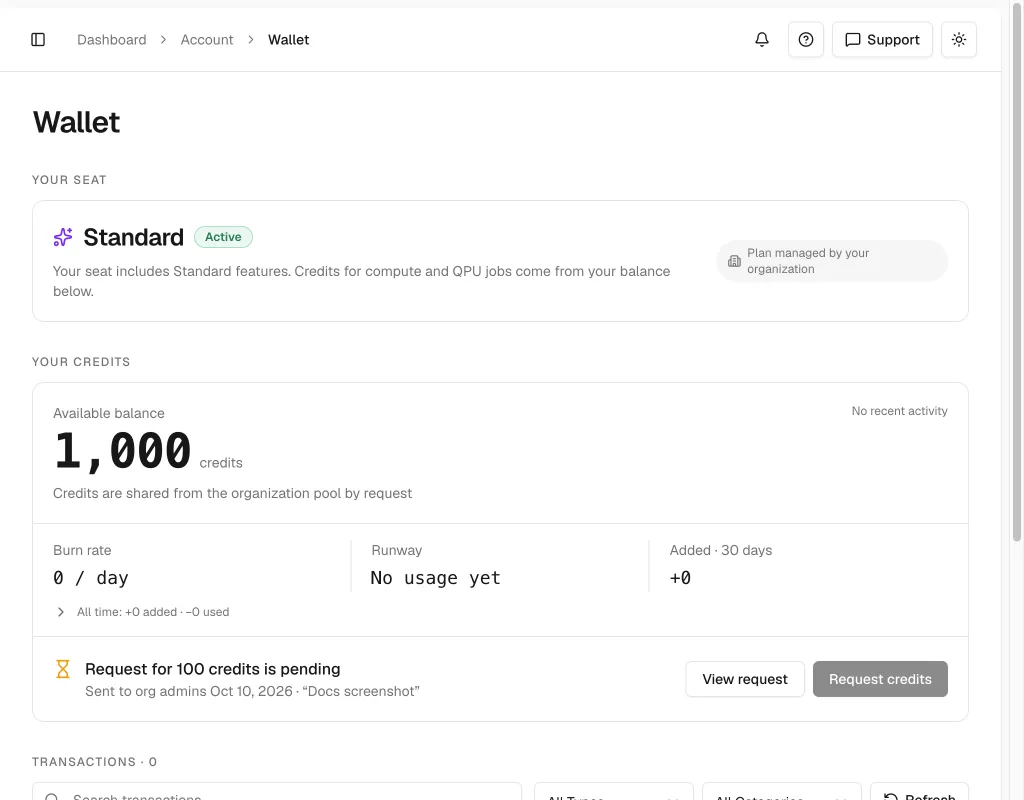
On a phone, the cards stack in one column.
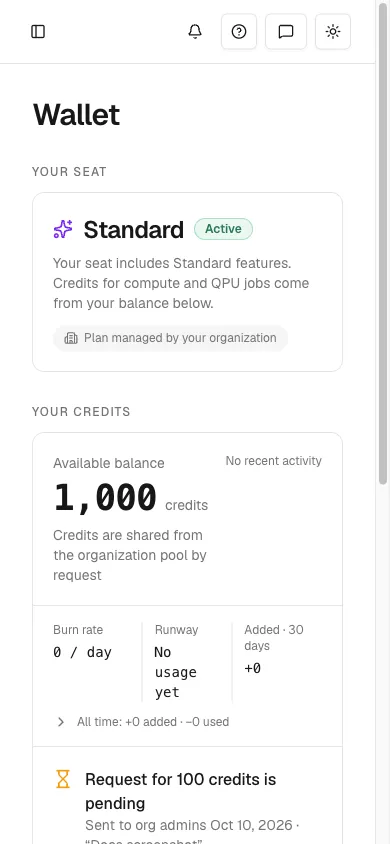
- Your seat. Names the tier of the seat you hold, such as Standard.
- Active badge. Shows the seat status.
- Seat text. Reads Your seat includes tier features. Says what the seat gives you. Credits for compute and QPU jobs come from your balance below.
- Managed badge. Reads Plan managed by your organization. Replaces the personal plan actions. You cannot buy, change, or cancel a plan here.
- Your credits. Shows your balance in this organization. Admins add credits from the organization pool when they approve your request.
- Pending request. Reads Request for N credits is pending. Appears after you send a request. It shows the send date and your reason. View request opens it.
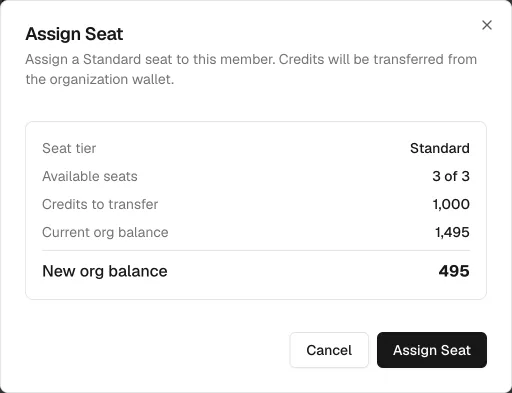
Assigning a seat moves credits from the organization wallet to your balance. The admin sees the amount before they confirm.
Without a seat
A member without a seat sees Free and No seat assigned in organization. The Need more credits? panel holds Request credits.
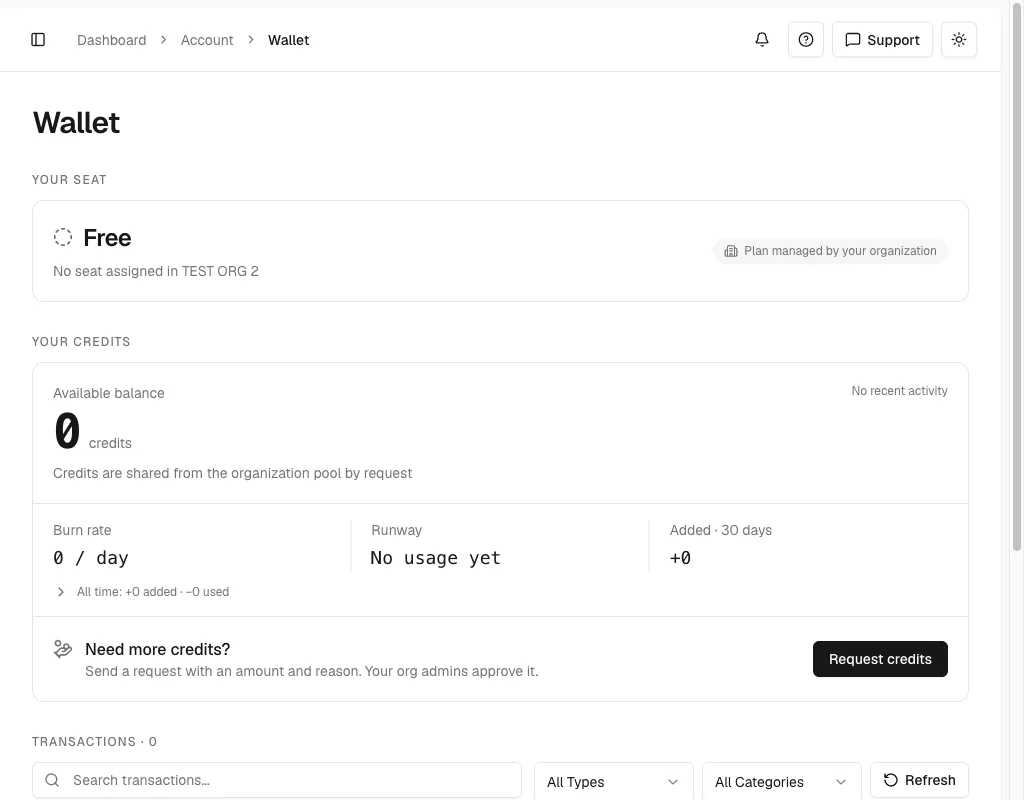
Select Request credits to ask the organization admins for credits. A pending request replaces the Need more credits? panel. See Credit requests.
Prepaid credits
The credits card shows your Available balance first, with its dollar value at the current rate. A seven-day usage chart appears next to the balance. With no recent use, the card shows No recent activity instead.
- Burn rate. Credits used in the last 30 days, shown per day.
- Runway. How long the balance lasts at that rate: ≈ N days left, No usage yet, or > 1 year. Red under 14 days.
- Added · 30 days. Credits added in the last 30 days.
- All time. Expands to the lifetime totals added, deducted, and the net change.
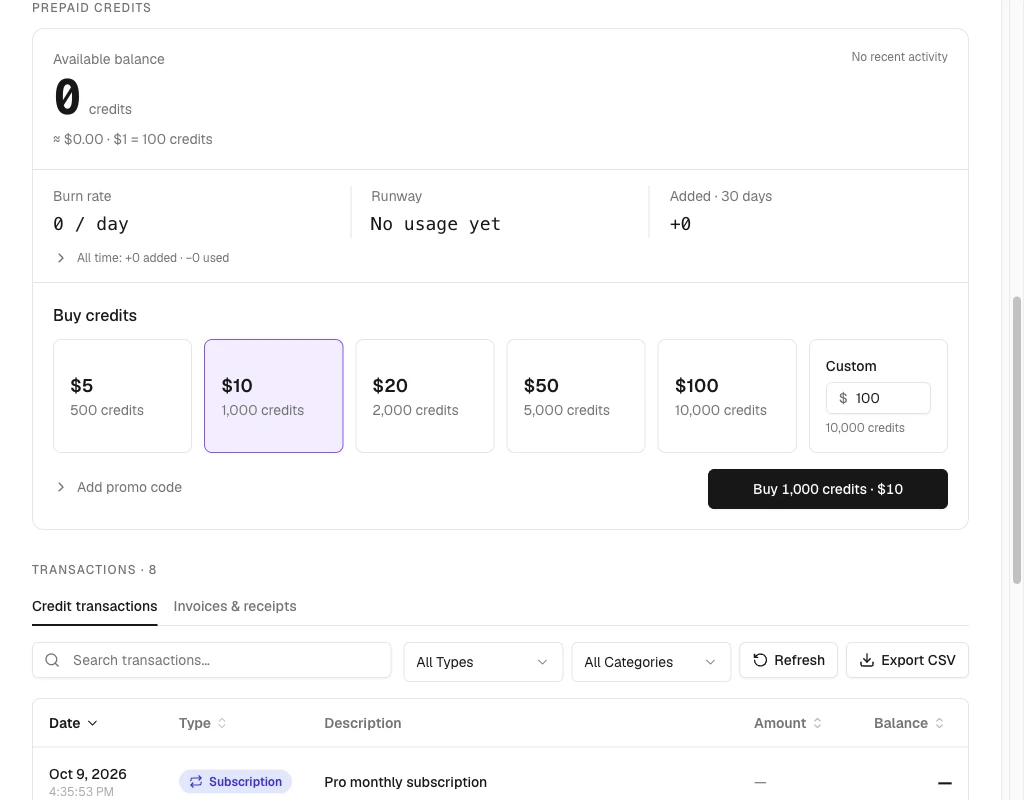
The wallet computes these figures from the most recent transactions it loads, so they can leave out older activity. The transactions list below shows the underlying rows.
In qBraid Default, Buy credits offers preset and custom amounts. See Buy credits. In an organization, Request credits asks org admins for credits. A pending request shows Request for N credits is pending with a View request button. See Credit requests.
Transactions
The Transactions section lists credit activity for the selected workspace. In qBraid Default it opens on Credit transactions next to the Invoices & receipts tab. On narrow screens the tabs shorten to Transactions and Invoices, and rows display as cards.
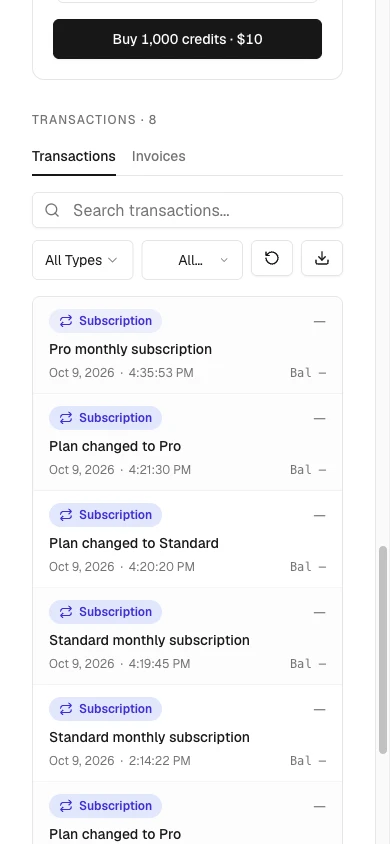
Select a row to open its receipt or details. See Payment history.
Outstanding balance
An Outstanding Balance banner shows unpaid compute charges separately from the wallet balance. A later credit purchase or transfer settles this debt automatically. Check the debt and the available balance before retrying a blocked launch.
Where to next
- Add funds: Buy credits.
- Pick a plan: Personal subscriptions.
- Ask your organization for credits: Credit requests.
- Audit your charges: Payment history.
- Find invoices: Payment history.
Thanks for your feedback.