

Buy credits
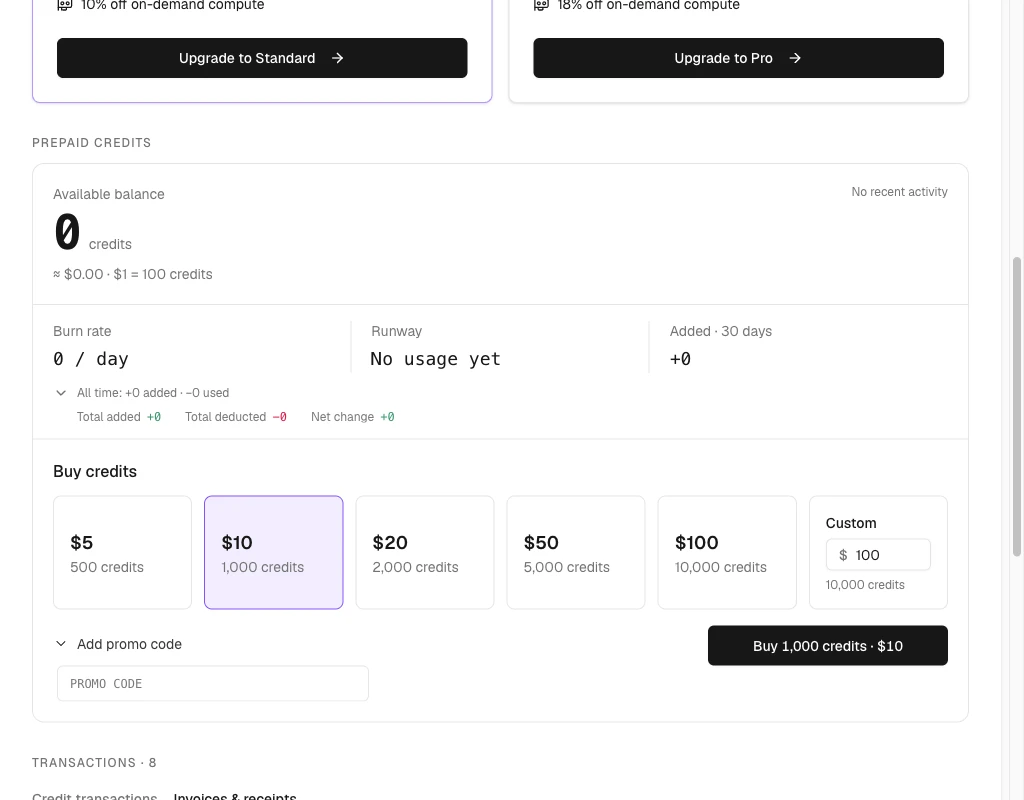
Top up your credit balance with a preset or custom amount, and apply a promo code at checkout.
You can buy credits without a subscription. The standard rate is $1 = 100 credits for supported qBraid-billed resources. Provider-funded jobs, such as Open Quantum, use the linked provider account’s credits.
Buying credits is only available in your qBraid Default workspace (the default). In an organization workspace, the Buy credits controls are hidden and you see a Request credits button instead. Organization administrators buy credits for the team from Organizations > Credits.
What each part does
- Preset amounts. Five cards: $5, $10, $20, $50, and $100, each with its credit count.
- Custom. A dollar amount you type. The credit count updates as you type.
- Add promo code. Opens the promo code field. Stripe applies the code at checkout.
- Buy button. Reads Buy N credits · $X. The purchase button. It shows the credit count and price for your selection and opens Stripe Checkout.
How to buy
Open the workspace switcher in the top-left of the dashboard and select qBraid Default.
Click Account > Wallet in the sidebar, or open account.qbraid.com/account/wallet directly.
The section sits inside Prepaid credits, below the balance and usage stats.
Click a preset card, or type a dollar amount in Custom. The button label updates with the credit count and total.
Select Add promo code and type the code.
Click Buy N credits · $X. The wallet opens Stripe Checkout.
After payment, return to the wallet and wait for checkout confirmation. Refresh the wallet if the balance has not updated.
The current exchange rate appears under Available balance. The standard rate is $1 = 100 credits. The custom amount field enforces the allowed purchase range.
Add a promo code on the wallet
Open the workspace switcher and select qBraid Default.
In Buy credits, select a preset or enter a custom amount.
Select Add promo code and enter the code in the field.
Click Buy N credits · $X. Stripe applies the discount at checkout. An invalid code shows an error in the field instead of opening checkout.
Apply a promo code on Stripe Checkout
Follow the steps above without entering a promo code on the wallet.
A small text field appears.
The discount appears on the order summary.
Review the final amount in Stripe before completing checkout.
If you can’t see the Buy button
In an organization workspace, your wallet shows Request credits instead of the purchase controls. Organization administrators buy for the team from Billing. See Credit Requests.
Outstanding balance
An Outstanding Balance banner shows unpaid compute charges separately from the wallet balance. Credit purchases and transfers can settle that debt. After checkout, check both the debt and the available wallet balance.
Thanks for your feedback.