
Documentation Index
Fetch the complete documentation index at: https://docs.qbraid.com/llms.txt
Use this file to discover all available pages before exploring further.
Adding and Removing Users
Organization admins can invite new members directly from the Members dashboard.Inviting Users
To invite a member, enter their email address and select a role before sending the invite. The user will receive an email with a link to accept and join the organization. If they don’t yet have a qBraid account, they’ll be prompted to create one first.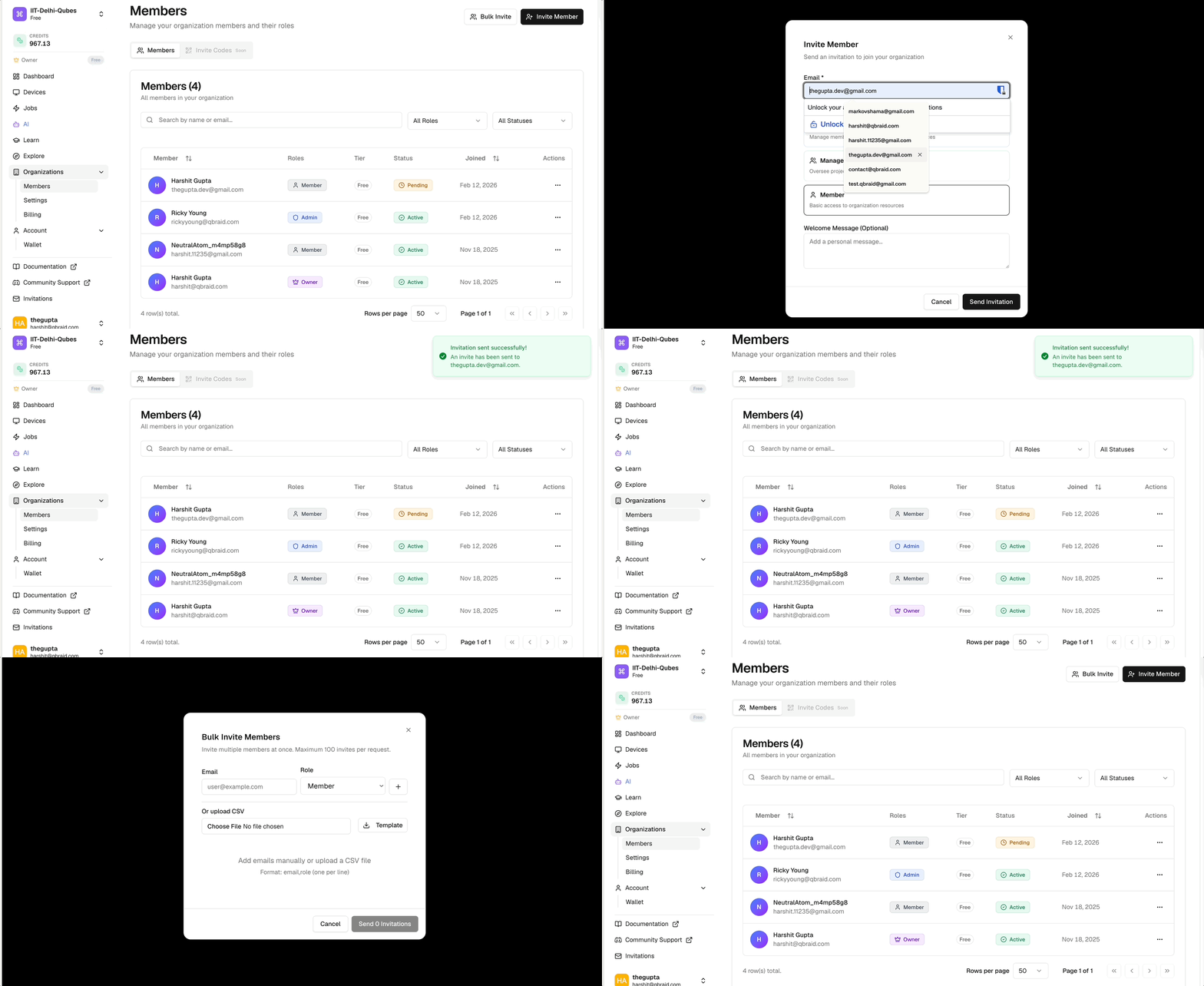
Bulk Invites
To invite multiple users at once, use the Bulk Invite option in the Members tab. You can upload a.csv file with the following format:
Bulk invites are limited to 100 users per upload.
Removing Users
To remove a member, find their entry in the Members list and select Remove Member. Removing a user immediately revokes their access to organization resources, and subscription seat. Any credits previously distributed to that user are returned to the organization pool.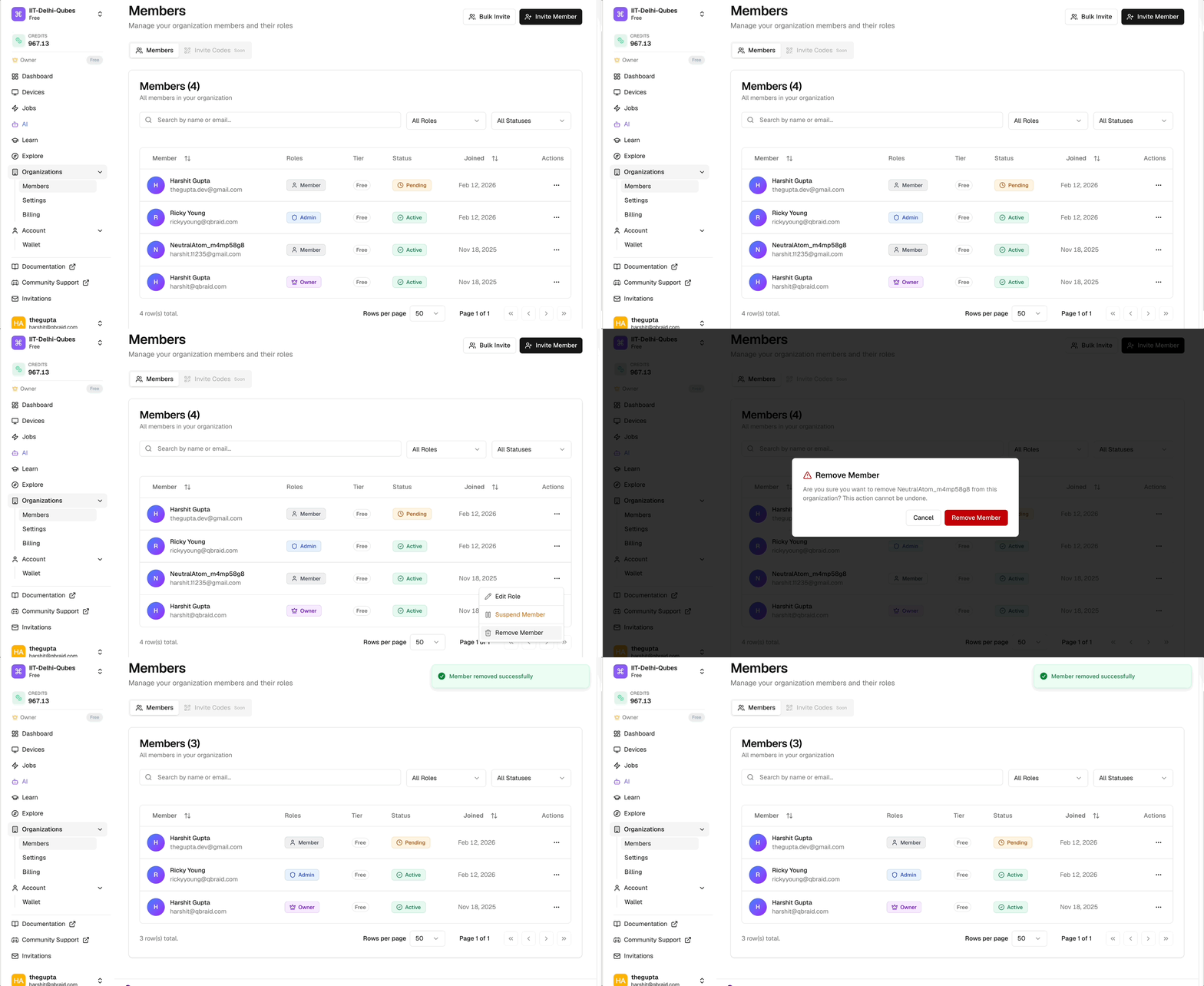
User Roles
Every member of an organization is assigned a role that determines what they can see and do within the organization. The Owner is the person who created the organization — there is exactly one owner per organization and this role cannot be assigned to other members. The remaining three assignable roles are: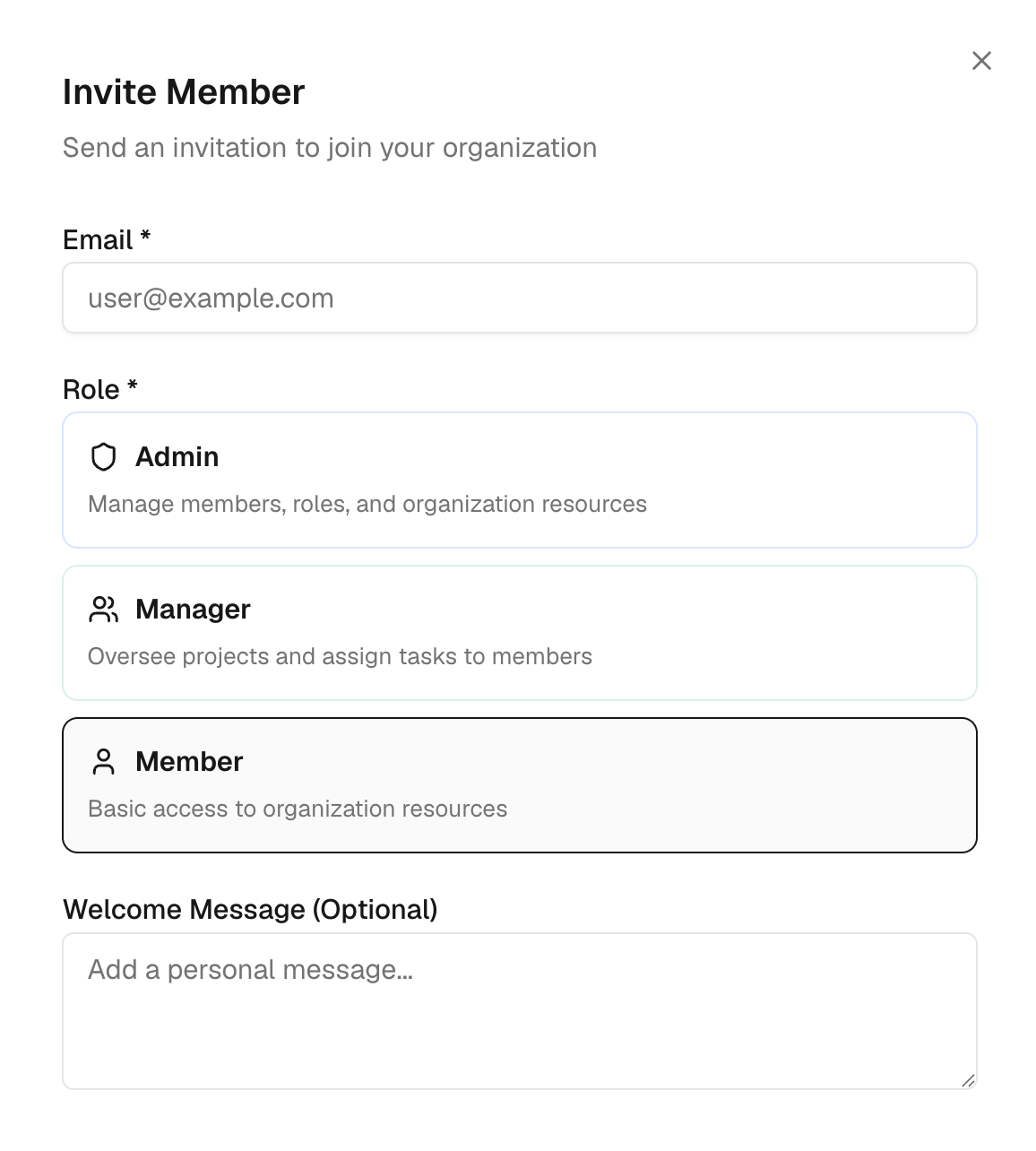
| Role | Description |
|---|---|
| Admin | Full access to all org resources. Can manage organization settings, billing, members, and users (invite, update, remove). |
| Manager | Can manage devices, jobs, and projects. Can view and update users and view billing, but cannot manage members or org settings. |
| Member | Standard access to organization resources. Cannot manage settings, resources, or other users. |
Editing User Roles and Access
Admins can update a member’s role at any time from the Members tab. Select the member and choose Edit Role to change their assignment.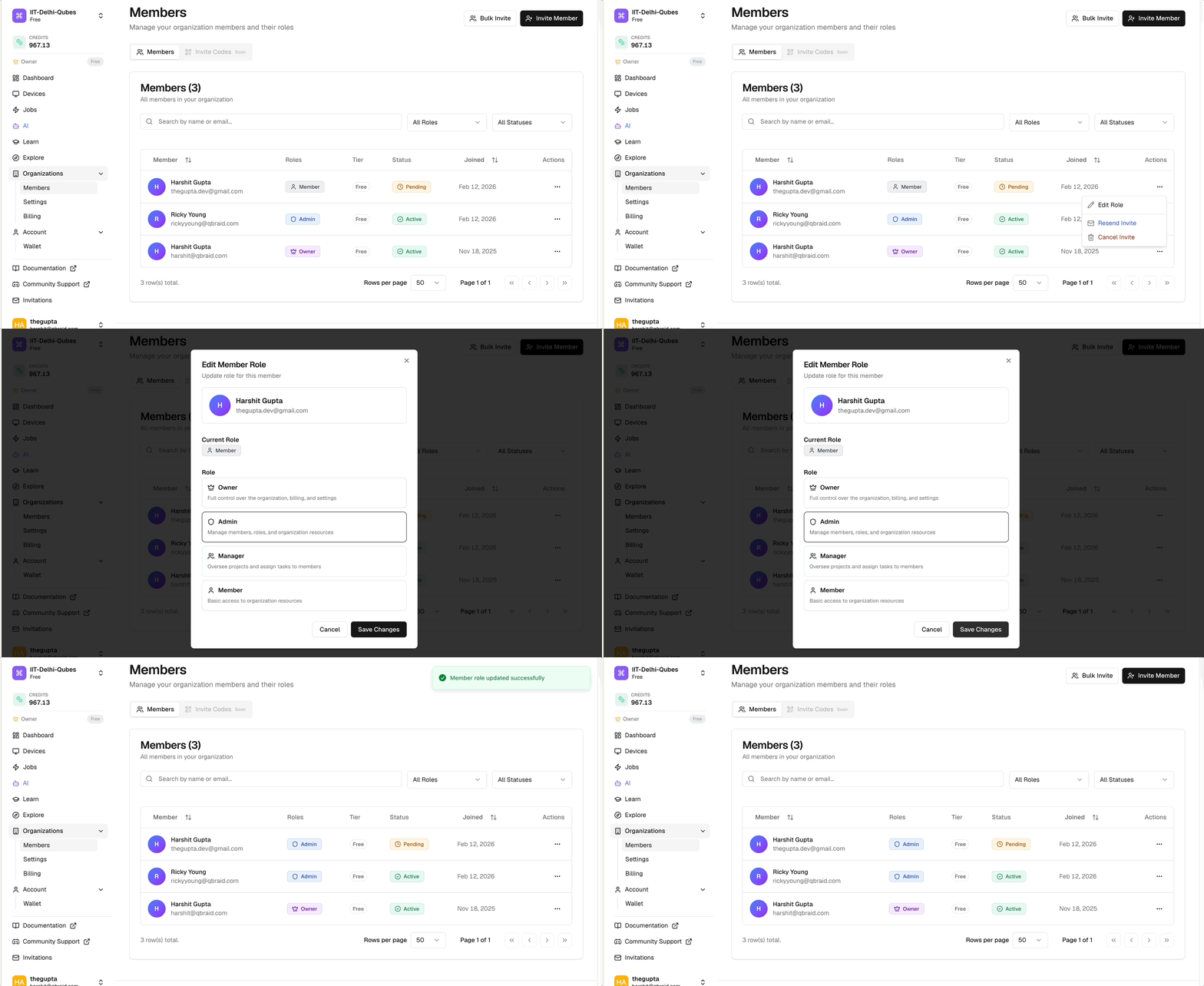 In addition to the built-in roles, admins can configure per-user resource access overrides:
- Compute credits — Distribute credits from the organization pool directly to individual members.
- Subscription seat - Allocate a Standard or Pro seat for the organization members
Role changes take effect immediately. Members currently active in a session
will see updated permissions on their next login.