

Environment Manager
Manage your quantum environments directly within Visual Studio Code.
The qBraid Environment Manager extension allows you to manage your Python quantum environments directly within Visual Studio Code. This includes creating, viewing, using, removing, editing, and sharing environments both locally and in the cloud.
Installation
The Environment Manager extension can be installed directly through the VS Code Marketplace -
Managing Environments
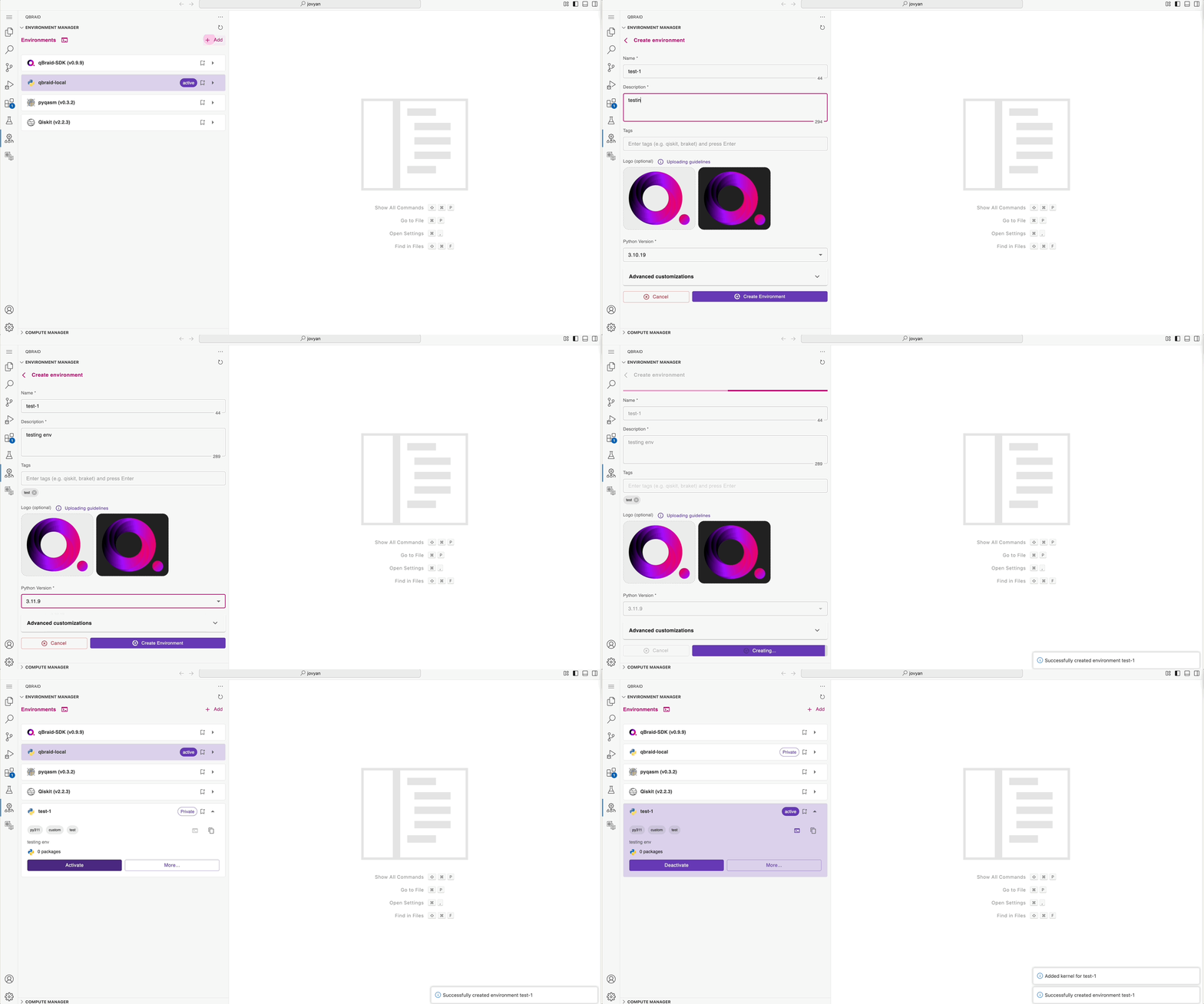
Create
-
Create a new environment by clicking on the
Addicon in the Environment Manager panel. -
Click on the
Create Environmentbutton to open the environment creation dialog. -
Enter the name and description for the environment, select the Python version, tags, and packages you want to include.
-
Click on the
Createbutton to create the environment. -
The new environment will be created and added to the Environment Manager panel.
-
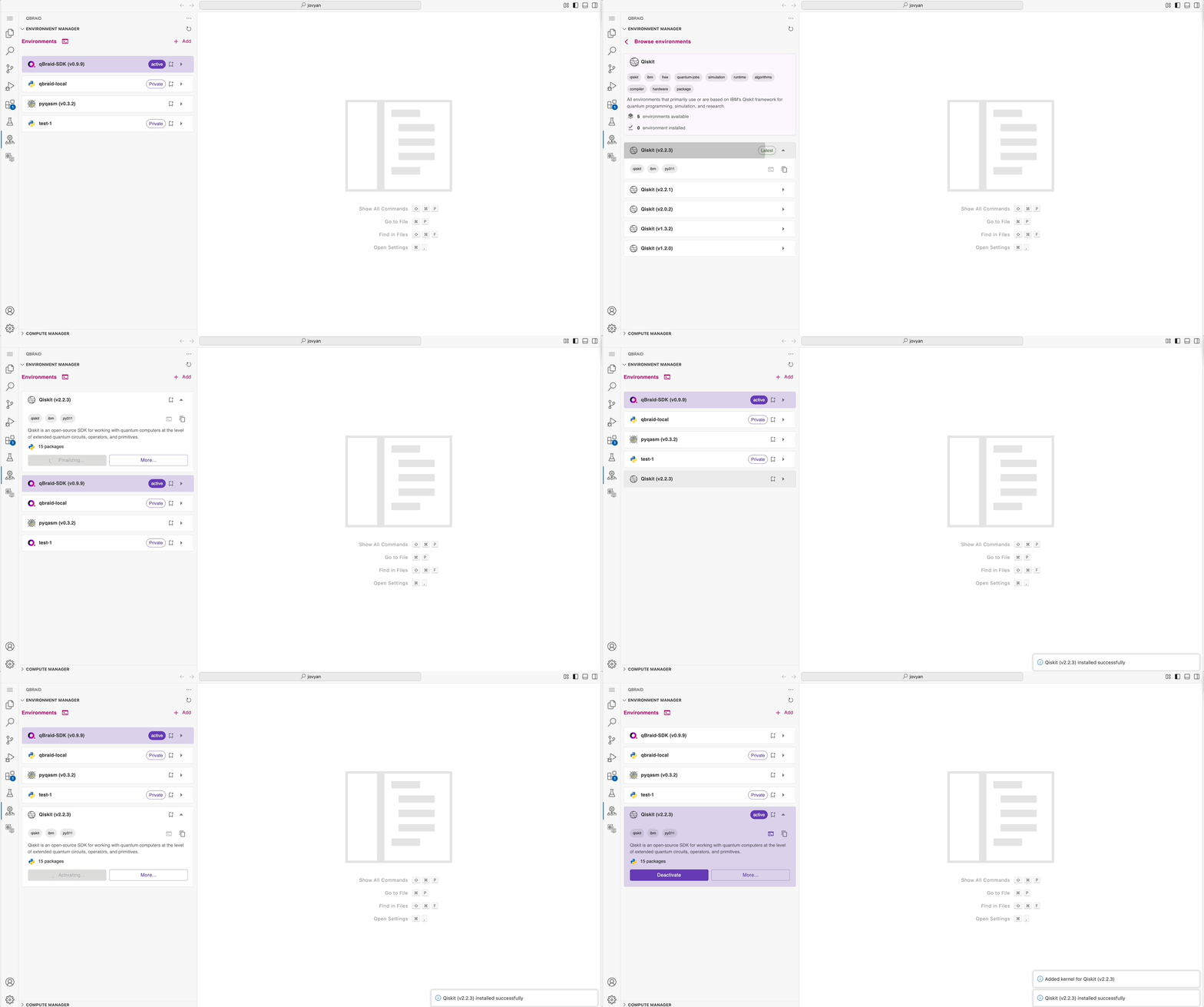
You can also choose to install an environment from the pre-configured groups such as Qiskit, qBraid, etc. -
View
- You can view the created Python environments on the Environment Manager panel.
- Click on the
Environment Managericon in the Activity Bar on the side of the VS Code window. This will open up the Environment Manager panel where you can see all of your current installed environments. - You can expand the dropdown pertaining to each environment to see more details, such as the Python version, packages installed, and whether it is currently active.
- Clicking on the
Morebutton will open up a separate panel with additional options for that environment, such as viewing and updating installed Python packages, or sharing the environment with others.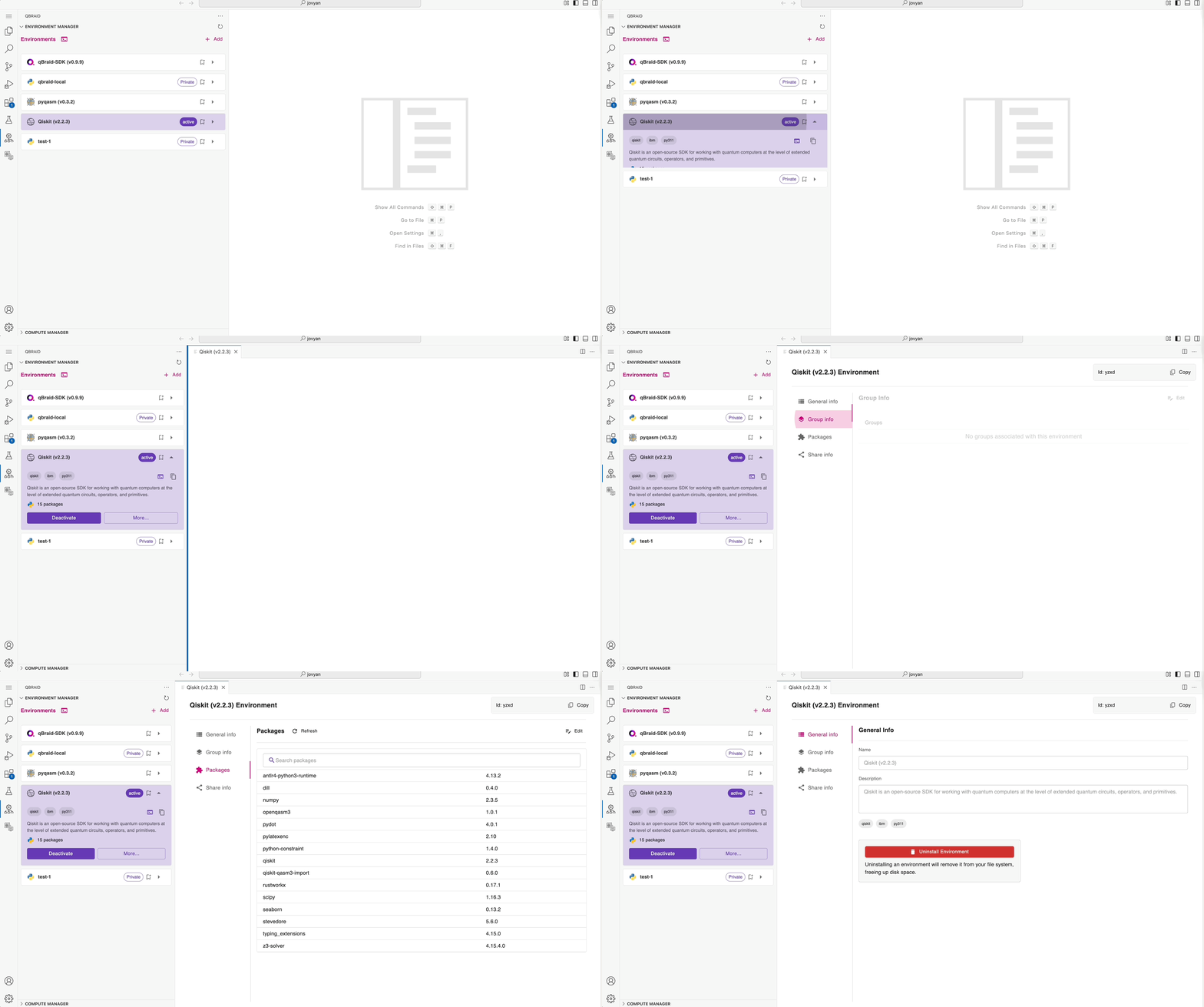
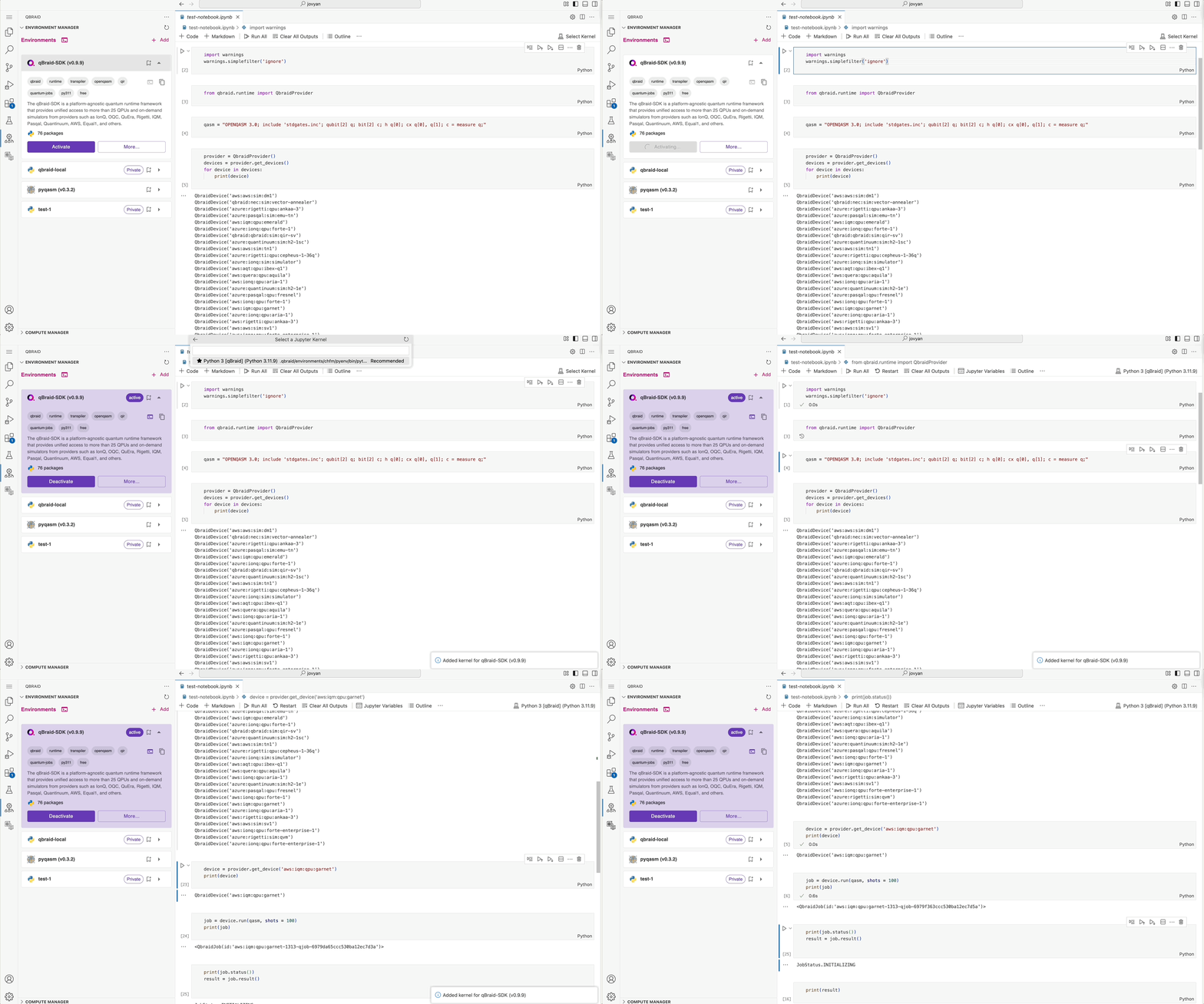
Use
- Expand the dropdown for the environment you want to use and click on the
Activatebutton. - Once activated, click on the
Select Kernelicon. This will open the selection dialog for choosing the Python kernel. - Select the kernel corresponding to the activated environment.
- You can now run Python commands in this terminal using the selected environment.
Edit
-
Clicking on the
Morebutton will open up a separate panel with additional options for that environment. -
You can edit the environment general info by clicking on the
Editbutton. This will allow you to change the name, description, and other details of the environment. -
You can also add/remove packages from the environment by clicking on the
Packagestab in the same panel:- Add: Search for the package you want to add, select a version, and click on the
Addbutton - Remove: Click on the
Removebutton next to the package.
- Add: Search for the package you want to add, select a version, and click on the
-
Once you have made all the changes, click on the
Updatebutton to apply them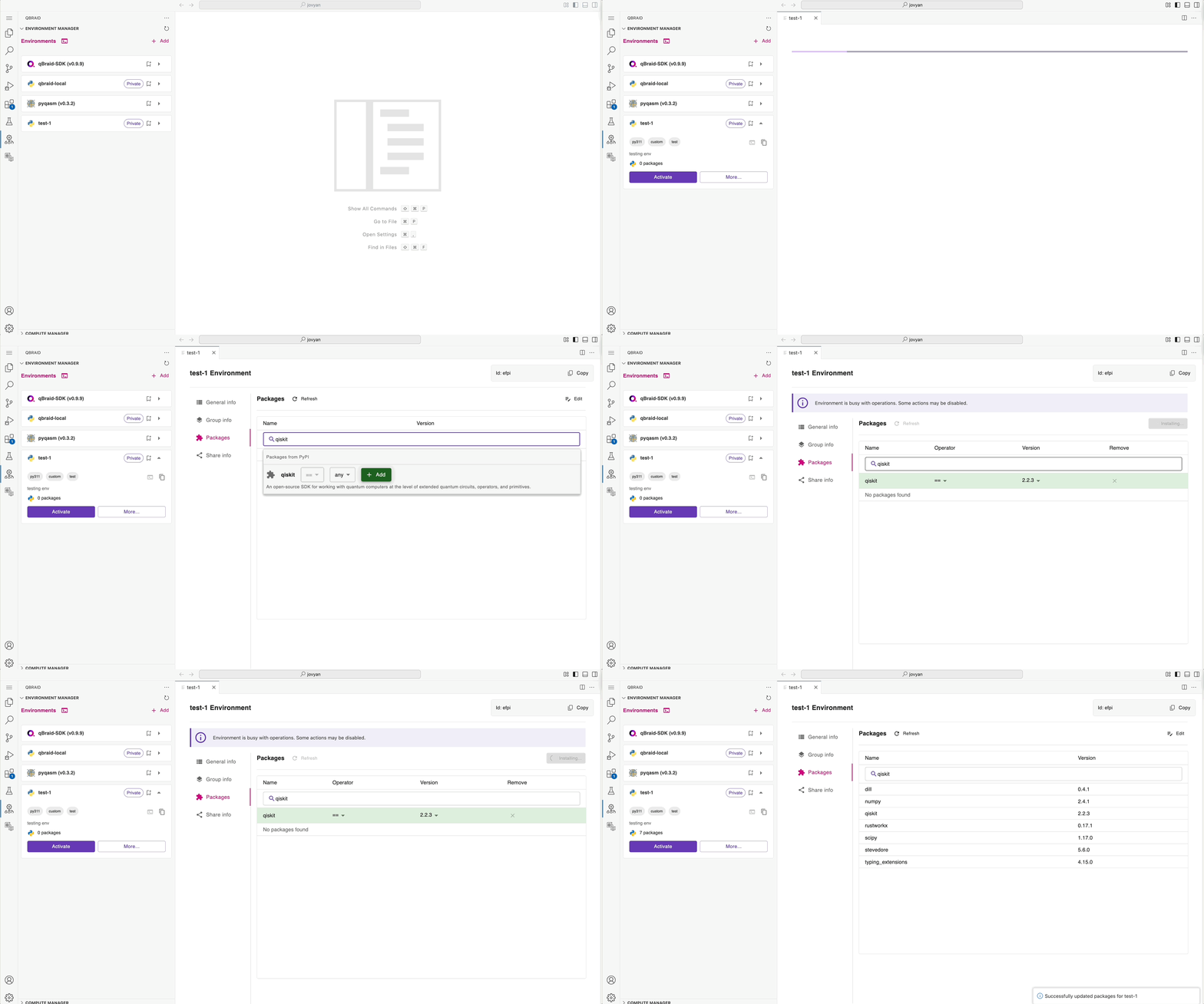
Uninstall
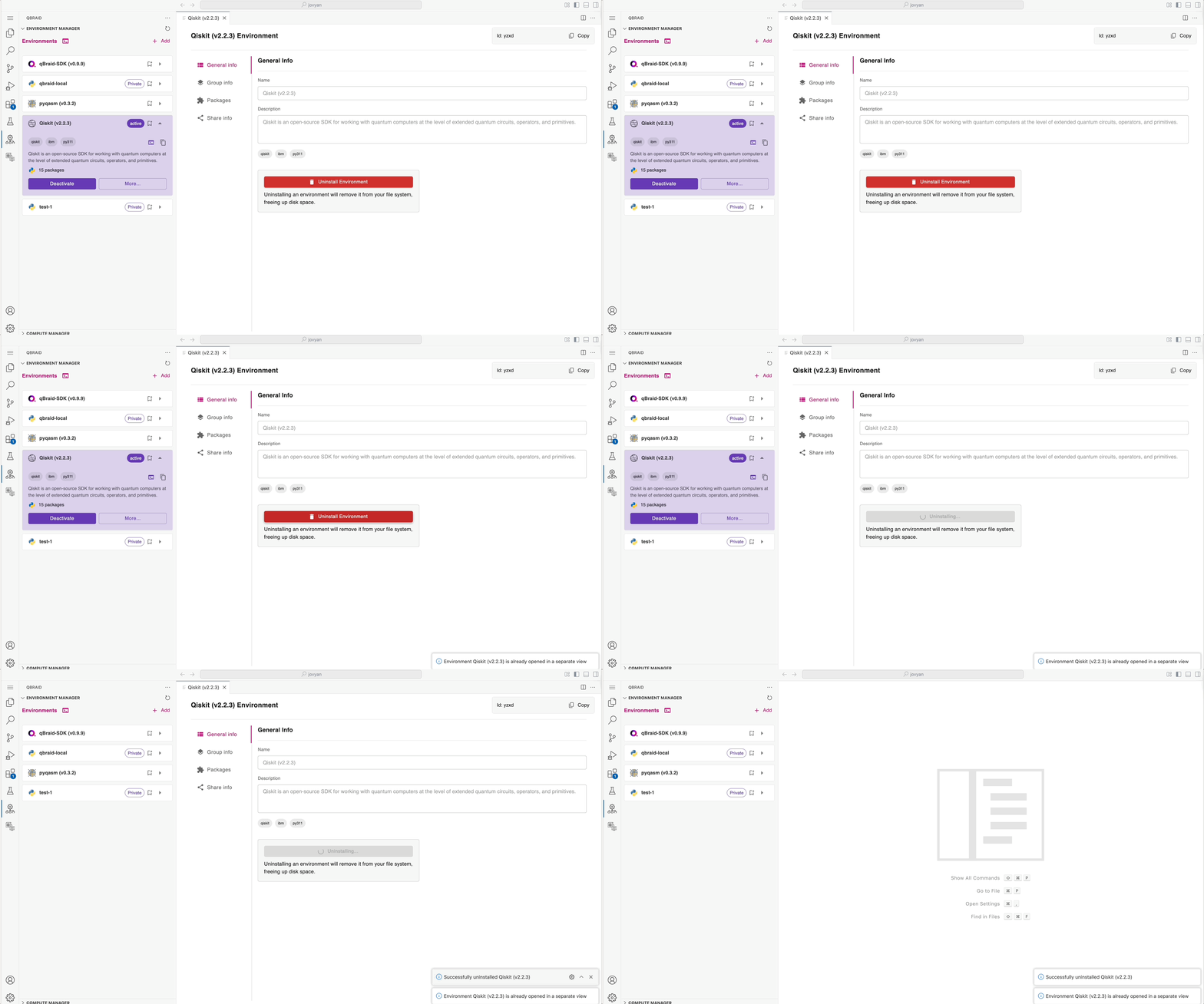
- Click on the
Morebutton and select theUninstall Environmentoption. - A confirmation dialog will appear asking you to confirm the removal of the environment. Once confirmed,
the environment will be removed from your local machine or qBraid Lab instance (if it is a cloud environment).
Share
-
Click on the
Morebutton and select theShare Infooption. -
You can choose to share the environment via:
- Email: Enter the email address of the recipient and click on the
Sharebutton. - Access Code: Click on the
Generate Access Codebutton. This will generate a unique access code that can be shared with others to access the environment. The recipient can then use this code to access the environment in their own qBraid account.
- Email: Enter the email address of the recipient and click on the
Managing Compute Resources
-
As part of the Environment Manager is the Compute Manager extension, which allows you to connect to and manage remote qBraid Lab compute resources, including CPUs and NVIDIA GPUs.
-
The Compute Manager allows you to:
- View available compute resources in the qBraid Lab.
- Activate or deactivate compute resources.
- View the status of your compute resources.
- Manage your compute instances directly from Visual Studio Code.
-
To utilize the
Cloudfunctionality of the Environment Manager, you must have a running instance of the qBraid Lab.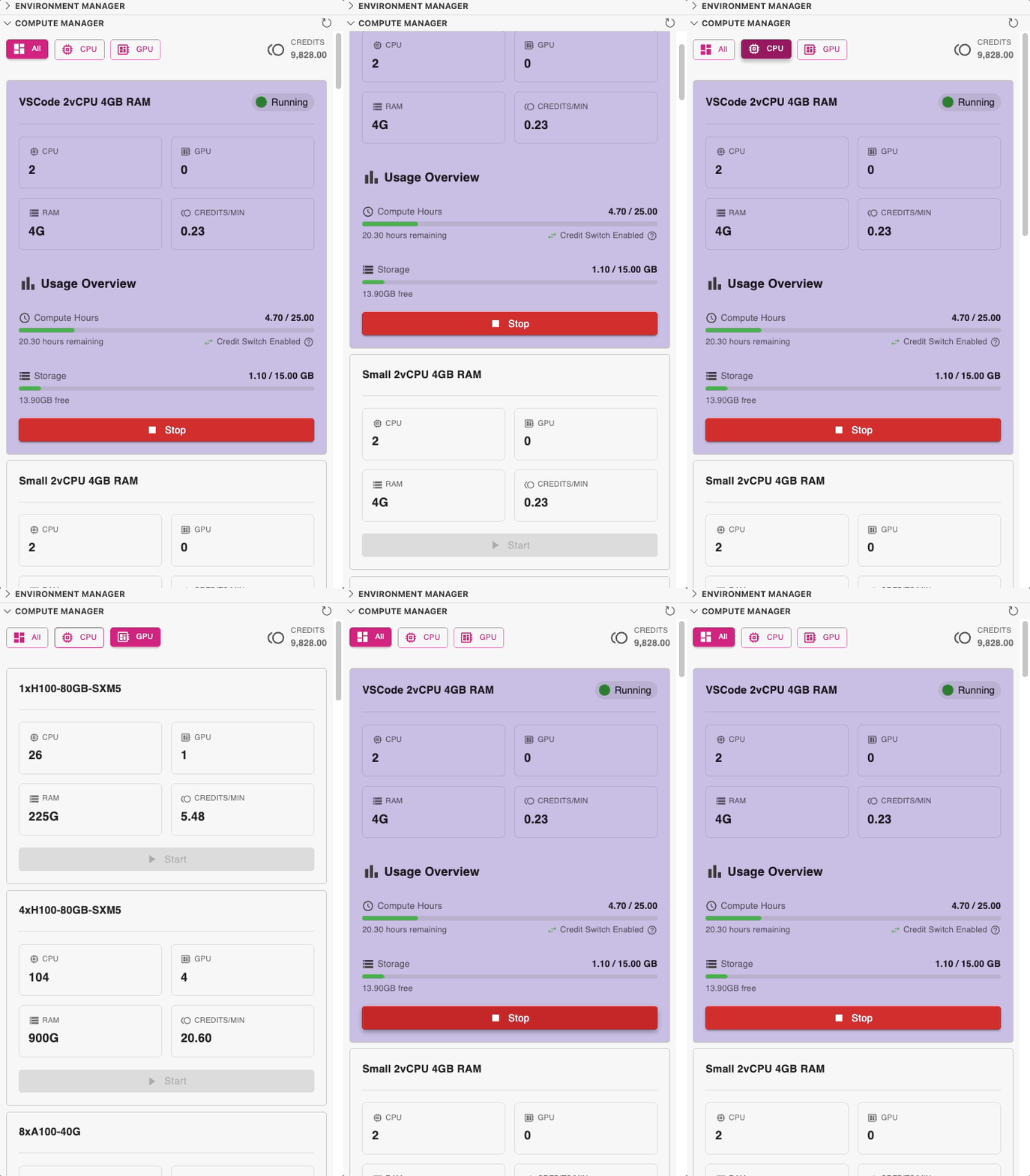
Thanks for your feedback.