> ## Documentation Index
> Fetch the complete documentation index at: https://docs.qbraid.com/llms.txt
> Use this file to discover all available pages before exploring further.
# Usage Limits
> Understanding compute hours, disk usage, and AI chat limits on qBraid Lab
qBraid Lab Platform V2 introduces usage limits to help you manage your resources effectively. These limits vary based on your subscription plan and can be monitored from your account dashboard.
## Compute Hours
Each user is provided a set number of compute hours per month, which varies depending on your subscription plan. Compute hours track the time your Lab instances are actively running.
Compute hours are a unit of measure that combines the number of CPU cores used
multiplied by the number of hours used. For example, running a 2-vCPU instance
for 3 hours uses 6 CPU hours, and running an 8-vCPU instance for 2 hours uses
16 CPU hours.
**How it works:**
* Usage is tracked across all running Lab instances
* Compute hours reset at the end of each month
* Monthly allocations by plan:
| Plan | Compute Hours/Month |
| ------------ | ------------------- |
| **Free** | 100 CPU hours |
| **Standard** | 400 CPU hours |
| **Pro** | 2000 CPU hours |
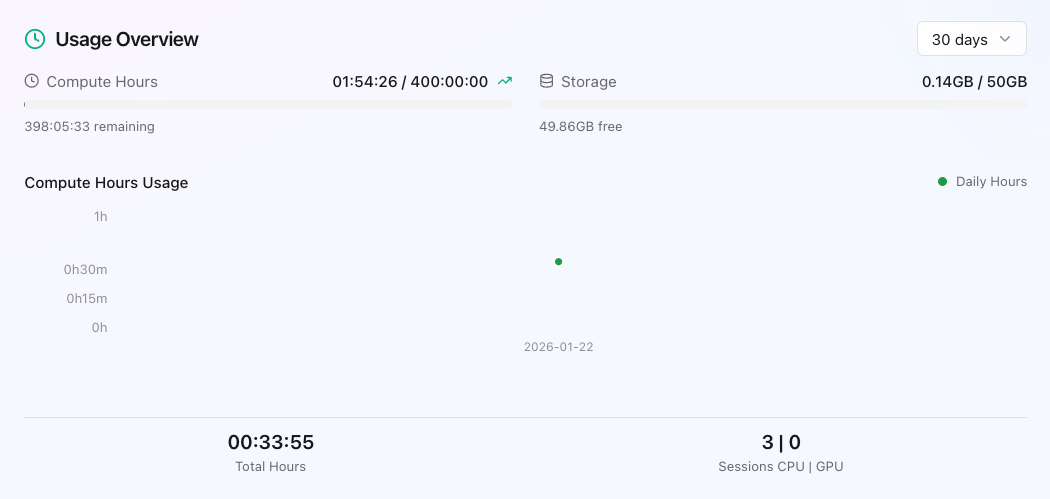
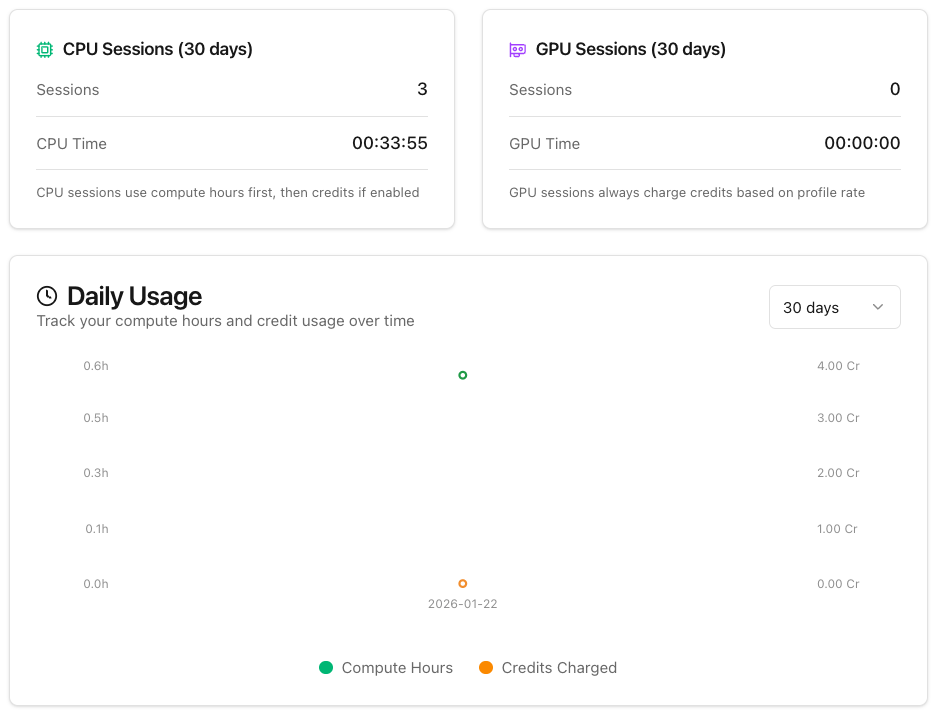
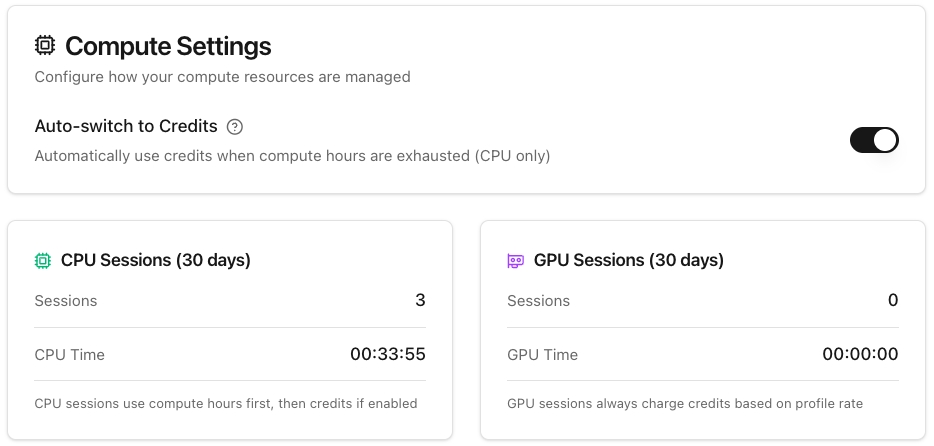
Detailed statistics are available in your account dashboard under **Account > Usage > Compute Settings**. These include number of sessions opened in the last 30 days, daily session usage and total compute hours used.
### Auto-switch to Credits
If your compute hours are exhausted before the month ends, you can enable automatic switching to qBraid credits:
1. Navigate to **Account > Usage > Compute Settings**
2. Enable the **Auto-switch to credits** option
3. Credits will be consumed automatically when
compute hours run out
This ensures uninterrupted access to your Lab instances throughout the month. See [Pricing](/v2/home/pricing#cpu-instances) for the per-minute credit rates when auto-switch is enabled.
## Disk Usage
Users are allocated a limited amount of disk storage based on their subscription tier. It is the user's responsibility to
monitor their storage usage and ensure compliance with their assigned quota.
| Plan | Disk Storage |
| ------------ | ------------ |
| **Free** | 15 GB |
| **Standard** | 50 GB |
| **Pro** | 150 GB |
Your disk usage includes all files, notebooks, environments, and data stored in your Lab instance. Monitor your disk usage from the account dashboard to ensure you stay within your allocation.
To do so, click **Dashboard** in the left sidebar and scroll to the **Usage Overview** section at the bottom of the page. For more details, go to **Account** > **Usage** in the left sidebar.
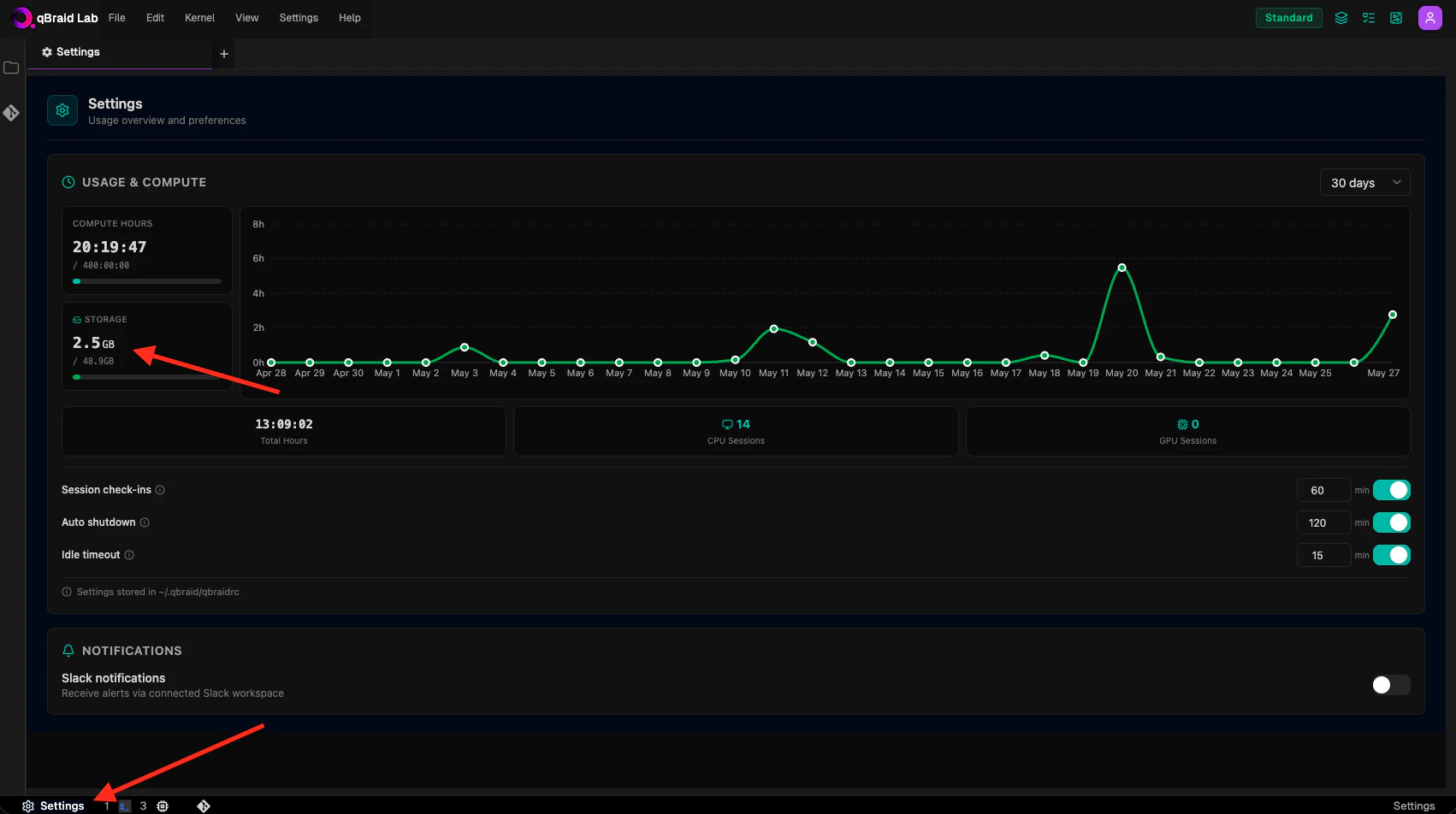
To check their current disk usage and quota from within qBraid Lab, users can use the [Settings](/v2/lab/user-guide/settings) extension on qBraid Lab.
### Exceeding Disk Usage Quotas
* If a user exceeds their allocated disk space, they will receive a notification prompting them to delete files to stay within their quota.
* If the user does not reduce their storage usage within the allotted time, their qBraid Lab session will be terminated.
* Upon logging back in, the user must reduce their disk usage before resuming services.
* This process will repeat until the user meets the disk usage quota.
### Disk Usage Management
Your installed qBraid Lab environments often occupy the most disk space. To free up space, consider uninstalling any environments you no longer use.
To analyze your disk usage in detail, open the Terminal and run the `gdu` command:
```bash theme={null}
gdu [flags] [directory_to_scan]
```
For more information on `gdu`, refer to the [official documentation](https://github.com/dundee/gdu).
Once you've identified large or unwanted files and directories, you can delete them using the `rm` command in the Terminal:
```bash theme={null}
rm -rf [directory_to_delete]
```
Alternatively, you can remove files and directories from the [File Browser](/v2/lab/user-guide/files) by right-clicking and selecting **Delete**.
## On-Demand Instance Billing
On-demand instances (GPUs and high-spec CPUs) are billed per minute in credits, separate from your subscription compute hours.
* **Running**: Charged a compute rate (credits/min) plus a small storage fee. Rates vary by instance type — see [pricing](/v2/home/pricing#gpu-instances).
* **Stopped**: Charged a storage-only fee (credits/min) to preserve your disk and files. Much smaller than the running rate.
* **Terminated**: No further charges. The instance and its disk are permanently deleted.
Your credit balance determines how many concurrent on-demand instances you can run (up to 5). See [On-Demand Instances](/v2/lab/user-guide/on-demand-instances#billing) for the full breakdown.
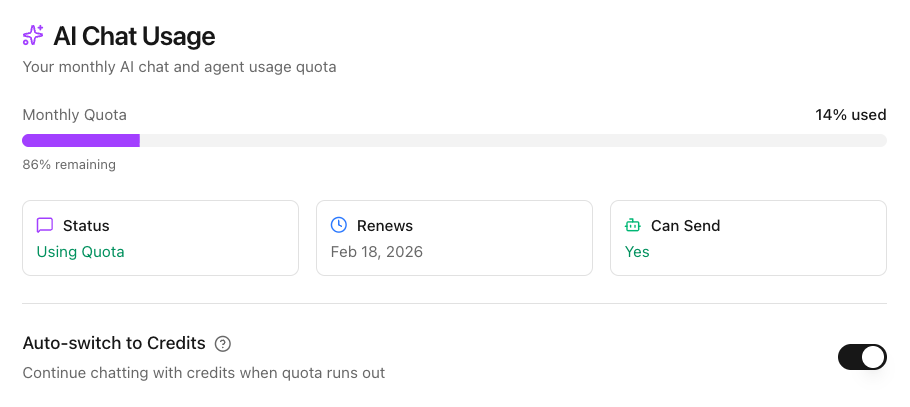
## AI Chat Usage
Each user receives a monthly quota for AI Chat prompts, which varies by subscription plan. This quota covers interactions with qBraid's AI assistant features.
**Auto-switch to Credits:**
Similar to compute hours, you can enable automatic credit consumption when your AI chat quota is exhausted:
1. Navigate to **Account > Usage > AI Chat Usage**
2. Enable the **Auto-switch to credits** option
3. Credits will be used for additional AI chat prompts once your quota is exhausted
This feature ensures continuous access to AI assistance throughout the month, even after your base quota is used.
## Monitoring Usage
All usage metrics can be monitored in real-time from your [account dashboard](https://account.qbraid.com/). Navigate to **Account > Usage** to view detailed breakdowns of your compute hours, disk storage, and AI chat consumption.