> ## Documentation Index
> Fetch the complete documentation index at: https://docs.qbraid.com/llms.txt
> Use this file to discover all available pages before exploring further.
# Qiskit Global Summer School
> Explore quantum computing with qBraid Lab at QGSS 2025.
## Welcome to the Qiskit Global Summer School 2025!
This year’s Qiskit Global Summer School (QGSS) is a 2-week, fully virtual event designed to guide students
through the evolution of quantum technologies.
In celebration of the *International Year of Quantum Science and Technology*, the 2025 program welcomes
participants of all backgrounds—whether you’re just starting your quantum journey or already an
experienced Qiskit user.
Week 1 focuses on the foundational topics in quantum such as quantum mechanics and algorithms while
week 2 introduces the current state of the art in quantum benchmarking, error correction and more. In addition to the
lectures, participants will have the opportunity to engage in hands-on labs and exercises, with topics ranging from noise mitigation to developing
fault-tolerant quantum programs.
Once again, qBraid is proud to support QGSS in collaboration with IBM.
All participants will have specialized access to [qBraid Lab](/v2/lab/user-guide/overview), where
you’ll find a seamless, pre-configured environment for all course materials and labs.
This guide will help you get started with your QGSS virtual environment on qBraid Lab and introduce
you to the tools and resources available to enhance your learning and software development experience.
## Getting Started - Launch qBraid Lab
* Login or create a free account at [account.qbraid.com](https://account.qbraid.com).
See also: [qBraid Accounts](/v2/account/overview)
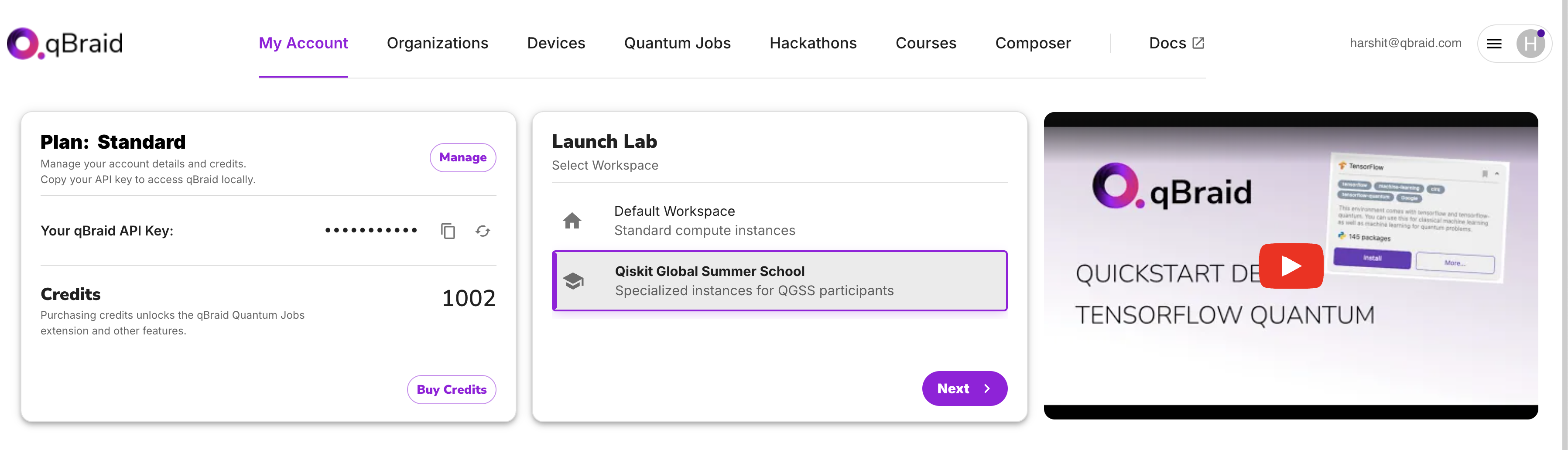
* Once you have logged in, select the **Qiskit Global Summer School** workspace option in the **Launch Lab** section -
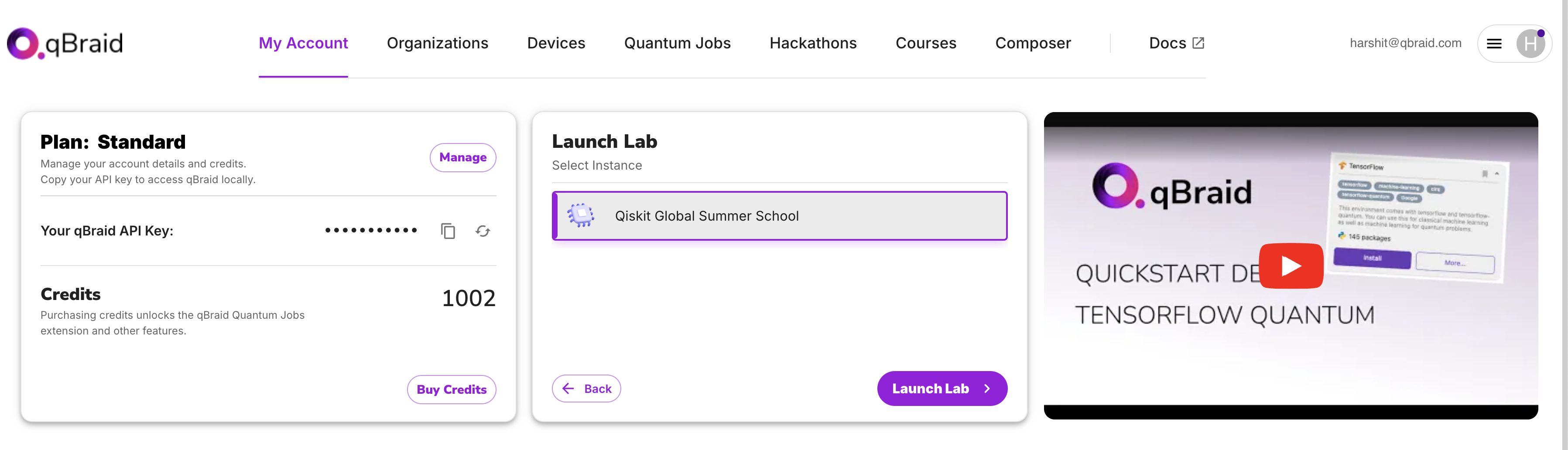
* Click on **Next** and then on the purple **Launch Lab** button to launch the qBraid Lab interface tailored for QGSS 2025 :
Pulling the image may take a couple of minutes the first time. The next time you launch Lab, it will load much more quickly.
See also: [Getting Started](/v2/lab/user-guide/getting-started)
## Creating and using notebooks
This year, we are providing a **default environment** for QGSS 2025 which will include all the necessary packages and tools right out of the box.
**You will not need to install any additional environments or packages** to get started with the QGSS labs.
This default kernel is designed to help you focus on learning and exploring quantum computing without worrying about setup.
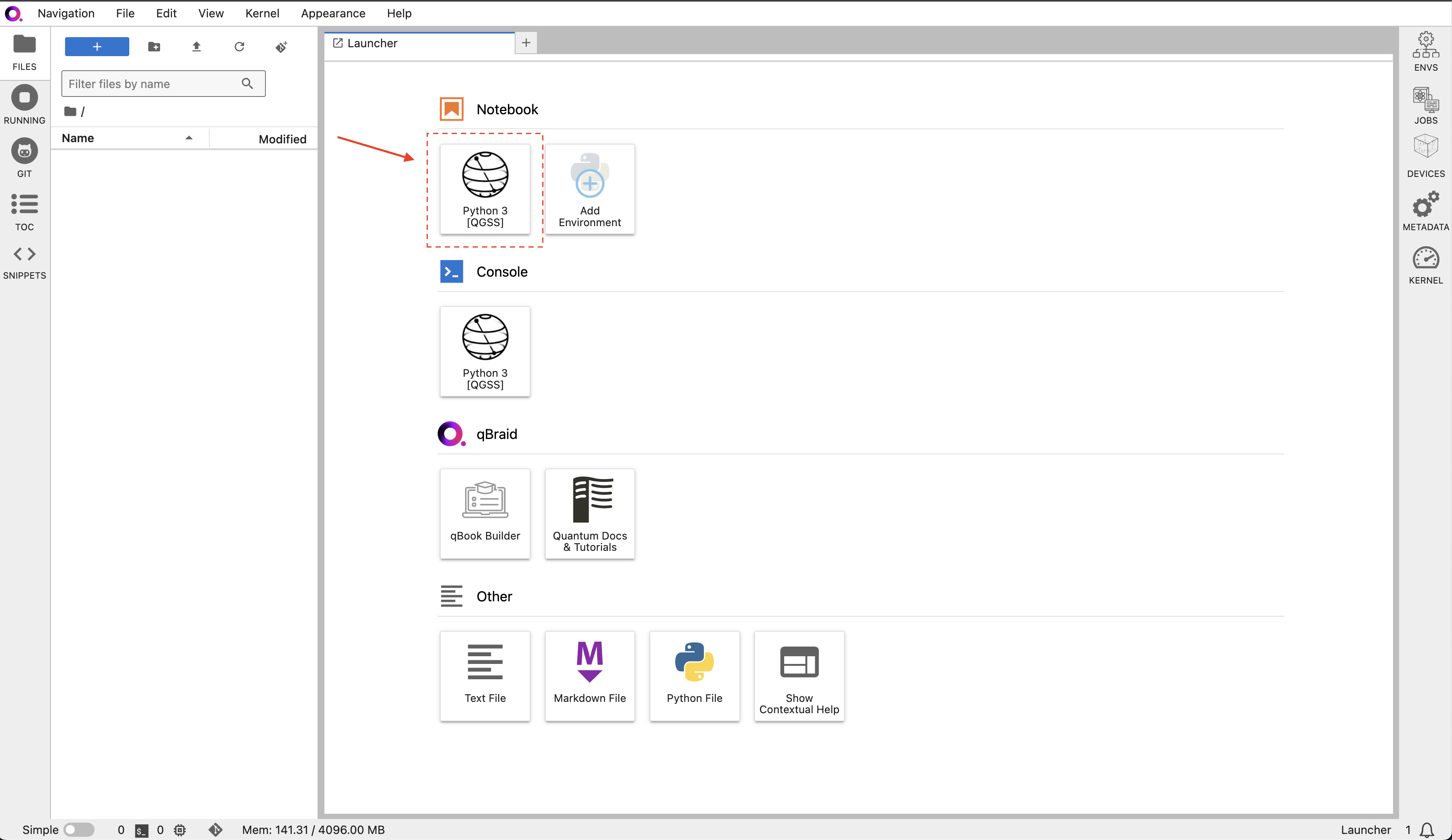
In your main Launcher tab, under **Notebooks**, click on the `Python 3 [QGSS]` kernel to create a Jupyter Notebook (`.ipynb` file) -
The Qiskit Global Summer School environment comes pre-configured with a range of software packages including `qiskit`, `qiskit-ibm-runtime`,
`qiskit-aer`, `qiskit-addon-sqd`, and more. However, if there are packages you would like use in
your notebooks that are not already included in the environment, you can install them from within a notebook using
[pip magic commands](https://ipython.readthedocs.io/en/stable/interactive/magics.html#magic-pip). Follow instructions below to learn how.
## Accessing QGSS Files
To access the QGSS files:
1. Visit the [IBM QGSS GitHub repository](https://github.com/qiskit-community/qgss-2025).
2. Click the **Launch on qBraid** button to automatically load the files into your qBraid environment.
You can also automatically clone the QGSS files on qBraid by [starting your QGSS server](#getting-started-launch-qbraid-lab) and
clicking on the button below -
[ ](https://account.qbraid.com/?gitHubUrl=https://github.com/qiskit-community/qgss-2025\&api=v2)
## Setting up IBM Quantum Credentials
The authentication process for IBM Quantum is essential to access IBM's quantum devices and simulators.
The step by step instructions for setting up your IBM Quantum credentials are provided in the [**Lab 0: Hello Quantum World!**](https://github.com/qiskit-community/qgss-2025/blob/4a6fa8943d4d021138c02e302d6ac949f734f50e/lab-0/lab0.ipynb).
Save your account to disk in qBraid Lab by running the following command in a notebook cell:
```python theme={null}
# Save your API key to track your progress and have access to the quantum computers
your_api_key = "deleteThisAndPasteYourAPIKeyHere"
your_crn = "deleteThisAndPasteYourCRNHere"
from qiskit_ibm_runtime import QiskitRuntimeService
QiskitRuntimeService.save_account(
channel="ibm_quantum_platform",
token=your_api_key,
instance=your_crn,
# Do not mention the name of the profile
)
```
Please ensure that you complete the above steps proceeding ahead. This
authentication is required to see your jobs in qBraid's Quantum Jobs Extension
## Viewing IBM Jobs in qBraid Lab
To view your IBM Quantum jobs:
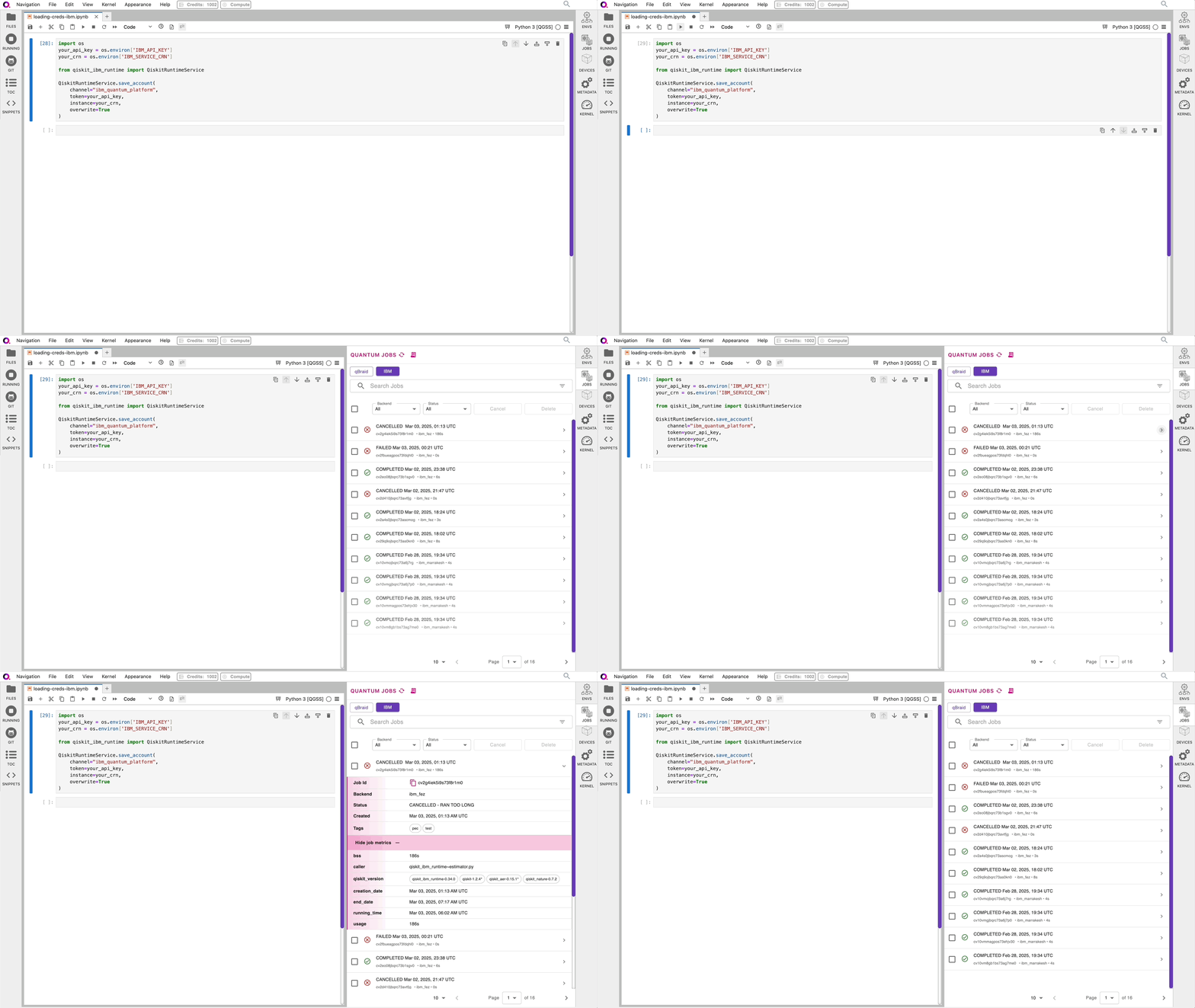
1. Open the **Quantum Jobs** extension in your qBraid Lab and select the **IBM** tab.
2. You will see a list of your submitted jobs along with their status. You can expand the jobs to see the details including
job IDs, execution time, and more -
](https://account.qbraid.com/?gitHubUrl=https://github.com/qiskit-community/qgss-2025\&api=v2)
## Setting up IBM Quantum Credentials
The authentication process for IBM Quantum is essential to access IBM's quantum devices and simulators.
The step by step instructions for setting up your IBM Quantum credentials are provided in the [**Lab 0: Hello Quantum World!**](https://github.com/qiskit-community/qgss-2025/blob/4a6fa8943d4d021138c02e302d6ac949f734f50e/lab-0/lab0.ipynb).
Save your account to disk in qBraid Lab by running the following command in a notebook cell:
```python theme={null}
# Save your API key to track your progress and have access to the quantum computers
your_api_key = "deleteThisAndPasteYourAPIKeyHere"
your_crn = "deleteThisAndPasteYourCRNHere"
from qiskit_ibm_runtime import QiskitRuntimeService
QiskitRuntimeService.save_account(
channel="ibm_quantum_platform",
token=your_api_key,
instance=your_crn,
# Do not mention the name of the profile
)
```
Please ensure that you complete the above steps proceeding ahead. This
authentication is required to see your jobs in qBraid's Quantum Jobs Extension
## Viewing IBM Jobs in qBraid Lab
To view your IBM Quantum jobs:
1. Open the **Quantum Jobs** extension in your qBraid Lab and select the **IBM** tab.
2. You will see a list of your submitted jobs along with their status. You can expand the jobs to see the details including
job IDs, execution time, and more -
## Installing new packages
From inside a notebook, you must run all pip commands using the “magic” `%` operator.
For example, to install a new package from within a notebook cell, use:
```python theme={null}
[ ] %pip install
```
WARNING: **Do not** use the `!` operator for pip install commands within
Jupyter notebooks on qBraid. Doing so will install packages at the
system-level, where they will *not* be discoverable by your current notebook
environment/kernel.
After installing any new packages directly from a notebook, you *must* restart the kernel to see the changes take effect.
You can also install new packages through the [qBraid
CLI](/v2/cli/user-guide/environments#install-package)
## Troubleshooting
### 1. IBM Jobs not showing up in the Quantum Jobs extension
* Ensure that you have set up your IBM Quantum credentials correctly by following the instructions in [Setting up IBM Quantum Credentials](#setting-up-ibm-quantum-credentials).
* If you have set up your credentials correctly and the jobs are still not showing up, **try refreshing** the Quantum Jobs extension by clicking on the refresh icon in the top right corner of the extension.
* If the issue persists, double check that you have **not mentioned the name of the profile** in the `save_account` method. The default profile name is detected by our extension and should be omitted. Use the `save_account`
method as shown in the [Setting up IBM Quantum Credentials](#setting-up-ibm-quantum-credentials) section. You can verify that the profile is saved correctly by running the following command in a notebook cell:
```python theme={null}
from qiskit_ibm_runtime import QiskitRuntimeService
QiskitRuntimeService.saved_accounts()
```
The output should be similar to:
```bash theme={null}
{ 'default-ibm-quantum-platform':
{'channel': 'ibm_quantum_platform',
'url': 'https://cloud.ibm.com',
'token': 'your_api_key_here',
'instance': 'your_crn_here',
'verify': True,
'private_endpoint': False
}
}
```
## Qiskit Global Summer School on qBook
If you are on mobile, have a slow internet connection, or are having any trouble with Lab, [qBook](https://qbook.qbraid.com) is an excellent alternative.
Simply login to your qBraid account, and go to [qbook.qbraid.com](https://qbook.qbraid.com). Click on the "IBM QGSS 2025" course. You will be able to view files, interact with resources, and even run code cells.
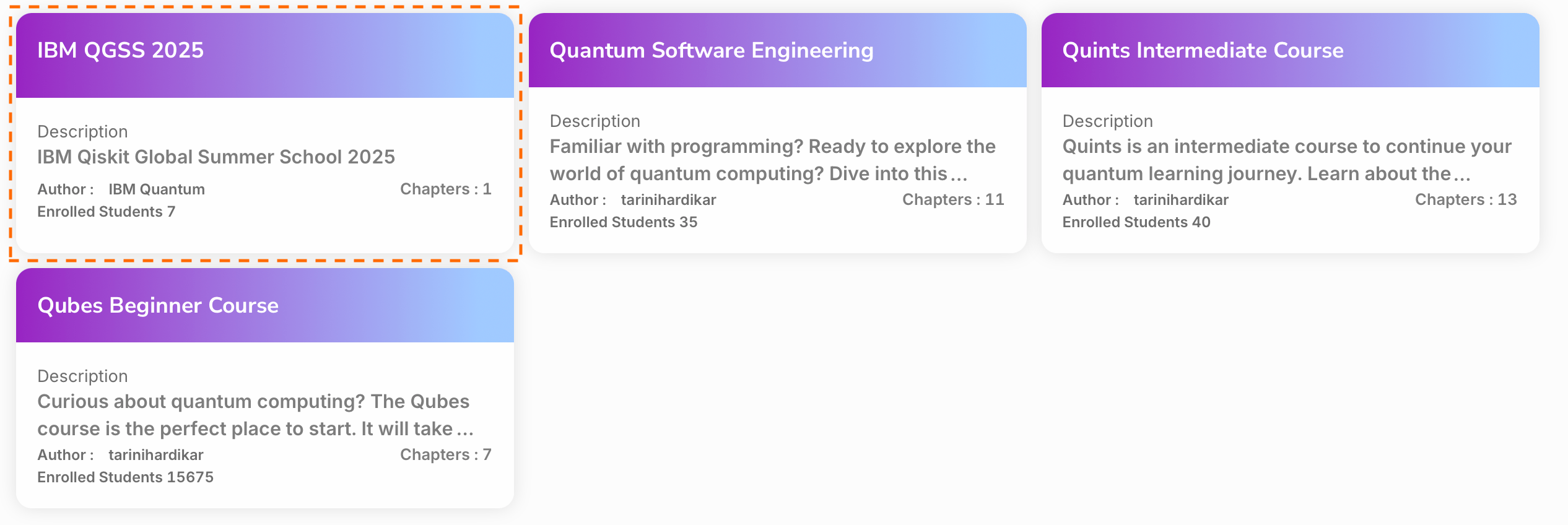 Note that QC grader will not necessarily be supported on qBook.
## Continued Support
qBraid is proud to offer comprehensive support for Qiskit Global Summer School 2025, and will be "on-call" throughout
the duration of the event to answer questions and troubleshoot issues, as necessary. You can get in touch with a qBraid
team member in the following ways:
* Email us at [contact@qbraid.com](mailto::contact@qbraid.com),
* Submit an issue on our [community page](https://github.com/qBraid/community/issues/new/choose).
* Connect with us on [Discord](https://discord.gg/TPBU2sa8Et)
Note that QC grader will not necessarily be supported on qBook.
## Continued Support
qBraid is proud to offer comprehensive support for Qiskit Global Summer School 2025, and will be "on-call" throughout
the duration of the event to answer questions and troubleshoot issues, as necessary. You can get in touch with a qBraid
team member in the following ways:
* Email us at [contact@qbraid.com](mailto::contact@qbraid.com),
* Submit an issue on our [community page](https://github.com/qBraid/community/issues/new/choose).
* Connect with us on [Discord](https://discord.gg/TPBU2sa8Et)