> ## Documentation Index
> Fetch the complete documentation index at: https://docs.qbraid.com/llms.txt
> Use this file to discover all available pages before exploring further.
# GPUs
The qBraid Lab GPU server is tailored for researchers and developers requiring enhanced computational capabilities. This high-performance Lab instance allows users to leverage GPUs for accelerated circuit simulation, to explore quantum machine learning applications with GPU-enabled quantum gradients, and more.
## Available GPU Configurations
qBraid offers a broad range of NVIDIA GPU instances spanning Blackwell, Hopper, Ampere, and Ada Lovelace architectures:
* **NVIDIA B200 (Blackwell)** — Available in 1x, 2x, 4x, and 8x configurations
* **NVIDIA H200, H100 (Hopper)** — Available up to 8x for large-scale workloads
* **NVIDIA GH200 (Grace Hopper)** — Unified CPU-GPU superchip
* **NVIDIA A100 (Ampere)** — Available up to 8x
* **NVIDIA L4, L40S, RTX 4090, RTX 5090, RTX 6000 Ada** — Cost-effective options for development and inference
Billing is in credits/minute with rates shown in your account launcher. See [GPU pricing](/v2/home/pricing#gpu-instances) for the full rate table.
## Launch a GPU Instance
From your [account dashboard](https://account.qbraid.com/dashboard), switch to the **On-Demand** tab. Each GPU profile shows its per-minute credit rate and a real-time availability indicator. Click **Launch** next to an available profile to start the instance.
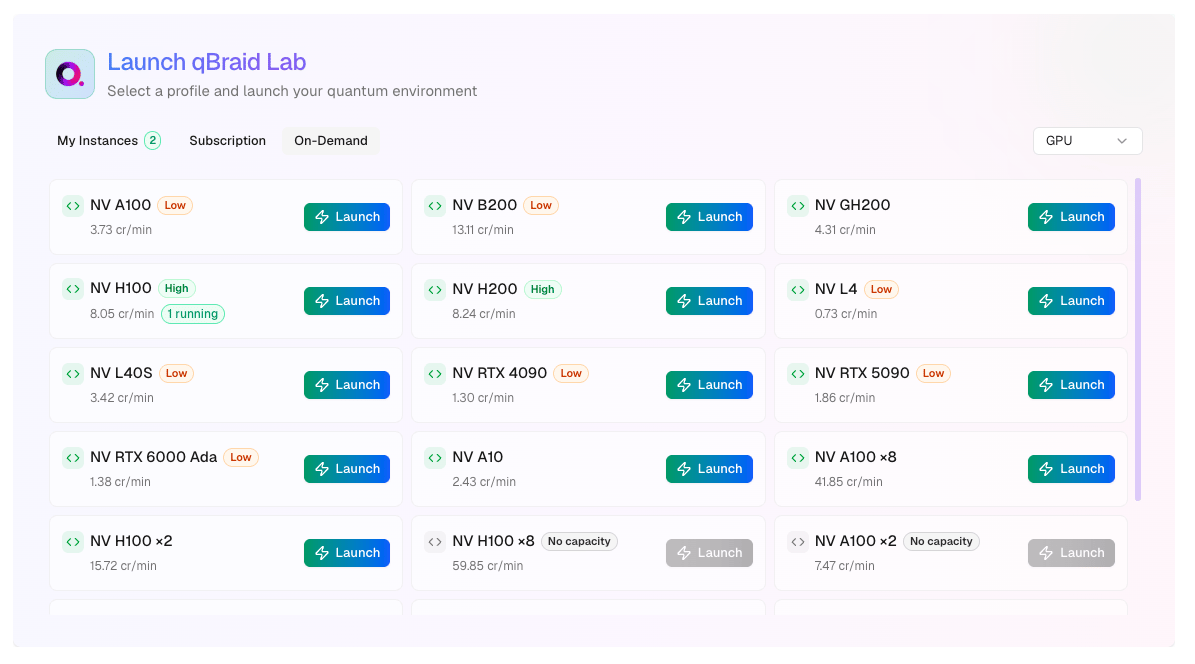 GPU instances may take a few minutes to provision as resources are allocated
on-demand.
Once the instance is running, you can open it in JupyterLab, VS Code, or connect via the built-in terminal — all from the browser. See [Accessing Your Instance](/v2/lab/user-guide/on-demand-instances#accessing-your-instance) for details.
## Managing GPU Instances
GPU instances are on-demand instances with full start, stop, and terminate support:
* **Stop** — Pauses billing for compute while preserving your disk and files. Resume anytime.
* **Terminate** — Permanently deletes the instance and its data. Stops all billing.
See [On-Demand Instances](/v2/lab/user-guide/on-demand-instances) for the complete lifecycle guide, including file persistence, billing details, and concurrent instance limits.
## GPU Utilities
Further information about your GPU hardware can be retrieved using the
[NVIDIA System Management Interface](https://developer.nvidia.com/nvidia-system-management-interface) (`nvidia-smi`) and
[NVIDIA CUDA Toolkit](https://developer.nvidia.com/cuda-toolkit) (`nvcc`) command line utilities.
Visit your [account page](https://account.qbraid.com/dashboard) to see the
full list of GPU options including real-time availability.
GPU instances may take a few minutes to provision as resources are allocated
on-demand.
Once the instance is running, you can open it in JupyterLab, VS Code, or connect via the built-in terminal — all from the browser. See [Accessing Your Instance](/v2/lab/user-guide/on-demand-instances#accessing-your-instance) for details.
## Managing GPU Instances
GPU instances are on-demand instances with full start, stop, and terminate support:
* **Stop** — Pauses billing for compute while preserving your disk and files. Resume anytime.
* **Terminate** — Permanently deletes the instance and its data. Stops all billing.
See [On-Demand Instances](/v2/lab/user-guide/on-demand-instances) for the complete lifecycle guide, including file persistence, billing details, and concurrent instance limits.
## GPU Utilities
Further information about your GPU hardware can be retrieved using the
[NVIDIA System Management Interface](https://developer.nvidia.com/nvidia-system-management-interface) (`nvidia-smi`) and
[NVIDIA CUDA Toolkit](https://developer.nvidia.com/cuda-toolkit) (`nvcc`) command line utilities.
Visit your [account page](https://account.qbraid.com/dashboard) to see the
full list of GPU options including real-time availability.
