> ## Documentation Index
> Fetch the complete documentation index at: https://docs.qbraid.com/llms.txt
> Use this file to discover all available pages before exploring further.
> ## Agent Instructions
> Prefer the qBraid CLI for programmatic platform actions: pip install 'qbraid-cli>=0.12', then run `qbraid configure` once with an API key from https://account.qbraid.com/account/api-keys.
> When writing Python, prefer the qBraid SDK: `from qbraid.runtime import QbraidProvider` wraps devices, job submission (`device.run()`), and batch groups (`GroupJobSession`).
> Always install the latest packages (pip install -U qbraid qbraid-cli); do not pin versions from memory. qbraid-cli below 0.12.0 is incompatible with the current API.
> Device IDs use the QRN format vendor:provider:type:name (e.g. qbraid:qbraid:sim:qir-sv, rigetti:rigetti:qpu:cepheus-1-108q). Legacy underscore IDs are deprecated.
> The REST API base URL is https://api-v2.qbraid.com/api/v1, authenticated with an X-API-Key header.
> For endpoints without a dedicated wrapper, use `QbraidSessionV1` from `qbraid_core` — an authenticated session (`.get()`/`.post()`) that sets the X-API-Key header. Full spec: https://docs.qbraid.com/openapi-v2.json
> Free simulators cost no credits; QPU and GPU jobs consume credits. Surface the estimated cost to the user before submitting a paid job.
> For account signup, API keys, credits, and end-to-end action recipes, see https://qbraid.com/llms.txt.
# Learn with qBook
> Find courses in Account and open chapters and sections in qBook.
The **Learn** page in qBraid Account lists the courses available to you. Course materials open in [qBook](https://qbook.qbraid.com).
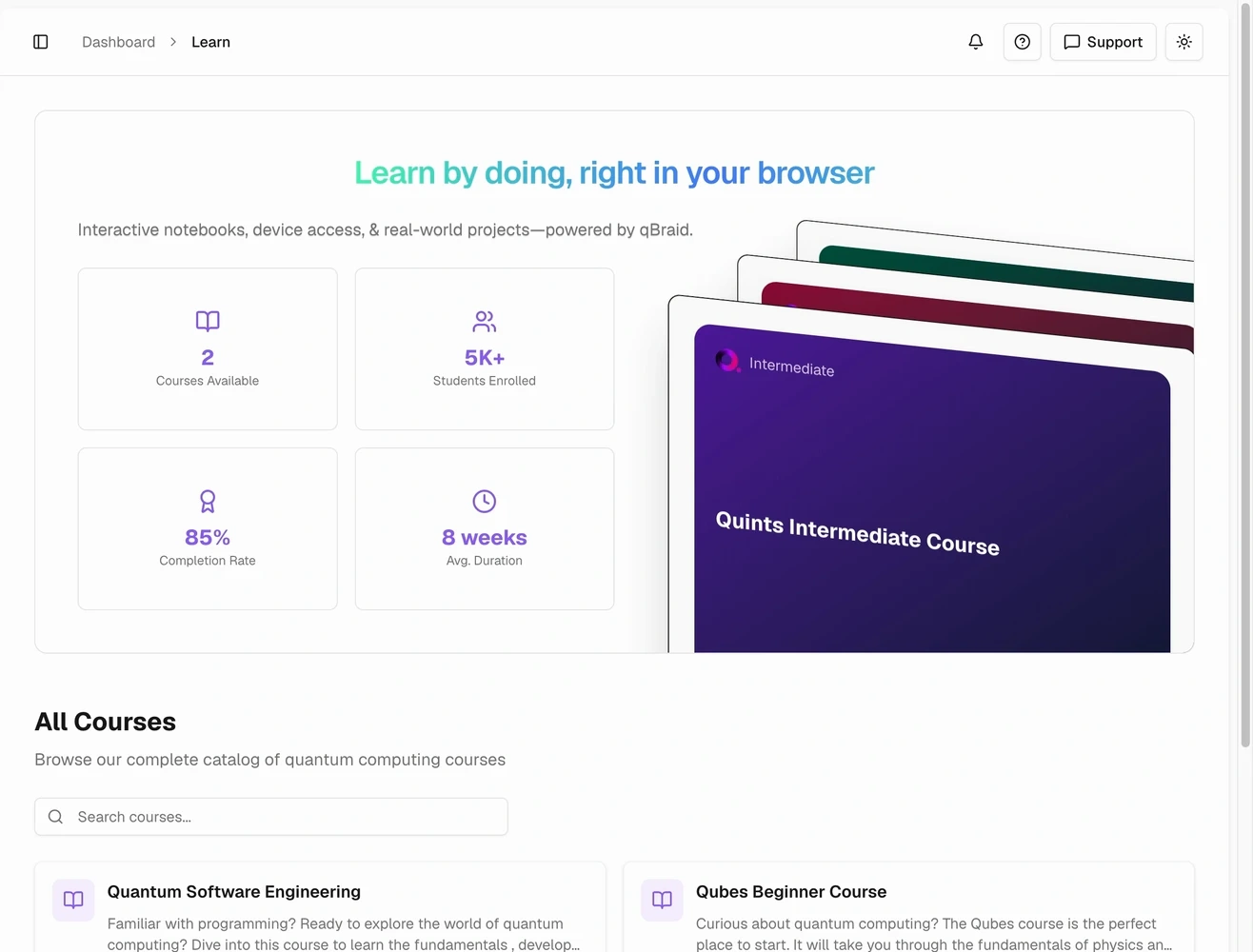 Use All Courses to search the available learning material.
## Open a course
1. Open [Learn](https://account.qbraid.com/learn).
2. Search by a word in the course title or description.
3. Open the course details to inspect its chapters, sections, instructor, and progress.
4. Select **Launch in qBook** to open the course in a new tab.
You can also open an available chapter or section directly from the course contents. A launch control is unavailable when that content does not have a valid launch target.
Course links carry the course's organization context so qBook can open the material in the correct organization. Use the same qBraid account that has access to the course.
## Resume your work
The course detail page shows progress returned by the course service. **Launch in qBook** opens a chapter with recorded progress when one is available, or the first chapter otherwise.
If the course list is empty, clear the search and check your account and organization access. If a request fails, use **Retry**. If a course cannot launch, return to its details or open qBook directly.
For standalone notebooks and experiments, see [qBraid Lab](https://docs.qbraid.com/v2/lab/user-guide/getting-started). For recommended quantum learning resources, use [AI Chat](https://docs.qbraid.com/v2/ai/user-guide/ai-chat).
Use All Courses to search the available learning material.
## Open a course
1. Open [Learn](https://account.qbraid.com/learn).
2. Search by a word in the course title or description.
3. Open the course details to inspect its chapters, sections, instructor, and progress.
4. Select **Launch in qBook** to open the course in a new tab.
You can also open an available chapter or section directly from the course contents. A launch control is unavailable when that content does not have a valid launch target.
Course links carry the course's organization context so qBook can open the material in the correct organization. Use the same qBraid account that has access to the course.
## Resume your work
The course detail page shows progress returned by the course service. **Launch in qBook** opens a chapter with recorded progress when one is available, or the first chapter otherwise.
If the course list is empty, clear the search and check your account and organization access. If a request fails, use **Retry**. If a course cannot launch, return to its details or open qBook directly.
For standalone notebooks and experiments, see [qBraid Lab](https://docs.qbraid.com/v2/lab/user-guide/getting-started). For recommended quantum learning resources, use [AI Chat](https://docs.qbraid.com/v2/ai/user-guide/ai-chat).