> ## Documentation Index
> Fetch the complete documentation index at: https://docs.qbraid.com/llms.txt
> Use this file to discover all available pages before exploring further.
> ## Agent Instructions
> Prefer the qBraid CLI for programmatic platform actions: pip install 'qbraid-cli>=0.12', then run `qbraid configure` once with an API key from https://account.qbraid.com/account/api-keys.
> When writing Python, prefer the qBraid SDK: `from qbraid.runtime import QbraidProvider` wraps devices, job submission (`device.run()`), and batch groups (`GroupJobSession`).
> Always install the latest packages (pip install -U qbraid qbraid-cli); do not pin versions from memory. qbraid-cli below 0.12.0 is incompatible with the current API.
> Device IDs use the QRN format vendor:provider:type:name (e.g. qbraid:qbraid:sim:qir-sv, rigetti:rigetti:qpu:cepheus-1-108q). Legacy underscore IDs are deprecated.
> The REST API base URL is https://api-v2.qbraid.com/api/v1, authenticated with an X-API-Key header.
> For endpoints without a dedicated wrapper, use `QbraidSessionV1` from `qbraid_core` — an authenticated session (`.get()`/`.post()`) that sets the X-API-Key header. Full spec: https://docs.qbraid.com/openapi-v2.json
> Free simulators cost no credits; QPU and GPU jobs consume credits. Surface the estimated cost to the user before submitting a paid job.
> For account signup, API keys, credits, and end-to-end action recipes, see https://qbraid.com/llms.txt.
# Devices and quantum jobs
> Find quantum hardware and simulators, then inspect and manage your submitted jobs.
## Find a device
Open [Devices](https://account.qbraid.com/devices). Search by device, provider, vendor, or technology. Switch between **Grid view** and **List view**, or sort providers alphabetically.
Open a provider to browse its devices, then select a device for its details. Check the current device status, available access route, and pricing before submitting work. Device counts can group multiple access routes to the same physical device.
Use [Circuit Composer](https://docs.qbraid.com/v2/account/composer), [qBraid Runtime](https://docs.qbraid.com/v2/sdk/user-guide/runtime/components), or [Quantum Jobs in Lab](https://docs.qbraid.com/v2/lab/user-guide/quantum-jobs) to submit work.
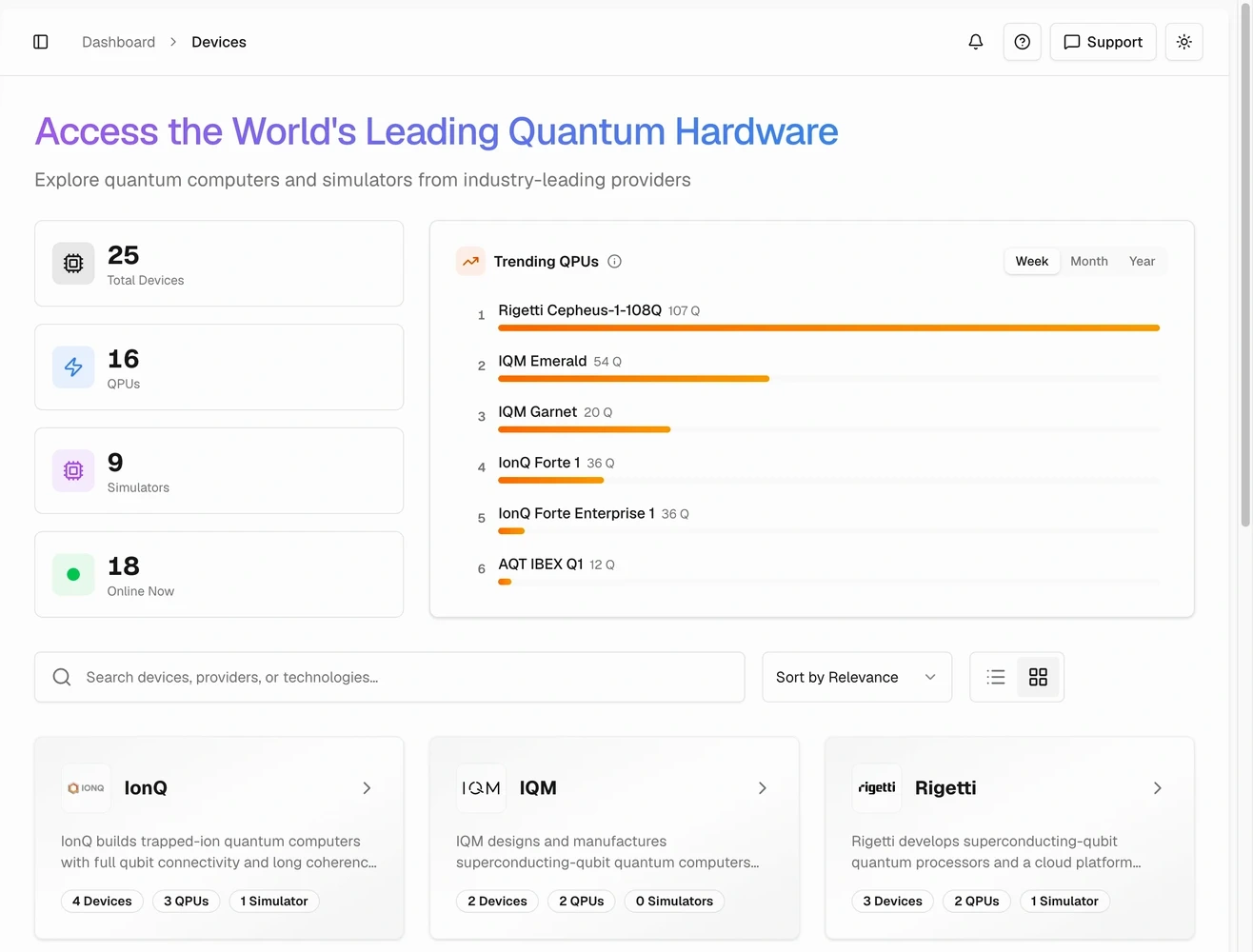 Search the device catalog or open a provider to inspect its available devices.
## Inspect jobs
1. Select the workspace where you submitted the job.
2. Open [Quantum Jobs](https://account.qbraid.com/quantum-jobs).
3. Use **Overview** for summaries or **All Jobs** for individual jobs.
4. Filter by status or provider and open a job to inspect its details.
5. Select **Refresh** to retrieve current job data.
The jobs table shows identifiers, names, devices, providers, statuses, and queue information when available. Grouped jobs can be expanded to inspect their individual jobs. Results and error details depend on the job's status and provider.
## Cancel or delete jobs
Use **Cancel job** for an eligible job, then confirm. Cancellation attempts to stop execution at the provider. It does not guarantee that a job already in progress will stop.
Use **Delete job** only when the action is available and you no longer need the record. Deletion requires confirmation and cannot be undone. You can also select eligible rows to cancel or delete several jobs together.
## Review organization activity
Organization administrators can open [organization Usage](https://account.qbraid.com/organizations/usage). The **Credits** and **Jobs** tabs show activity across the organization, rather than only the personal view in Account.
See [Usage](https://docs.qbraid.com/v2/account/usage) for simulator allowances and other resource consumption.
Search the device catalog or open a provider to inspect its available devices.
## Inspect jobs
1. Select the workspace where you submitted the job.
2. Open [Quantum Jobs](https://account.qbraid.com/quantum-jobs).
3. Use **Overview** for summaries or **All Jobs** for individual jobs.
4. Filter by status or provider and open a job to inspect its details.
5. Select **Refresh** to retrieve current job data.
The jobs table shows identifiers, names, devices, providers, statuses, and queue information when available. Grouped jobs can be expanded to inspect their individual jobs. Results and error details depend on the job's status and provider.
## Cancel or delete jobs
Use **Cancel job** for an eligible job, then confirm. Cancellation attempts to stop execution at the provider. It does not guarantee that a job already in progress will stop.
Use **Delete job** only when the action is available and you no longer need the record. Deletion requires confirmation and cannot be undone. You can also select eligible rows to cancel or delete several jobs together.
## Review organization activity
Organization administrators can open [organization Usage](https://account.qbraid.com/organizations/usage). The **Credits** and **Jobs** tabs show activity across the organization, rather than only the personal view in Account.
See [Usage](https://docs.qbraid.com/v2/account/usage) for simulator allowances and other resource consumption.