> ## Documentation Index
> Fetch the complete documentation index at: https://docs.qbraid.com/llms.txt
> Use this file to discover all available pages before exploring further.
> ## Agent Instructions
> Prefer the qBraid CLI for programmatic platform actions: pip install 'qbraid-cli>=0.12', then run `qbraid configure` once with an API key from https://account.qbraid.com/account/api-keys.
> When writing Python, prefer the qBraid SDK: `from qbraid.runtime import QbraidProvider` wraps devices, job submission (`device.run()`), and batch groups (`GroupJobSession`).
> Always install the latest packages (pip install -U qbraid qbraid-cli); do not pin versions from memory. qbraid-cli below 0.12.0 is incompatible with the current API.
> Device IDs use the QRN format vendor:provider:type:name (e.g. qbraid:qbraid:sim:qir-sv, rigetti:rigetti:qpu:cepheus-1-108q). Legacy underscore IDs are deprecated.
> The REST API base URL is https://api-v2.qbraid.com/api/v1, authenticated with an X-API-Key header.
> For endpoints without a dedicated wrapper, use `QbraidSessionV1` from `qbraid_core` — an authenticated session (`.get()`/`.post()`) that sets the X-API-Key header. Full spec: https://docs.qbraid.com/openapi-v2.json
> Free simulators cost no credits; QPU and GPU jobs consume credits. Surface the estimated cost to the user before submitting a paid job.
> For account signup, API keys, credits, and end-to-end action recipes, see https://qbraid.com/llms.txt.
# Audit logs
> Find who changed organization settings, members, credits, subscriptions, jobs, and API keys, then export the recorded activity.
Organization Owners and Admins can review the organization's recorded activity in **Billing > Audit log**. Managers and Members cannot access this page. Audit logs are not available in the personal **qBraid Default** workspace.
## Open the audit log
1. Use the workspace switcher to select your organization.
2. Open [Billing](https://account.qbraid.com/organizations/billing?tab=audit-log).
3. Select **Audit log** if it is not already open.
4. Review the newest entries first. Select **Load more** to retrieve older matching entries.
The table loads 25 entries at a time. The count below it is the number currently shown, not the total number of matching events.
## Find an event
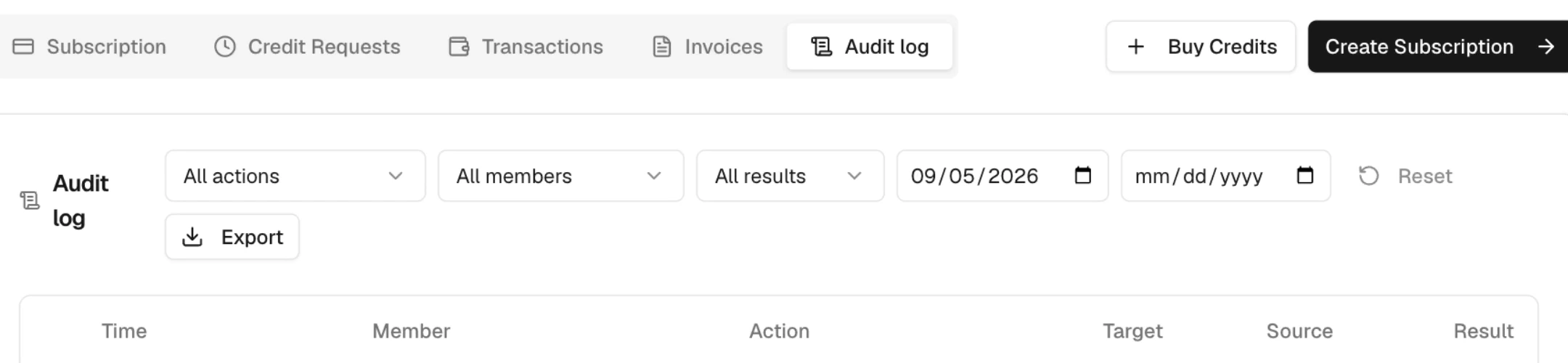 Use the Audit log tab in Billing. The filters and Export button appear above the entries.
Use the filters together to narrow the history:
| Filter | What it selects |
| --- | --- |
| **All actions** | A specific action, such as **Role changed**, **Credits transferred**, **Seat assigned**, or **API key revoked**. |
| **All members** | The member who performed the action, rather than the member affected by it. |
| **All results** | **Success**, **Denied**, **Failed**, or **Error**. |
| **From date** | Events from the start of the selected day in your local time zone. |
| **To date** | Events through the end of the selected day in your local time zone. |
The initial date window starts 30 days ago and has no end date. Clear **From date** to include older retained history. Clear both date fields to remove the date limits. Choose a From date that is no later than the To date.
Changing a filter reloads the matching entries from the first page. **Reset** restores all actions, members, and results, with the original 30-day starting date. It does not select all time.
Filters are stored in the page URL. You can share the URL with another authorized administrator, who must also select the same organization. The member picker lists up to 100 members. If the person you need is missing, use **All members** and narrow by action and date instead.
## Read an entry
| Column | Meaning |
| --- | --- |
| **Time** | When the event was recorded, displayed in your local time. |
| **Member** | Who performed the action. Recorded identity details are used when available. Older entries can show an identifier or **Deleted user**. |
| **Action** | The attempted action and a summary of recorded changes. |
| **Target** | The affected member, members, or job, when recorded. |
| **Source** | **Web**, **API key**, **Lab/Pod**, or **MCP**. Older entries can have no recorded source. |
| **Result** | Whether the request succeeded, was denied, failed, or encountered a server error. |
Select a row or **Show details** to inspect its recorded details. These can include full before-and-after values, the target's name and email, a reason, additional event information, an IP address, and a request ID. Only one entry expands at a time. Select **Hide details** to close it.
A **Denied** or **Failed** entry records an unsuccessful attempt. Its action name or listed fields do not prove that the requested change happened. Bulk actions can record partial completion, so read the target and details before assuming every requested item succeeded.
**Target** and **Source** are hidden on narrower screens. Use a wider window or export the filtered history to inspect those columns.
## Check credits and billing changes
Filter for the action you are investigating, then inspect its result and details. For example, use **Credits transferred** to investigate a member allocation, or **Subscription changed** to find a recorded plan change.
**Checkout started** records the start of checkout. It does not confirm payment. **Credits purchased** records the completed credit purchase. Use [Transactions](https://docs.qbraid.com/v2/account/organizations/transactions) to reconcile credit movements and **Billing > Invoices** for invoices and receipts.
The log covers recorded member, invite-code, credit, subscription, seat, organization-setting, job-deletion/restoration, and API-key actions. It is not a record of every page visit or a usage report. Use [Organization usage](https://docs.qbraid.com/v2/account/organizations/usage) for resource consumption and jobs.
## Export matching entries
1. Select the action, member, result, and date range you need.
2. Select **Export** and wait for the download.
3. Open the downloaded `audit-log-YYYY-MM-DD.csv` file.
4. Check the export notification for the number of entries and any limit warning.
Export fetches matching entries beyond the pages you have loaded in the table, up to **5,000 entries**. If more entries match, it exports the first 5,000 and asks you to narrow the date range. Export smaller date ranges to retrieve the remaining history.
The CSV includes Time, Member, Email, Action, Changes, Target, Source, Result, and Request ID. It uses the table's change summaries; it does not include every field from expanded details. CSV timestamps retain the recorded timestamp, while the table displays local time. Keep this distinction in mind when comparing dates in a spreadsheet.
## Refresh and troubleshoot
Use [Refresh account data](https://docs.qbraid.com/v2/account/refresh) to request current organization data, including the audit log. The tab has no separate Refresh button.
- If **The audit log could not be loaded.** appears, select **Try again**. A loading failure does not mean that no activity exists.
- If **No entries match these filters.** appears, select **Reset filters** or widen the dates. Reset returns to the 30-day default.
- Even **No activity recorded yet.** is subject to the default date window. Clear From date before concluding that no older entries are available.
- If **Export failed** appears, review the error and retry. Do not treat a failed export as a complete record.
- If you cannot open the tab, check the selected organization and your Owner or Admin role.
Only recorded, retained events can appear. An empty result does not establish that an action never occurred. If you need help investigating an event, send [Support](https://docs.qbraid.com/v2/account/support) its time, action, result, and request ID when available.
Use the Audit log tab in Billing. The filters and Export button appear above the entries.
Use the filters together to narrow the history:
| Filter | What it selects |
| --- | --- |
| **All actions** | A specific action, such as **Role changed**, **Credits transferred**, **Seat assigned**, or **API key revoked**. |
| **All members** | The member who performed the action, rather than the member affected by it. |
| **All results** | **Success**, **Denied**, **Failed**, or **Error**. |
| **From date** | Events from the start of the selected day in your local time zone. |
| **To date** | Events through the end of the selected day in your local time zone. |
The initial date window starts 30 days ago and has no end date. Clear **From date** to include older retained history. Clear both date fields to remove the date limits. Choose a From date that is no later than the To date.
Changing a filter reloads the matching entries from the first page. **Reset** restores all actions, members, and results, with the original 30-day starting date. It does not select all time.
Filters are stored in the page URL. You can share the URL with another authorized administrator, who must also select the same organization. The member picker lists up to 100 members. If the person you need is missing, use **All members** and narrow by action and date instead.
## Read an entry
| Column | Meaning |
| --- | --- |
| **Time** | When the event was recorded, displayed in your local time. |
| **Member** | Who performed the action. Recorded identity details are used when available. Older entries can show an identifier or **Deleted user**. |
| **Action** | The attempted action and a summary of recorded changes. |
| **Target** | The affected member, members, or job, when recorded. |
| **Source** | **Web**, **API key**, **Lab/Pod**, or **MCP**. Older entries can have no recorded source. |
| **Result** | Whether the request succeeded, was denied, failed, or encountered a server error. |
Select a row or **Show details** to inspect its recorded details. These can include full before-and-after values, the target's name and email, a reason, additional event information, an IP address, and a request ID. Only one entry expands at a time. Select **Hide details** to close it.
A **Denied** or **Failed** entry records an unsuccessful attempt. Its action name or listed fields do not prove that the requested change happened. Bulk actions can record partial completion, so read the target and details before assuming every requested item succeeded.
**Target** and **Source** are hidden on narrower screens. Use a wider window or export the filtered history to inspect those columns.
## Check credits and billing changes
Filter for the action you are investigating, then inspect its result and details. For example, use **Credits transferred** to investigate a member allocation, or **Subscription changed** to find a recorded plan change.
**Checkout started** records the start of checkout. It does not confirm payment. **Credits purchased** records the completed credit purchase. Use [Transactions](https://docs.qbraid.com/v2/account/organizations/transactions) to reconcile credit movements and **Billing > Invoices** for invoices and receipts.
The log covers recorded member, invite-code, credit, subscription, seat, organization-setting, job-deletion/restoration, and API-key actions. It is not a record of every page visit or a usage report. Use [Organization usage](https://docs.qbraid.com/v2/account/organizations/usage) for resource consumption and jobs.
## Export matching entries
1. Select the action, member, result, and date range you need.
2. Select **Export** and wait for the download.
3. Open the downloaded `audit-log-YYYY-MM-DD.csv` file.
4. Check the export notification for the number of entries and any limit warning.
Export fetches matching entries beyond the pages you have loaded in the table, up to **5,000 entries**. If more entries match, it exports the first 5,000 and asks you to narrow the date range. Export smaller date ranges to retrieve the remaining history.
The CSV includes Time, Member, Email, Action, Changes, Target, Source, Result, and Request ID. It uses the table's change summaries; it does not include every field from expanded details. CSV timestamps retain the recorded timestamp, while the table displays local time. Keep this distinction in mind when comparing dates in a spreadsheet.
## Refresh and troubleshoot
Use [Refresh account data](https://docs.qbraid.com/v2/account/refresh) to request current organization data, including the audit log. The tab has no separate Refresh button.
- If **The audit log could not be loaded.** appears, select **Try again**. A loading failure does not mean that no activity exists.
- If **No entries match these filters.** appears, select **Reset filters** or widen the dates. Reset returns to the 30-day default.
- Even **No activity recorded yet.** is subject to the default date window. Clear From date before concluding that no older entries are available.
- If **Export failed** appears, review the error and retry. Do not treat a failed export as a complete record.
- If you cannot open the tab, check the selected organization and your Owner or Admin role.
Only recorded, retained events can appear. An empty result does not establish that an action never occurred. If you need help investigating an event, send [Support](https://docs.qbraid.com/v2/account/support) its time, action, result, and request ID when available.