> ## Documentation Index
> Fetch the complete documentation index at: https://docs.qbraid.com/llms.txt
> Use this file to discover all available pages before exploring further.
# OpenQuantum
> Connect your OpenQuantum account to qBraid to run quantum jobs on your own OpenQuantum credits.
The OpenQuantum integration lets you run quantum jobs on OpenQuantum devices through qBraid, paid for with your own [OpenQuantum](https://www.openquantum.com/) credits. OpenQuantum devices can only be billed to OpenQuantum credits, so you need to connect your OpenQuantum account before you can run jobs on them.
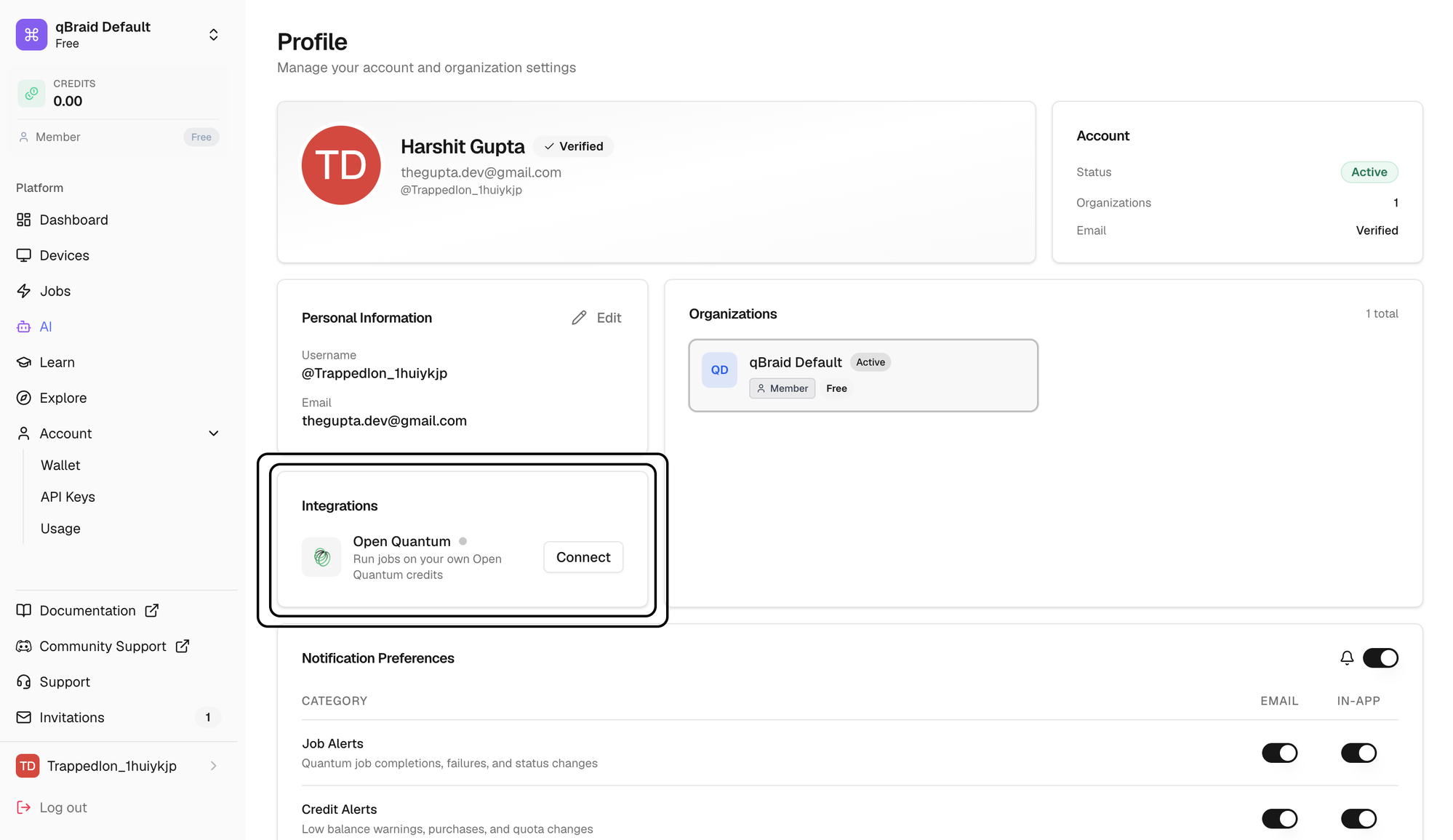
You manage the connection from the **Integrations** tile on your [Profile page](https://account.qbraid.com/account/profile).
 You need an [OpenQuantum](https://www.openquantum.com/) account before you can
connect. It doesn't have to match the email you use for qBraid, any
OpenQuantum account works.
## Create your OpenQuantum account
Set up OpenQuantum first, so the account exists when you connect it to qBraid.
Open [openquantum.com](https://www.openquantum.com/).
Sign up for an OpenQuantum account. Google sign-in is supported.
Complete any remaining onboarding steps on the OpenQuantum side.
## Connect OpenQuantum to qBraid
Go to [account.qbraid.com](https://account.qbraid.com/) and sign in.
Click your name and avatar at the bottom of the sidebar, or use **Account >
Profile**.
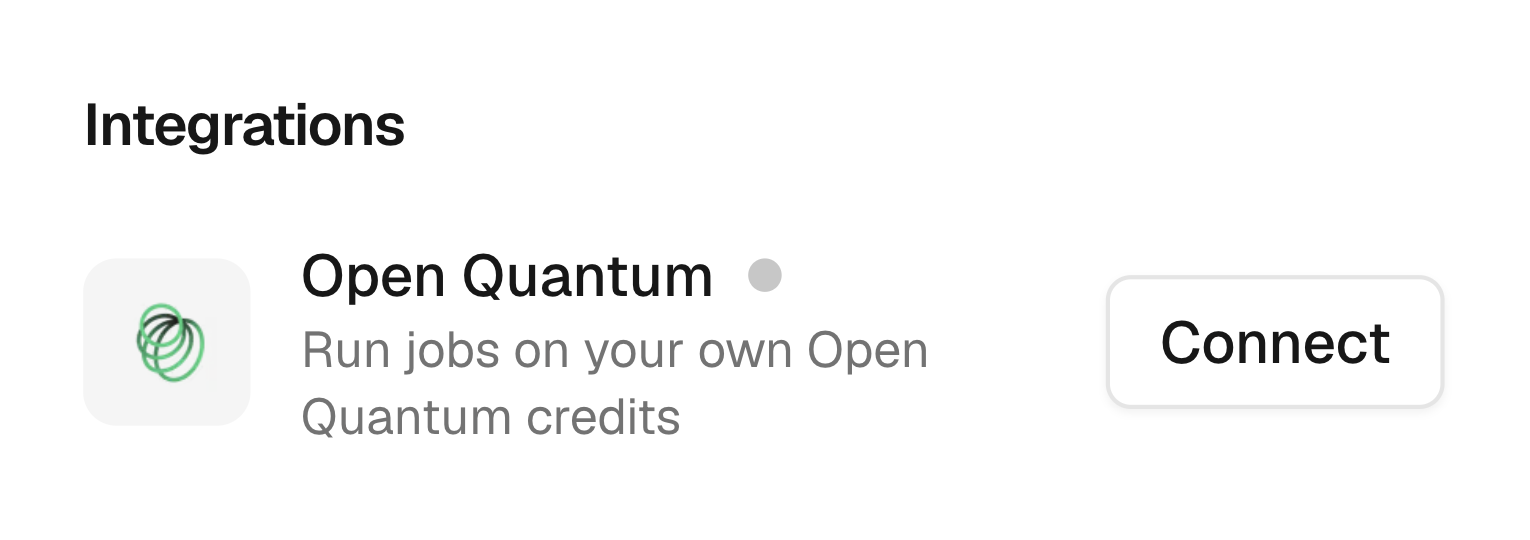
Scroll down to the **Integrations** tile, below Personal Information. A grey
dot next to **Open Quantum** means it isn't connected yet.
This opens the OpenQuantum authentication window.
Sign in with your OpenQuantum account. The window closes automatically once
you're authenticated.
## Confirm the connection
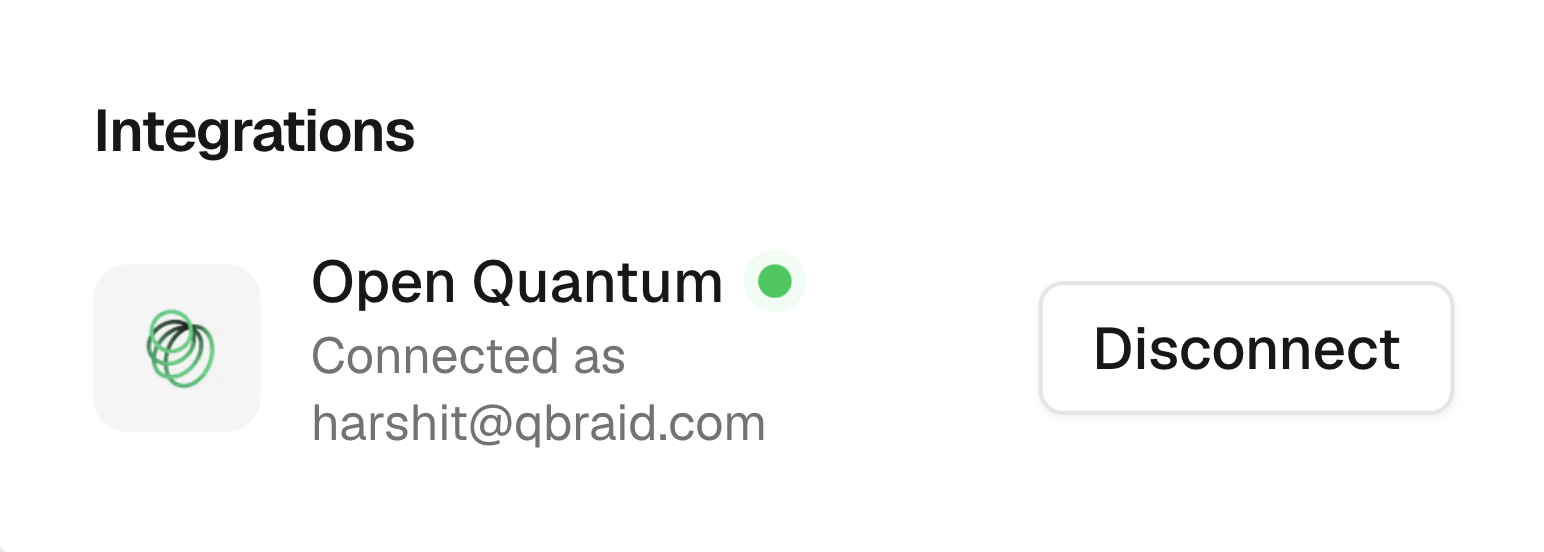
Back on the Profile page, the **Open Quantum** entry now shows a green
**Connected** dot along with the account you're connected as. That's it, jobs
submitted to OpenQuantum devices will now run on your OpenQuantum credits.
## Disconnect OpenQuantum
To end the integration, open the **Integrations** tile and click **Disconnect**
next to **Open Quantum**. Once disconnected, you can no longer run jobs on
OpenQuantum devices until you connect again, since those jobs can only be paid
for with your OpenQuantum credits.
## Troubleshooting
Open the **Integrations** tile and confirm **Open Quantum** shows a green
**Connected** dot. If it's grey, click **Connect** and finish signing in on
the OpenQuantum side. Also check that your OpenQuantum account has credits
available.
Check that your browser isn't blocking pop-ups for `account.qbraid.com`,
then try again.
Reach out from the **Support** link in the sidebar and we'll take a look at
your job history.
You need an [OpenQuantum](https://www.openquantum.com/) account before you can
connect. It doesn't have to match the email you use for qBraid, any
OpenQuantum account works.
## Create your OpenQuantum account
Set up OpenQuantum first, so the account exists when you connect it to qBraid.
Open [openquantum.com](https://www.openquantum.com/).
Sign up for an OpenQuantum account. Google sign-in is supported.
Complete any remaining onboarding steps on the OpenQuantum side.
## Connect OpenQuantum to qBraid
Go to [account.qbraid.com](https://account.qbraid.com/) and sign in.
Click your name and avatar at the bottom of the sidebar, or use **Account >
Profile**.
Scroll down to the **Integrations** tile, below Personal Information. A grey
dot next to **Open Quantum** means it isn't connected yet.
This opens the OpenQuantum authentication window.
Sign in with your OpenQuantum account. The window closes automatically once
you're authenticated.
## Confirm the connection
Back on the Profile page, the **Open Quantum** entry now shows a green
**Connected** dot along with the account you're connected as. That's it, jobs
submitted to OpenQuantum devices will now run on your OpenQuantum credits.
## Disconnect OpenQuantum
To end the integration, open the **Integrations** tile and click **Disconnect**
next to **Open Quantum**. Once disconnected, you can no longer run jobs on
OpenQuantum devices until you connect again, since those jobs can only be paid
for with your OpenQuantum credits.
## Troubleshooting
Open the **Integrations** tile and confirm **Open Quantum** shows a green
**Connected** dot. If it's grey, click **Connect** and finish signing in on
the OpenQuantum side. Also check that your OpenQuantum account has credits
available.
Check that your browser isn't blocking pop-ups for `account.qbraid.com`,
then try again.
Reach out from the **Support** link in the sidebar and we'll take a look at
your job history.